What is the stock count sheet form template?
Paper count sheets get smudged, lost between the warehouse and the office, and are hard to read at the end of a long count. When the numbers don't match the system, it's also hard to tell who counted which area, whether stock was moving at the time, or whether anything was recounted.
This template records the count and its context together: who counted, where, what type of count it was, whether it was blind, and whether stock movements were stopped. Counters enter item lines with quantities, add further lines in bulk or upload a sheet or scanner export, then note variances, recounts and damaged stock before signing.
Each count is saved as a PDF in your FileIt vault, giving you a signed record for each area and date — useful when you reconcile stock or when your accountant asks how the year-end figure was arrived at.
- Best for
- Warehouses, shops, stock rooms and anyone running regular stock counts
- Filled in by
- The person counting, with an optional supervisor check
- Time to complete
- Depends on the count — the form itself takes a few minutes
- Includes
- Six item lines, bulk lines box, count sheet upload, variance and damaged stock questions, two signatures
Who uses a stock count sheet form?
- A warehouse running weekly cycle counts by aisle
- A retail shop doing a year-end stocktake
- A spot check after a suspected picking error
- A recount of lines that didn't match the system
- A restaurant or bar counting stock at the end of each month
- A maintenance store counting spare parts
Questions on this stock count sheet form
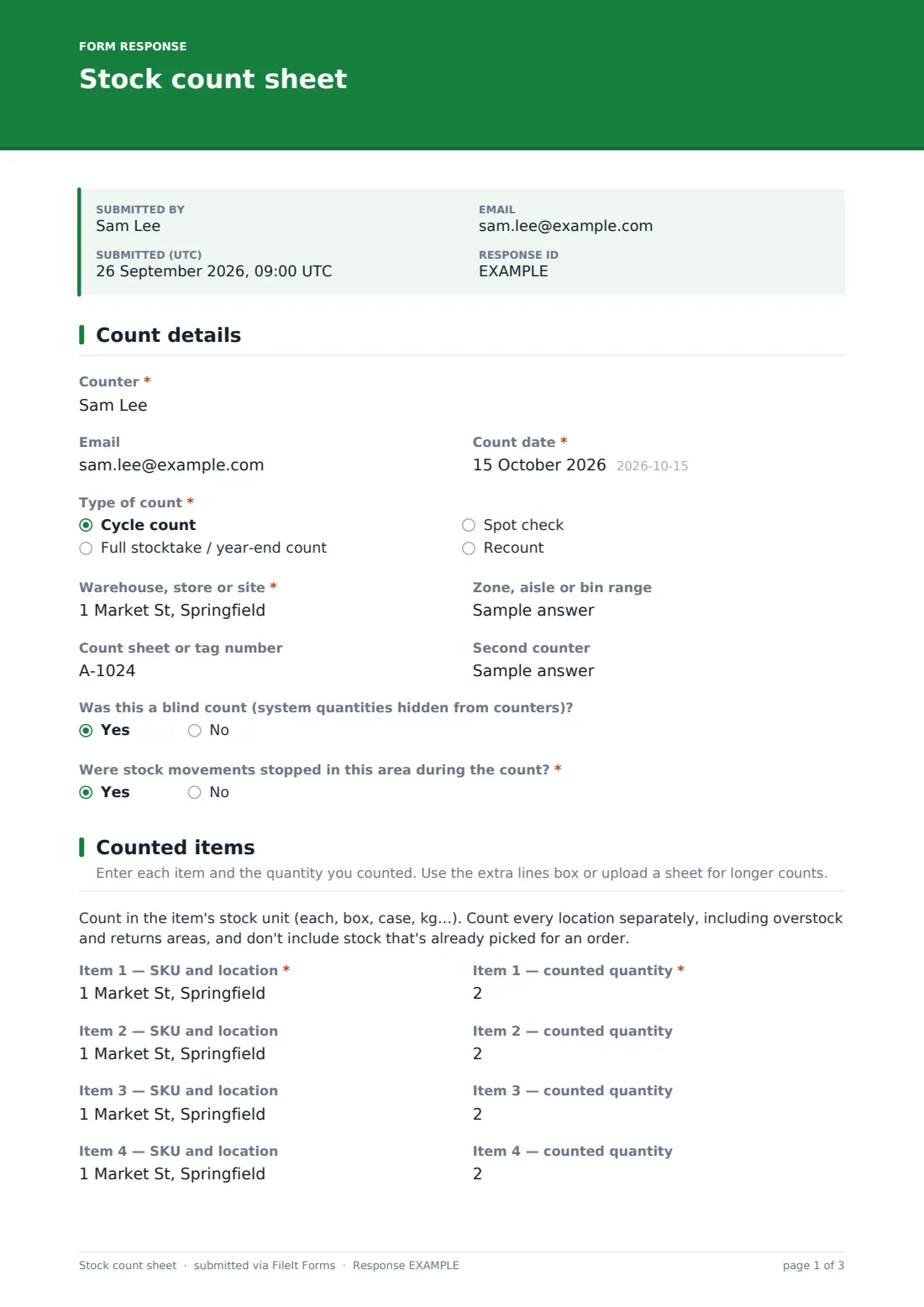
34 questions over 3 pages · includes signature, file upload, conditional questions, multiple pages.
1 Count details
- Counter*
- Count date*
- Type of count* Cycle count · Full stocktake / year-end count · Spot check · Recount
- Warehouse, store or site*
- Zone, aisle or bin range
- Count sheet or tag number
- Second counter
- Was this a blind count (system quantities hidden from counters)?
- Were stock movements stopped in this area during the count?*
- Receipts, picks or moves made during the count* asked only when it applies
2 Counted items
- Item 1 — SKU and location*
- Item 1 — counted quantity*
- Item 2 — SKU and location
- Item 2 — counted quantity
- Item 3 — SKU and location
- Item 3 — counted quantity
- Item 4 — SKU and location
- Item 4 — counted quantity
- Item 5 — SKU and location
- Item 5 — counted quantity
- Item 6 — SKU and location
- Item 6 — counted quantity
- More lines
- Count sheet or scanner export
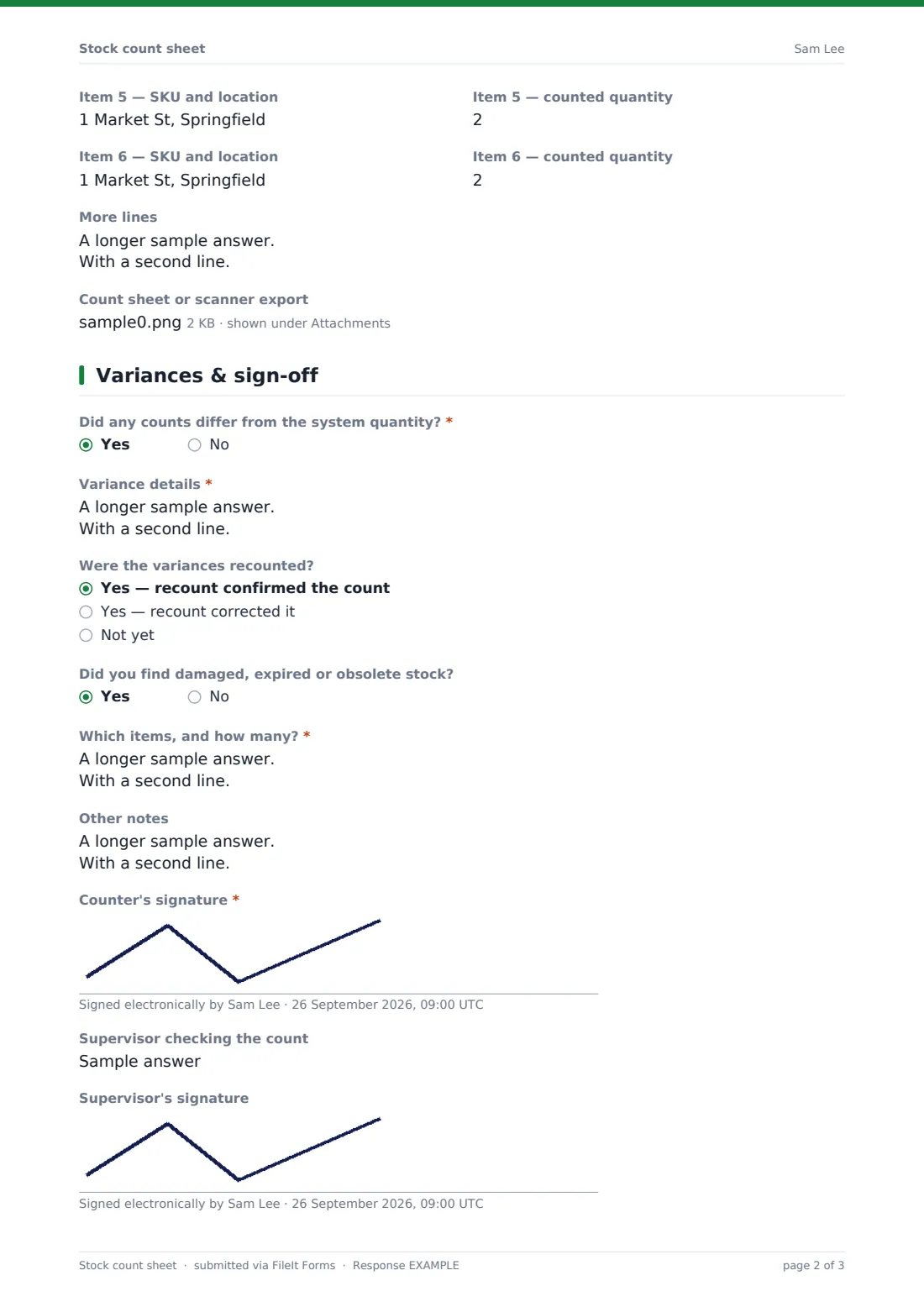
3 Variances & sign-off
- Did any counts differ from the system quantity?*
- Variance details* asked only when it applies
- Were the variances recounted? asked only when it applies Yes — recount confirmed the count · Yes — recount corrected it · Not yet
- Did you find damaged, expired or obsolete stock?
- Which items, and how many?* asked only when it applies
- Other notes
- Counter's signature*
- Supervisor checking the count
- Supervisor's signature
The stock count sheet form, page by page
1 Count details
The counter gives their name and the count date, then picks the type of count: cycle count, full stocktake or year-end count, spot check, or recount. They record the warehouse or site, the zone or bin range, the count sheet or tag number and any second counter.
Two questions give context to the numbers: whether it was a blind count, and whether stock movements were stopped during the count. If they weren't, a required box asks for any receipts, picks or moves made while counting, so they can be reconciled.
2 Counted items
A short note reminds counters to count in the stock unit, count every location separately and leave out stock already picked for orders. Six pairs of fields take an item's SKU and location alongside its counted quantity — the first pair is required.
Longer counts go in the More lines box, one line per item, or as an upload of the paper sheet or a spreadsheet or scanner export.
3 Variances & sign-off
Counters say whether any counts differed from the system quantity. If so, they describe each variance and whether it was recounted and confirmed or corrected. A separate question covers damaged, expired or obsolete stock. After any other notes, the counter signs and a supervisor can add their name and signature to show the count was checked.
Make the template yours
- Add more item lines if your counts are usually longer, or remove them if everyone uploads a sheet
- Add a unit of measure dropdown next to each quantity
- Replace the location field with a dropdown of your warehouses or stores
- Make the supervisor signature required for year-end counts
- Add your stock controller to the notification emails
- Change the count rules paragraph to match your own counting procedure
Tips for a better stock count sheet form
- Stop stock movements in the count area whenever you can — it removes most variances before they start
- Use blind counts for high-value items so counters aren't influenced by the system figure
- Recount large variances before adjusting stock
- Count one location at a time and finish it before moving on
- Keep the uploaded paper sheet — it's the original record if a figure is questioned
- Investigate repeated variances on the same item; they often point to a process problem
Every response becomes a PDF in your vault
Each count is saved as a signed PDF in your vault, with any uploaded sheets attached, and the form owner is emailed. Counters can get a copy of what they submitted.
The Responses table lets you see every count by date and location and export the answers to CSV for reconciliation. FileIt doesn't update your inventory system, so stock adjustments are made in your own system after the variances are reviewed.
- Start from this template. It opens in the FileIt Forms designer — change any question, add pages, set the rules for when questions appear.
- Share it. Turn on a public link, or send it to people by email, each with their own link. They don’t need a FileIt account.
- Get the answers as PDFs. Each response is saved as a PDF in the vault folder you choose, with uploaded files attached — and listed in a Responses table you can export to CSV.
Stock count sheet form: frequently asked questions
Is this stock count template free?
Yes. It's included in the FileIt Forms app on every account, including the free plan.
Does the form update our inventory system?
No. It records and files the count. Your team makes any stock adjustments in your own inventory system.
What if we're counting hundreds of items?
Use the More lines box — one item per line — or upload a count sheet or scanner export as a spreadsheet, PDF or photo.
Can two people count the same area?
Yes. There's a field for the second counter, and a question recording whether the count was blind.
Can a supervisor sign off the count?
Yes. There's an optional supervisor name and signature at the end. You can make it required in the designer.
Can we record damaged or expired stock?
Yes. Answering yes to the damaged stock question opens a required box for the items and quantities.
Do counters need a FileIt account?
No. They fill it in from a link on a phone, tablet or computer.
Can we use it for a year-end stocktake?
Yes. Choose full stocktake as the count type. The signed PDFs give you a record of each area's count, though what your accountant or auditor needs is up to them.