What is the offboarding checklist form template?
Offboarding is easy to get wrong in exactly the ways that matter most: an ex-employee still has access to a shared drive, a laptop never comes back, or nobody remembers who was supposed to inherit an important account. This template gives whoever handles a leaver — a manager, HR or IT — one structured checklist covering equipment, access removal, mailbox handling and work handover.
A mental checklist or a scattered set of emails is how things slip through. An online form with everything in one place, and required fields for the parts that matter most (like confirming privileged access was actually removed), makes it much harder to accidentally miss a step, especially when someone leaves at short notice.
Every completed checklist becomes a PDF in your FileIt vault, giving you a dated record that offboarding was actually done — and done properly — for every person who leaves.
- Best for
- Managers, HR and IT closing out an employee's departure
- Filled in by
- The manager or IT team member handling the leaver
- Time to complete
- About 8-10 minutes
- Includes
- Equipment return tracking, an access-removal checklist, and a final sign-off declaration
Who uses a offboarding checklist form?
- An HR team standardising offboarding across resignations, redundancies and contract endings
- An IT team confirming every account and access point has been properly disabled
- A manager handling a leaver at short notice who needs access removed immediately
- A company that needs an auditable record showing privileged access was revoked when someone left
- An operations lead tracking whether outstanding equipment (laptops, badges, payment cards) has actually been returned
- A business owner who wants confidence that a departing employee's work has been properly handed over
Questions on this offboarding checklist form
27 questions over 4 pages · includes conditional questions, multiple pages, consent checkbox, ratings.
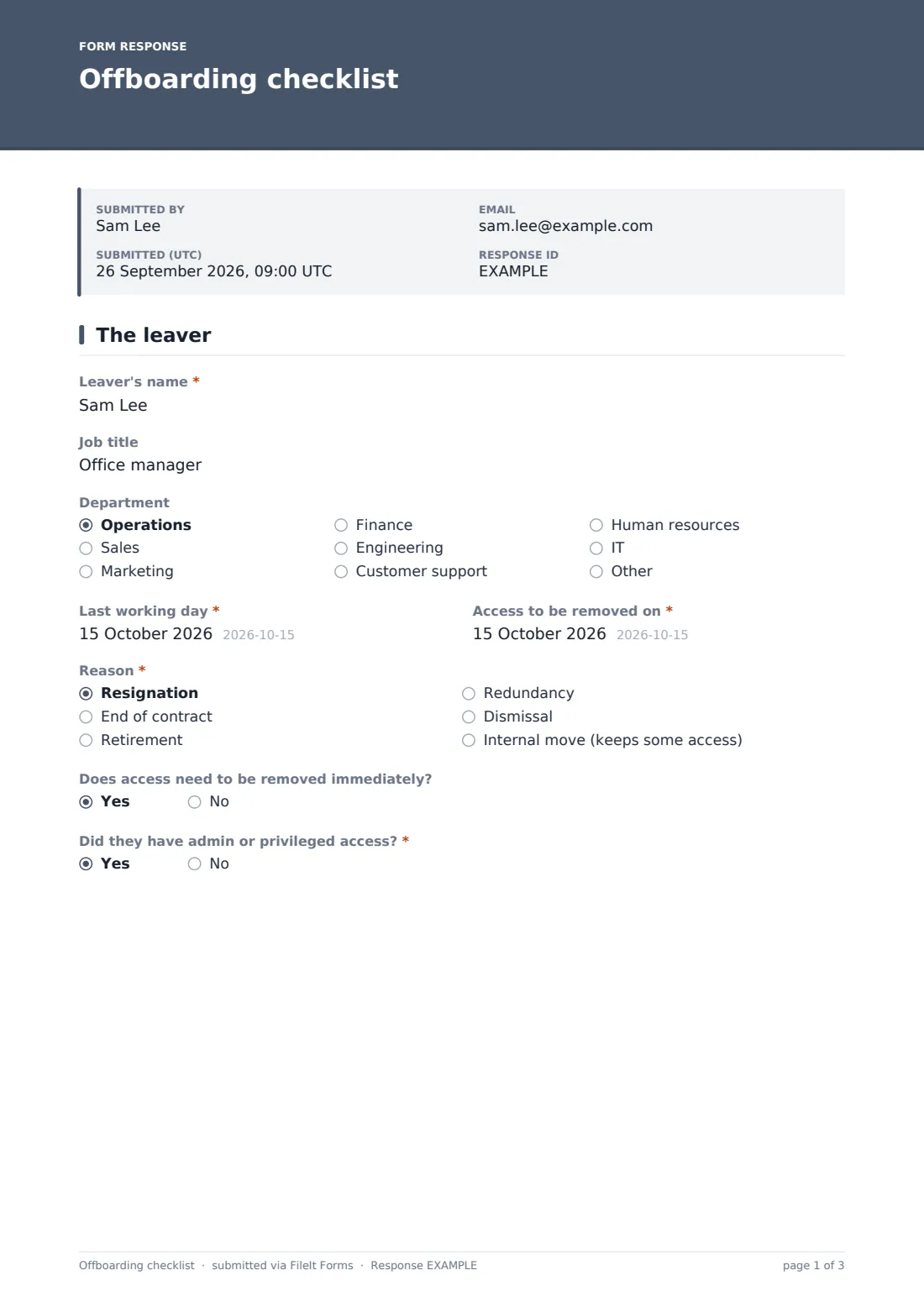
1 The leaver
- Leaver's name*
- Job title
- Department Operations · Sales · Marketing · Finance · Engineering · Customer support · Human resources · IT · Other
- Last working day*
- Access to be removed on*
- Reason* Resignation · End of contract · Retirement · Redundancy · Dismissal · Internal move (keeps some access)
- Does access need to be removed immediately?
- Did they have admin or privileged access?*
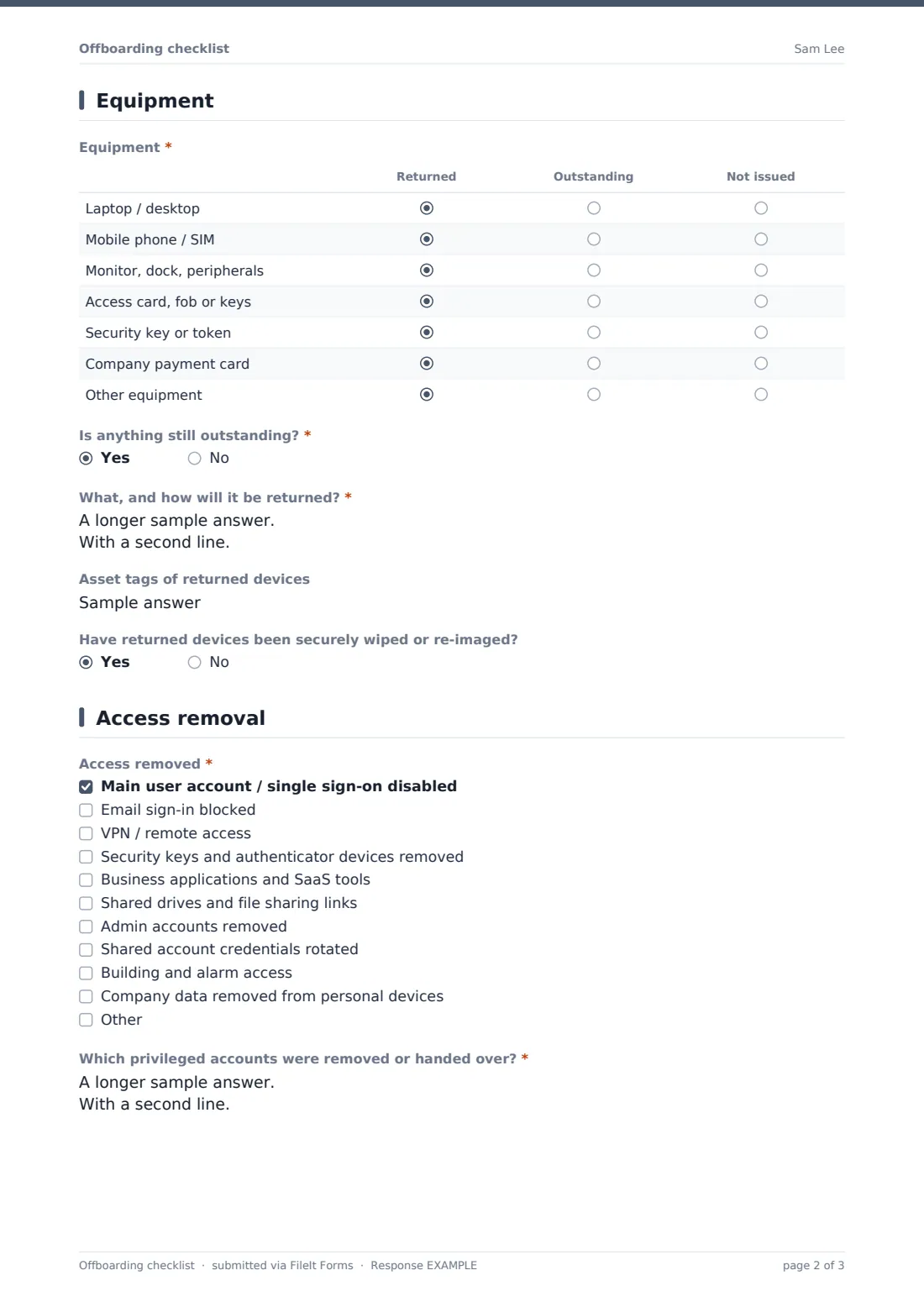
2 Equipment
- Equipment* Returned · Outstanding · Not issued
- Is anything still outstanding?*
- What, and how will it be returned?* asked only when it applies
- Asset tags of returned devices
- Have returned devices been securely wiped or re-imaged?
3 Access removal
- Access removed* Main user account / single sign-on disabled · Email sign-in blocked · VPN / remote access · Security keys and authenticator devices removed · Business applications and SaaS tools · Shared drives and file sharing links · Admin accounts removed · Shared account credentials rotated · Building and alarm access · Company data removed from personal devices
- Which privileged accounts were removed or handed over?* asked only when it applies
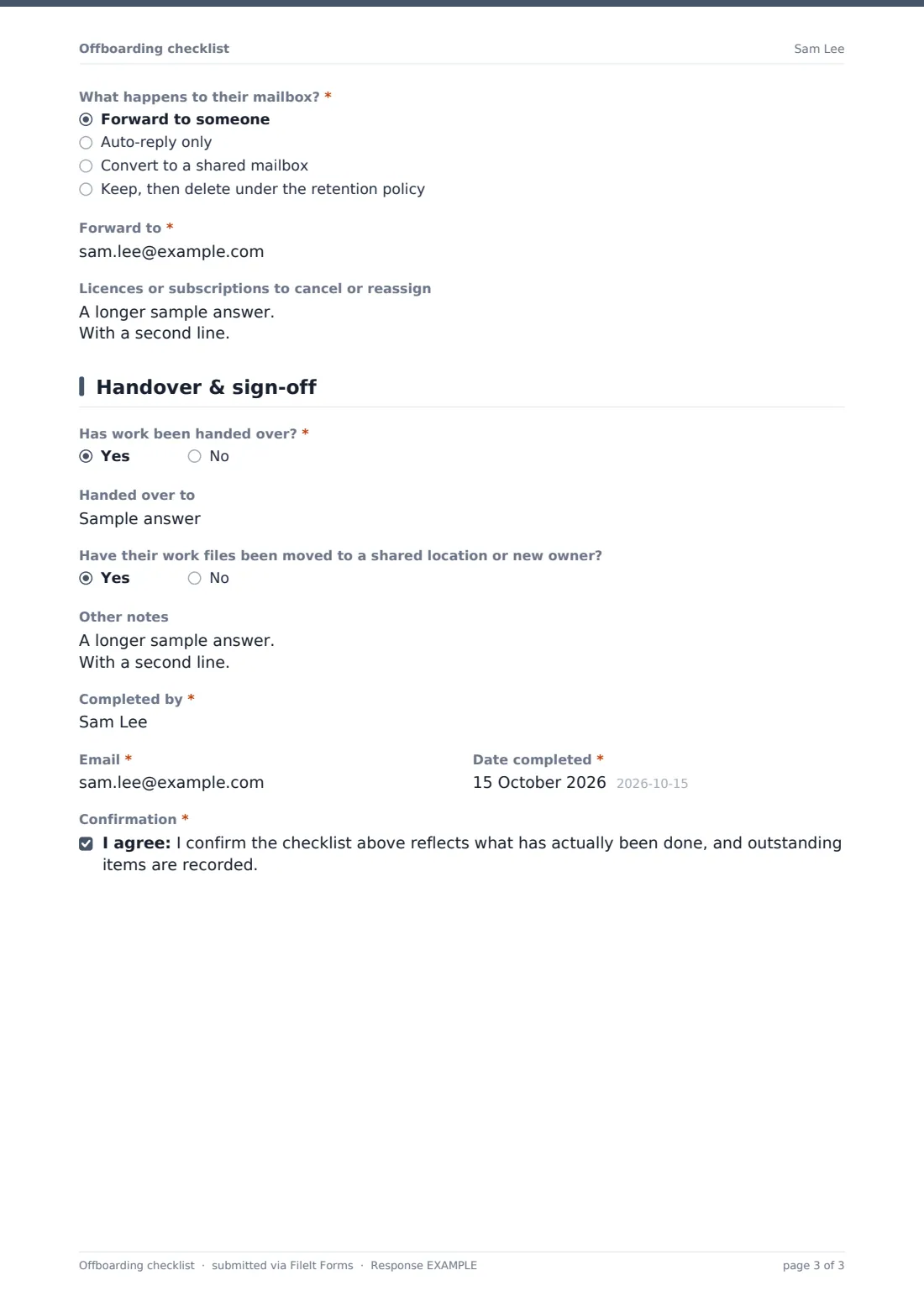
- What happens to their mailbox?* Forward to someone · Auto-reply only · Convert to a shared mailbox · Keep, then delete under the retention policy
- Forward to* asked only when it applies
- Licences or subscriptions to cancel or reassign
4 Handover & sign-off
- Has work been handed over?*
- Handed over to asked only when it applies
- What still needs handing over?* asked only when it applies
- Have their work files been moved to a shared location or new owner?
- Other notes
- Completed by*
- Email*
- Date completed*
- Confirmation*
The offboarding checklist form, page by page
1 The leaver
This page records who's leaving and why: Leaver's name, Job title, Department, Last working day, and Access to be removed on. A Reason dropdown (resignation, redundancy, dismissal, and so on) sits alongside two yes/no questions that shape urgency — Does access need to be removed immediately? and Did they have admin or privileged access? — the second of which triggers extra questions later in the form.
2 Equipment
A rating grid tracks whether each piece of equipment — laptop, phone, access card, security token, company payment card — has been Returned, is Outstanding, or was Not issued. If anything is outstanding, a required field asks what's missing and how it will be returned. Asset tags of returned devices and whether they've been Securely wiped or re-imaged round out the page.
3 Access removal
A checklist covers every access point worth confirming: single sign-on, email, VPN, security keys, business applications, shared drives, admin accounts, shared credentials, building access and company data on personal devices. If the leaver had privileged access, a required field asks exactly which admin accounts were removed or handed over. A Mailbox question decides what happens to their email — forwarded, auto-reply only, converted to shared, or retained under your retention policy.
4 Handover & sign-off
This page confirms whether work has actually been handed over, to whom, and what's still outstanding if it hasn't. Whoever completes the checklist adds their name, email and the completion date, then signs a declaration confirming the checklist reflects what's actually been done — with anything marked outstanding staying on record for follow-up rather than quietly disappearing.
Make the template yours
- Add your organisation's specific systems to the access-removal checklist instead of the generic categories
- Make the equipment grid match exactly what your company issues, adding or removing rows as needed
- Require a second sign-off from IT or security for anyone flagged as having had privileged access
- Set the notification email to alert both HR and IT so neither side has to chase the other for status
- File completed checklists under the employee's own record so departure documentation sits with their history
- Add a follow-up reminder in your own calendar for anything left marked outstanding at submission
Tips for a better offboarding checklist form
- Start the checklist on the day departure is confirmed, not on the leaver's actual last day
- Treat privileged or admin access removal as non-negotiable — confirm it explicitly rather than assuming it happened
- Decide what happens to the mailbox before the last day, not after, especially if clients or customers email that address directly
- Track outstanding items to actual completion — an item marked outstanding today should be followed up, not forgotten
- Keep a completed checklist on file for every leaver, even amicable ones, so access reviews later have something to point to
Every response becomes a PDF in your vault
As soon as the checklist is signed off, FileIt saves it as a PDF in your vault, giving you a dated record of exactly what was done — and what wasn't — for that leaver. You get a notification the moment it's submitted, so anything marked outstanding can be picked up quickly rather than sitting unnoticed.
Most teams keep an eye on the Responses table for any checklist with outstanding items still unresolved, treating it as a live to-do list until everything's closed out. Once complete, the PDF becomes part of that employee's record — useful during audits, security reviews, or if a question ever comes up about when exactly their access was removed.
- Start from this template. It opens in the FileIt Forms designer — change any question, add pages, set the rules for when questions appear.
- Share it. Turn on a public link, or send it to people by email, each with their own link. They don’t need a FileIt account.
- Get the answers as PDFs. Each response is saved as a PDF in the vault folder you choose, with uploaded files attached — and listed in a Responses table you can export to CSV.
Offboarding checklist form: frequently asked questions
Is this offboarding checklist form template free?
Yes, it's included in FileIt's Forms app on every plan, including the free plan, and every field can be edited to match your own process.
Do we need a FileIt account to use this internally?
The person creating and managing the form needs a FileIt account, but the checklist is typically completed by your own manager or IT team, who fill it in directly — no separate account is required to submit it.
Do completed checklists get saved automatically?
Yes, each one is saved as a PDF in your FileIt vault the moment it's submitted, and all responses are also browsable and exportable from the Responses table.
Can the form flag when someone had admin access?
Yes — answering yes to having had privileged access triggers a required field asking exactly which admin accounts were removed or handed over.
What happens if equipment isn't returned yet?
The form lets you mark equipment as outstanding rather than forcing a false "returned" answer, and requires details on what's missing and how it will come back.
Can more than one person be notified when a checklist is submitted?
Yes, you can add extra notification email addresses in the form settings so both HR and IT are alerted.
Can we customise the access-removal checklist for our own systems?
Yes, every checkbox option is editable in the designer, so you can replace the generic list with your actual applications and accounts.
Is this a substitute for a formal exit interview?
No — this checklist focuses on equipment and access, not the employee's feedback. Pair it with a separate exit interview template if you also want to capture that.