What is the access request form template?
Most access requests still travel by email: a short message to IT, a reply asking for details that were left out, a forward to a manager for approval, and eventually someone granting access to the wrong folder because the original request was vague. This template replaces that back-and-forth with one structured form that asks for exactly what IT and security teams need to act — who the access is for, which systems, what level, and for how long.
Putting the request online instead of in an email thread means nothing gets missed. Required fields stop incomplete requests from landing in the queue, and conditional questions only ask for extra detail — like a business justification for administrator rights — when it's actually relevant. That keeps the form quick for routine requests and thorough for the sensitive ones.
Every request submitted through this form becomes a PDF, filed automatically in the vault folder you choose in FileIt. That gives you a running, searchable record of who asked for what access and when — useful for access reviews, audits, or just remembering why someone has administrator rights on the finance system.
- Best for
- IT teams, office managers and small businesses handling system or building access requests
- Filled in by
- Employees or contractors requesting access, or a manager on their behalf
- Time to complete
- About 3–5 minutes for a routine request
- Includes
- Conditional questions, manager approval fields, an optional approval file upload
Who uses a access request form?
- A new employee needs access to shared drives, email and the CRM before their first day
- A staff member changes teams and needs different system permissions than before
- A contractor needs temporary VPN or building access for the length of a project
- Someone needs a colleague's access mirrored for a project handover
- IT needs a paper trail showing manager approval before granting administrator rights
- An employee moving to another department needs their old access removed
- A manager submits a batch of requests for a new hire's first day, on their behalf
Questions on this access request form
25 questions over 4 pages · includes file upload, conditional questions, multiple pages, consent checkbox.
1 About you
- Your name*
- Work email*
- Job title
- Department* Operations · Sales · Marketing · Finance · Engineering · Customer support · Human resources · IT · Other
- Employee or staff ID
2 Access needed
- Who is the access for?* Me · Someone else (e.g. a member of my team)
- Their full name* asked only when it applies
- Their work email* asked only when it applies
- Type of request* New access · Change to existing access · Remove access
- Which systems?* Email & calendar · Shared drives / file storage · CRM · Finance or accounting system · HR / payroll system · Code repositories · Cloud console (AWS, Azure, Google Cloud…) · VPN / remote access · Website / CMS · Building or room access
- Specific folders, groups, projects or roles
- Access level* asked only when it applies Read only / view · Standard user (view and edit) · Administrator / privileged
- Why is administrator access needed?* asked only when it applies
- Same access as a colleague? asked only when it applies
- Business justification*
3 Duration
- How long is access needed?* asked only when it applies Ongoing (part of my role) · Temporary
- Needed from
- Remove access on* asked only when it applies
- Urgency Normal (a few working days) · Needed within 1 working day · Urgent — work is blocked
- What is blocked? asked only when it applies
4 Approval
- Approving manager*
- Manager's email*
- Has your manager already approved this in writing?
- Approval (email or screenshot) asked only when it applies
- Acceptable use*
The access request form, page by page
1 About you
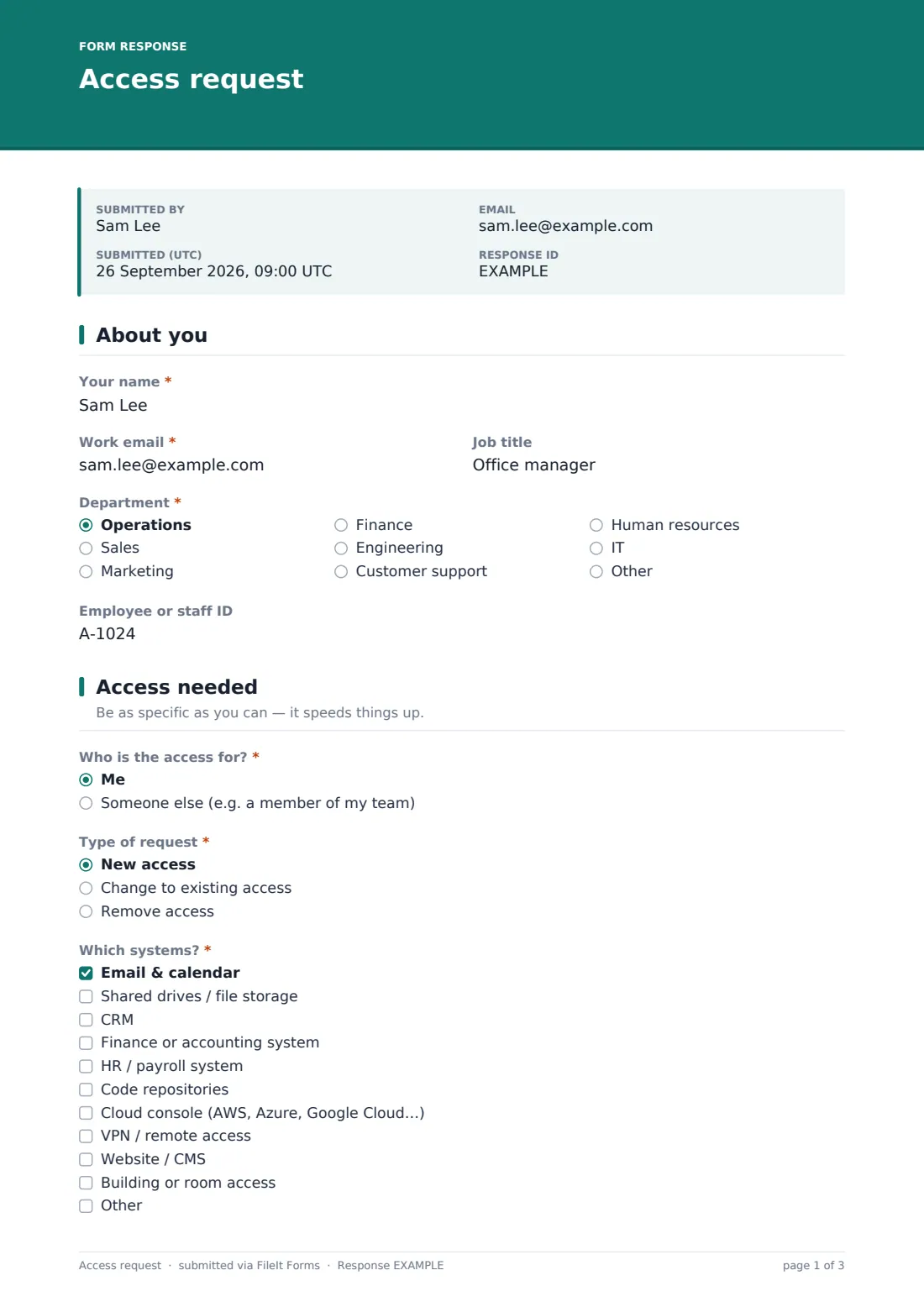
The form opens by capturing who is asking. Your name, work email, job title, department (chosen from a dropdown: Operations, Sales, Marketing, Finance, Engineering, Customer support, Human resources, IT, or Other) and an optional employee or staff ID.
This short section means whoever reviews the request already knows who they're dealing with, without having to ask.
2 Access needed
This is the core of the form. First, "Who is the access for?" — Me, or Someone else. If you pick Someone else, the form shows two extra questions asking for their full name and work email, so the request is clearly attributed to the right person.
Next comes the type of request (New access, Change to existing access, or Remove access), then which systems are involved — a checklist covering email and calendar, shared drives, CRM, finance systems, HR/payroll, code repositories, cloud consoles, VPN, website/CMS and building or room access, with room to name anything else. A free-text field lets the requester name specific folders, groups or projects, which speeds things up for IT.
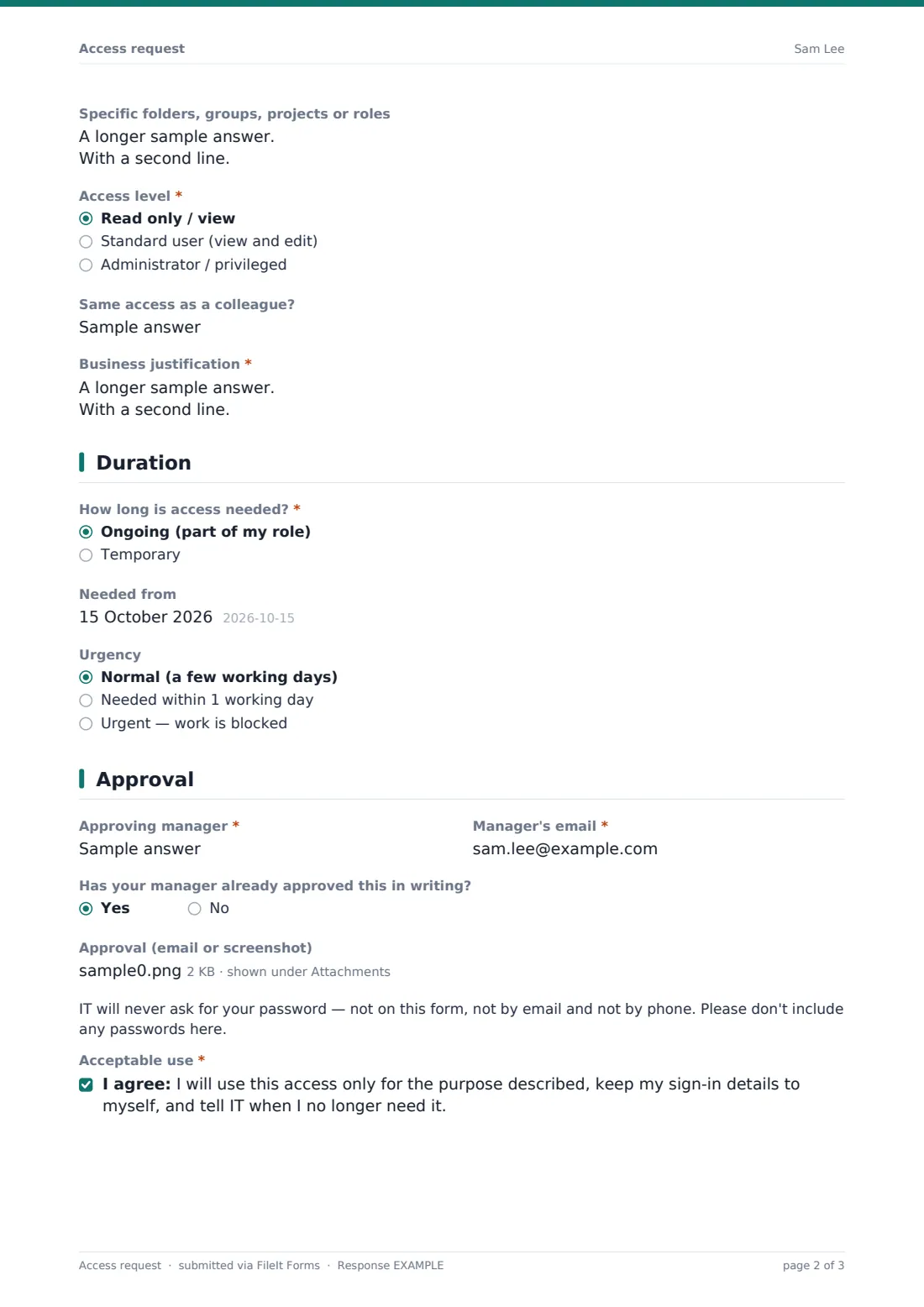
Unless the request is to remove access, the form asks for an access level — read only, standard user, or administrator. Choosing administrator triggers a required question asking why privileged access is needed, since that's the level worth scrutinizing most closely. There's also an optional field to copy a colleague's existing access, and a required business justification field that applies to every request.
3 Duration
For anything other than a removal, the form asks whether the access is ongoing (part of the role) or temporary. Choosing temporary reveals a required "Remove access on" date, so nobody has to remember to revoke it later. There's also an optional start date and an urgency setting — Normal, Needed within 1 working day, or Urgent — with a follow-up question asking what work is blocked when urgency is set to Urgent.
This page is what turns the form into a useful record for access reviews: at a glance, IT can see which grants were meant to be temporary and check whether they were actually removed on time.
4 Approval
The last page collects the approving manager's name and email, and asks whether they've already approved the request in writing — if yes, the requester can attach the approval email or a screenshot as a PDF, JPG, PNG or Word file.
A plain reminder tells the requester that IT will never ask for a password on this form, by email or by phone, and never to include one. The form closes with a required consent statement: the requester agrees to use the access only for the stated purpose, keep their sign-in details to themselves, and tell IT when they no longer need it.
Make the template yours
- Add your own list of internal systems to the checkbox question instead of the generic options given here
- Turn on "require a maximum number of responses" if you want to close the form once a hiring batch is done
- Add a conditional question that only appears for a specific department, using the same show-if logic as the admin justification question
- Set a closing date if the form is only meant to be used during a specific project or onboarding wave
- Point completed PDFs to an "Access requests" folder in your vault, filed by the requester's name
- Add email notifications to more than one IT staff member so requests are never missed
- Remove the building/room access option entirely if your organization only manages digital systems
Tips for a better access request form
- Ask only for what you'll actually check — every extra required field is a reason for someone to abandon the form
- Keep the systems list specific to your organization; generic categories slow down matching a request to the right system owner
- Require a business justification on every request, not just admin-level ones, so reviews later are easier
- Set a temporary access end date by default where you can, rather than relying on someone remembering to remove it
- Never collect passwords through any form — a plain reminder, like the one built into this template, reduces mistakes
- Review outstanding temporary access on a regular schedule using the PDF records saved in your vault
Every response becomes a PDF in your vault
When someone submits the form, FileIt saves the response as a PDF straight into the vault folder you've chosen — no separate step required. You (and anyone else you've added to the notification list) get an email alert for each new request, and the requester sees the confirmation message you set, along with an optional PDF copy of their own submission if you've turned that on.
From there, the usual next step is checking the request against the named manager's approval, then granting access in whichever systems are involved. Because every request lives in the Responses table with filters and CSV export, you can review a batch of onboarding requests at once, or search back through history when someone asks who approved a particular grant.
- Start from this template. It opens in the FileIt Forms designer — change any question, add pages, set the rules for when questions appear.
- Share it. Turn on a public link, or send it to people by email, each with their own link. They don’t need a FileIt account.
- Get the answers as PDFs. Each response is saved as a PDF in the vault folder you choose, with uploaded files attached — and listed in a Responses table you can export to CSV.
Access request form: frequently asked questions
Is this access request form template free?
Yes. It's one of the ready-made templates included on every FileIt account, including the free plan, and you can edit every question in it.
Do people filling out the request need a FileIt account?
No. You share the form by public link or by emailing individual requests, and anyone can fill it in without signing up for anything.
How do I get the submitted requests as PDFs?
Every submission is automatically turned into a PDF and filed in the vault folder you choose when setting up the form. You can also open any response individually or export the whole table to CSV.
Can I make the form route differently for administrator access requests?
Yes, using conditional logic. This template already shows a required justification question only when someone selects administrator-level access, and you can add more conditions the same way.
Can I require manager approval before access is granted?
The form collects the approving manager's details and lets the requester attach existing written approval, but it doesn't route the form for a live digital sign-off — you'd check the named approval yourself before granting access.
How do I create an access request form like this from scratch?
Start from this template in the FileIt Forms designer and edit any question, or build one from a blank form using drag-and-drop fields, conditional logic and a live preview.
Can I stop collecting requests after a certain date?
Yes — set a closing date or a maximum number of responses in the form's settings, and it will stop accepting new submissions automatically.
Is a submitted request legally binding once someone signs the consent statement?
No — the consent statement is a plain acknowledgment of acceptable use, not a legal contract. Check the wording fits your organization's own policies before relying on it.