What is the iT incident report form template?
"It's not working" is the least useful bug report an IT team can receive, and it's usually followed by several messages just to find out which system, since when, and how many people are affected. This template gets that information up front, in a consistent shape, whether the report comes from someone in the next office or a remote worker whose email itself might be part of the problem.
The form adapts to what's actually wrong: choosing "a business application" asks which one, choosing an error message opens a box to paste it in exactly, and saying the issue might be a security problem shows an on-screen reminder to call IT immediately and not investigate further. A severity choice lets the reporter give their best judgement — critical, high, medium or low — while making clear IT will confirm it.
Every report becomes a PDF filed in the vault the moment it's submitted, along with any screenshots or logs attached, so the helpdesk has a complete, timestamped record instead of a scattered thread of instant messages.
- Best for
- IT and helpdesk teams triaging outages and faults reported by staff
- Filled in by
- Any employee experiencing an IT problem
- Time to complete
- About 5 minutes
- Includes
- Conditional questions for error messages, security concerns and severity, plus a screenshot upload
Who uses a iT incident report form?
- An employee reporting they can't sign in, send email, or connect to the VPN
- An IT team collecting consistent incident reports instead of fielding one-line chat messages
- A helpdesk that wants an early flag for possible security incidents, with an on-screen warning not to investigate further
- A small business without a dedicated ticketing system that wants a lightweight, structured way to log IT problems
- Recording the scale of an outage — from one person's laptop to the whole organization or customers being affected
- Capturing what changed recently (an update, a password reset, new equipment) that might explain the fault
Questions on this iT incident report form
23 questions over 3 pages · includes file upload, conditional questions, multiple pages.
1 About you
- Your name*
- Email*
- Phone we can reach you on
- Your office, site or team
2 What's affected
- Affected service* Email / calendar · Internet / Wi-Fi / network · VPN / remote access · Phone system · File shares / cloud storage · A business application · Website / online shop · Printing / scanning · My laptop or desktop · Sign-in / single sign-on · Other
- Which service or application?* asked only when it applies
- Which application?* asked only when it applies
- One-line summary*
- When did it start?*
- Approximate time
- Is it still happening?*
- When did it recover? asked only when it applies
- What are you seeing?* Completely unavailable · Very slow · Works on and off · Can't sign in · An error message · Missing or wrong data · Some features don't work
- Error message asked only when it applies
- What happened, and what have you tried?
- Any recent change you know of?
3 Impact & severity
- Who is affected?* Just me · My team · A whole site or department · The whole organisation · Customers / the public
- Roughly how many people? asked only when it applies
- Severity* Critical — service down, no workaround, business stopped · High — major disruption, poor or no workaround · Medium — some disruption, a workaround exists · Low — minor inconvenience
- Have you found a workaround?
- Describe the workaround asked only when it applies
- Could this be a security problem?
- Screenshots or logs
The iT incident report form, page by page
1 About you
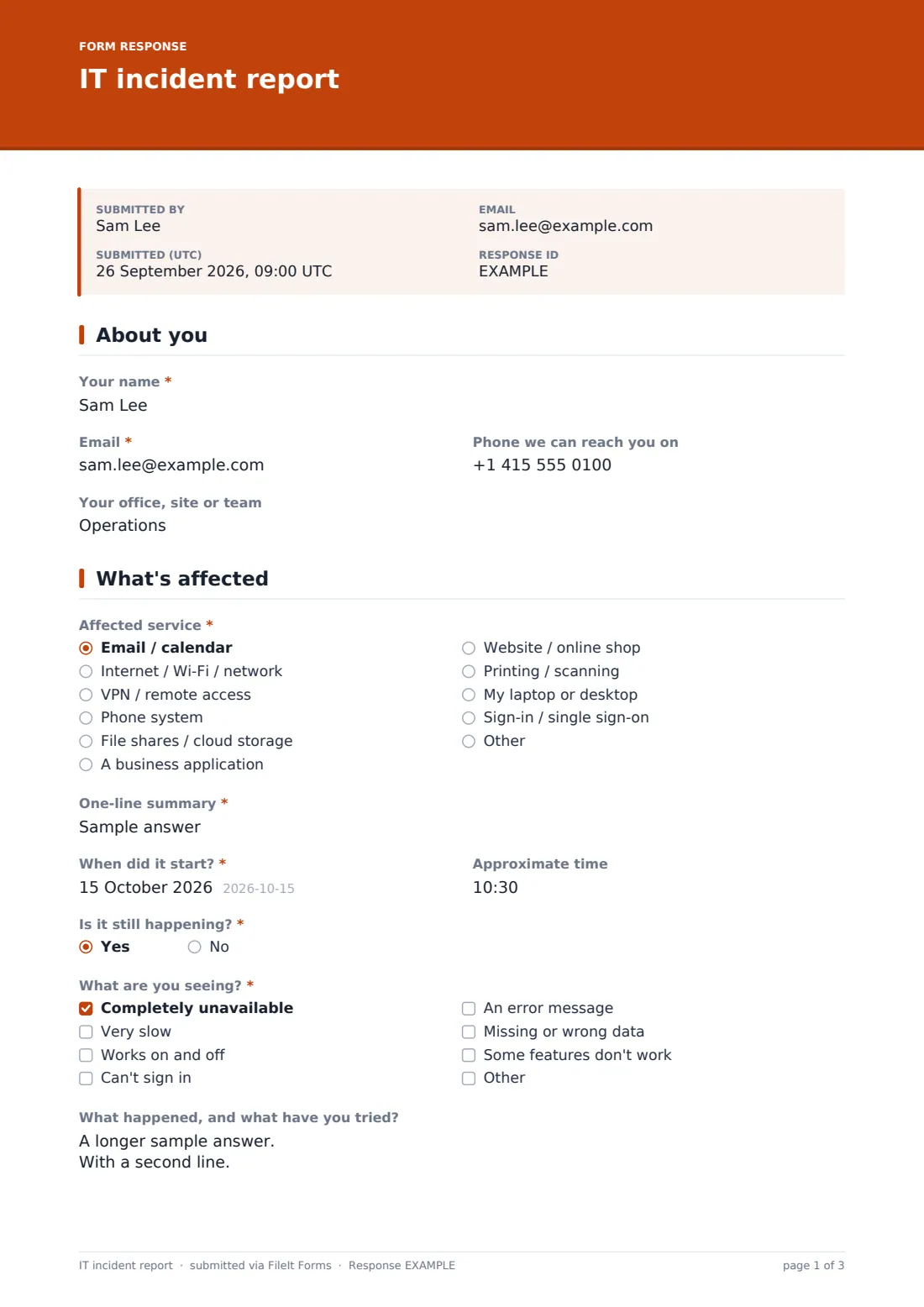
The form starts with the reporter's name, email, a phone number in case email is part of the problem, and their office, site or team — enough for IT to know who's affected and how to reach them if the usual channel is down.
2 What's affected
A dropdown covers the usual suspects — email and calendar, internet or Wi-Fi, VPN, phones, file shares, a business application, the website, printing, a single laptop or desktop, or sign-in — and choosing "a business application" or "other" opens a follow-up asking exactly which one. A one-line summary, the date and approximate time it started, and a yes/no on whether it's still happening (with a recovery time if not) pin down the timeline.
A symptoms checklist — completely unavailable, very slow, on and off, can't sign in, an error message, missing or wrong data, or only some features broken — helps IT triage quickly, and choosing "an error message" opens a box to paste it in exactly. Two further boxes capture what the reporter has already tried and any recent change they're aware of, such as an update, new equipment or a password reset.
3 Impact & severity
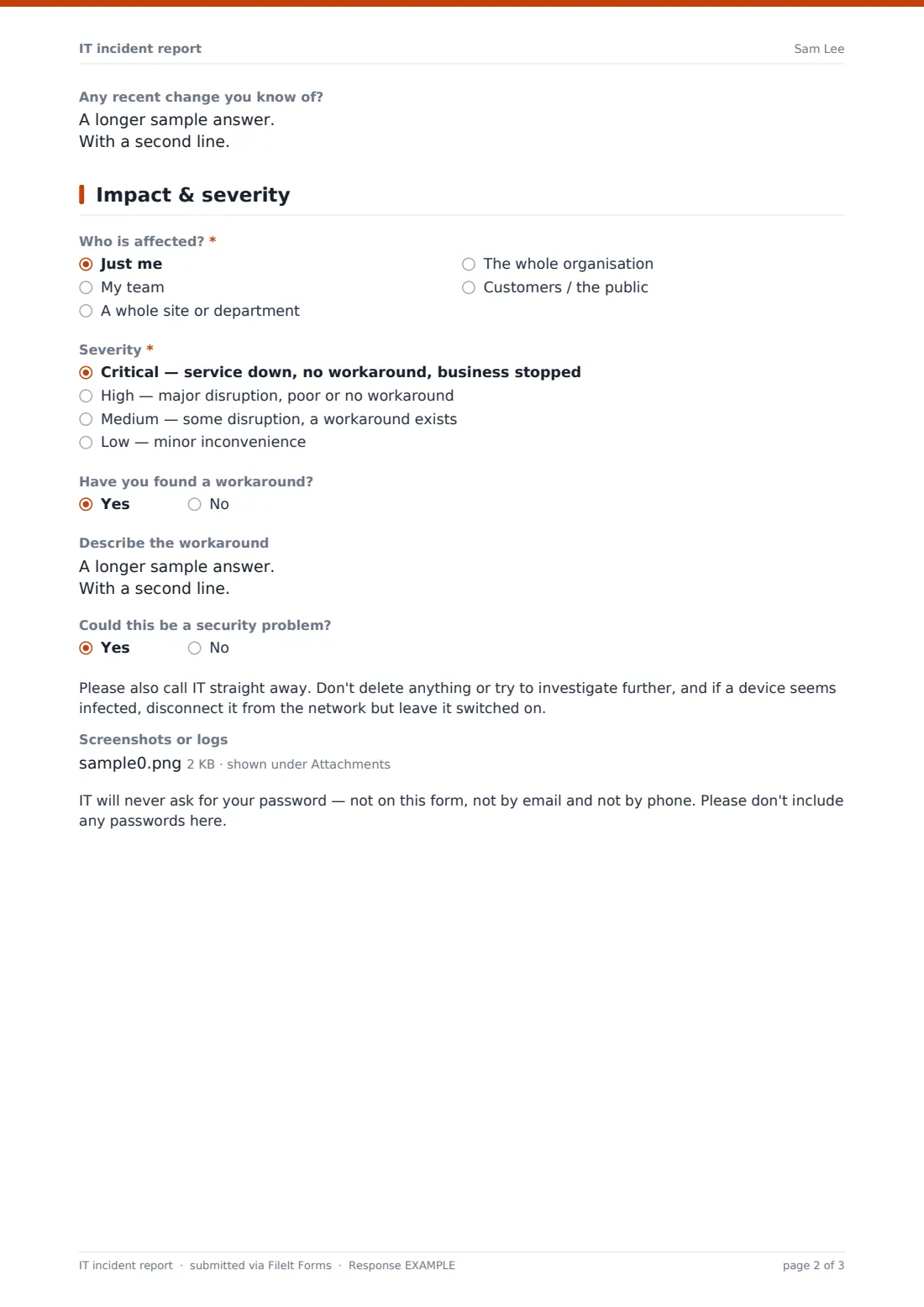
A "who is affected" choice ranges from just the reporter up to a whole site, the whole organization, or customers, with a rough headcount if more than one person is affected. The reporter then picks a severity level from critical (service down, no workaround, business stopped) down to low (minor inconvenience), noting it's their best judgement and IT will confirm it.
A yes/no question about workarounds opens a box to describe one if found, and a separate yes/no asks whether the issue could be a security problem — suspicious emails or links, strange pop-ups, files that won't open, or an account acting on its own. Answering Yes shows an immediate on-screen reminder to call IT and not investigate further, and to disconnect an infected device from the network without switching it off. The page ends with an optional upload for screenshots or logs, and a clear reminder that IT will never ask for a password on this form, by email, or by phone.
Make the template yours
- Adjust the affected-service dropdown to match the systems your organization actually runs
- Route notifications straight to your helpdesk inbox or on-call rotation for faster response
- Add a field for an asset tag or device ID if your team tracks hardware by number
- File incidents into a vault folder by month or by service for easy pattern-spotting over time
- Add an internal-only severity override field if IT needs to record their own assessment separately from the reporter's
- Set a confirmation message that includes your team's target response times by severity
- Duplicate the template with simplified wording for non-technical staff if the standard version feels too technical
Tips for a better iT incident report form
- Encourage staff to attach a screenshot or the exact error text rather than paraphrasing it — small details often point straight to the cause
- Ask what changed recently even when it seems unrelated; updates, password resets and new equipment are common culprits
- Treat the reporter's severity rating as a starting point, not the final word — confirm it once someone from IT has looked
- Make the security-concern path impossible to miss so a genuine incident isn't delayed while someone keeps troubleshooting
- Never collect passwords through this or any other form — reinforce that reminder in your own internal training too
- Review recurring reports about the same service periodically to catch a pattern before it becomes a bigger outage
Every response becomes a PDF in your vault
As soon as the report is submitted, FileIt saves it as a PDF in your vault, together with any screenshots or logs attached, and the IT team is notified by email. If a copy to the respondent is switched on, the person who reported the issue also receives their own PDF confirming what they submitted.
From there, most IT teams use the Responses table to triage open incidents by severity, filter by affected service, and export to CSV for a broader ticketing or reporting system. Because each report captures a clear timeline and symptom list, it's easy to spot when several reports point to the same underlying outage.
- Start from this template. It opens in the FileIt Forms designer — change any question, add pages, set the rules for when questions appear.
- Share it. Turn on a public link, or send it to people by email, each with their own link. They don’t need a FileIt account.
- Get the answers as PDFs. Each response is saved as a PDF in the vault folder you choose, with uploaded files attached — and listed in a Responses table you can export to CSV.
IT incident report form: frequently asked questions
Is this IT incident report form template free?
Yes. It's included in FileIt's Forms app on every plan, including free, and every question can be edited to match your own IT process.
Do staff need a FileIt account to report an issue?
No. Share the form by a public link on your intranet or send it by email — nobody needs a FileIt account to submit a report.
How do I get a copy of a submitted report?
Every report is automatically saved as a PDF in your vault, and you can also turn on an emailed PDF copy sent to the person who reported it.
Does this form replace our IT ticketing system?
It can work as a lightweight incident log on its own, or as the first step that feeds into a fuller ticketing system — export responses to CSV if you need to bring them into another tool.
What happens if someone reports a possible security incident?
The form shows an immediate on-screen reminder to call IT straight away and avoid investigating further or deleting anything, so a genuine security concern isn't delayed.
Can this form ask for a password to help troubleshoot?
No — the form explicitly reminds reporters never to include a password, and IT should never ask for one through this or any other channel.
Can I track how many incidents relate to the same service?
Yes — filter the Responses table by affected service to see patterns, which is useful for spotting a recurring or widening outage early.