What is the support ticket form template?
A support request that arrives as a one-line email — "it's broken again" — usually means a round of back-and-forth just to find out what actually happened. This support ticket form template asks for the right details up front: which product, what kind of issue, what was expected, what's already been tried, and how urgent it is, so the first reply can be a real answer instead of a request for more information.
The form adjusts to the kind of problem being reported. Choosing "Something isn't working" opens questions about how often it happens and what's already been tried; choosing "Something else" as the product asks the customer to specify; marking the priority as "Urgent" asks directly what the impact is and who's affected. Screenshots and files can be attached right there, so nothing gets lost across a separate email thread.
Every ticket submitted becomes a PDF filed in your FileIt vault straight away, giving you a proper record of every support request — useful for spotting recurring issues, or simply proving what a customer originally reported if the conversation runs long.
- Best for
- Small businesses and support teams handling customer issues without dedicated helpdesk software
- Filled in by
- The customer reporting the issue
- Time to complete
- About 4 minutes
- Includes
- Priority levels, conditional troubleshooting questions, screenshot and file upload
Who uses a support ticket form?
- A software or SaaS business collecting bug reports and "how do I" questions in one place
- A product company logging billing, account access and technical issues consistently
- A small business without help desk software that still wants organised support requests
- Capturing urgent issues clearly, with impact details, so they can be triaged first
- Building a filed history of every support request tied to a specific customer or account
- Collecting feature requests alongside genuine problems, sorted by category
Questions on this support ticket form
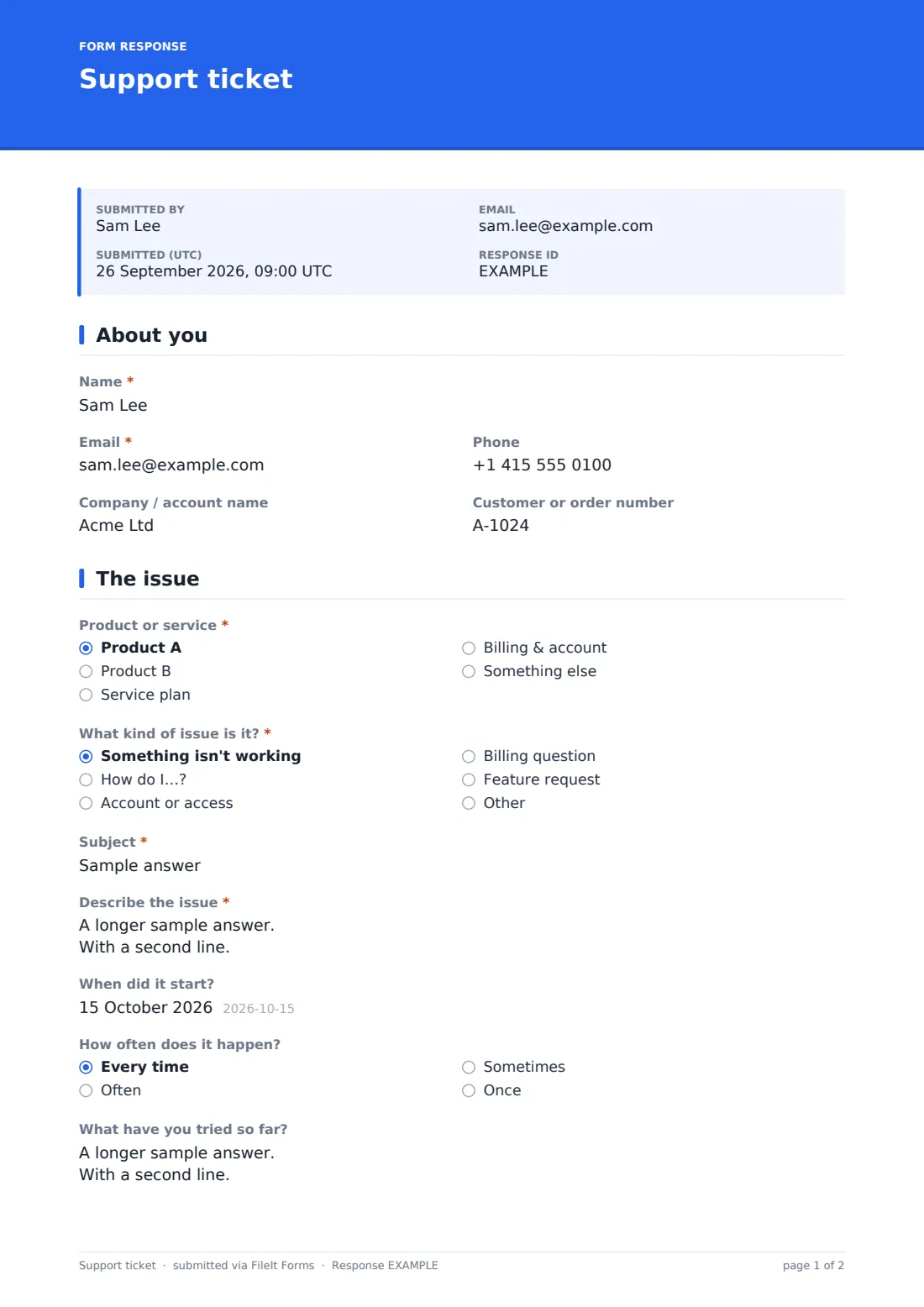
17 questions over 2 pages · includes file upload, conditional questions, multiple pages.
1 About you
- Name*
- Email*
- Phone
- Company / account name
- Customer or order number
2 The issue
- Product or service* Product A · Product B · Service plan · Billing & account · Something else
- Which product or service?* asked only when it applies
- What kind of issue is it?* Something isn't working · How do I…? · Account or access · Billing question · Feature request
- Subject*
- Describe the issue*
- When did it start?
- How often does it happen? asked only when it applies Every time · Often · Sometimes · Once
- What have you tried so far? asked only when it applies
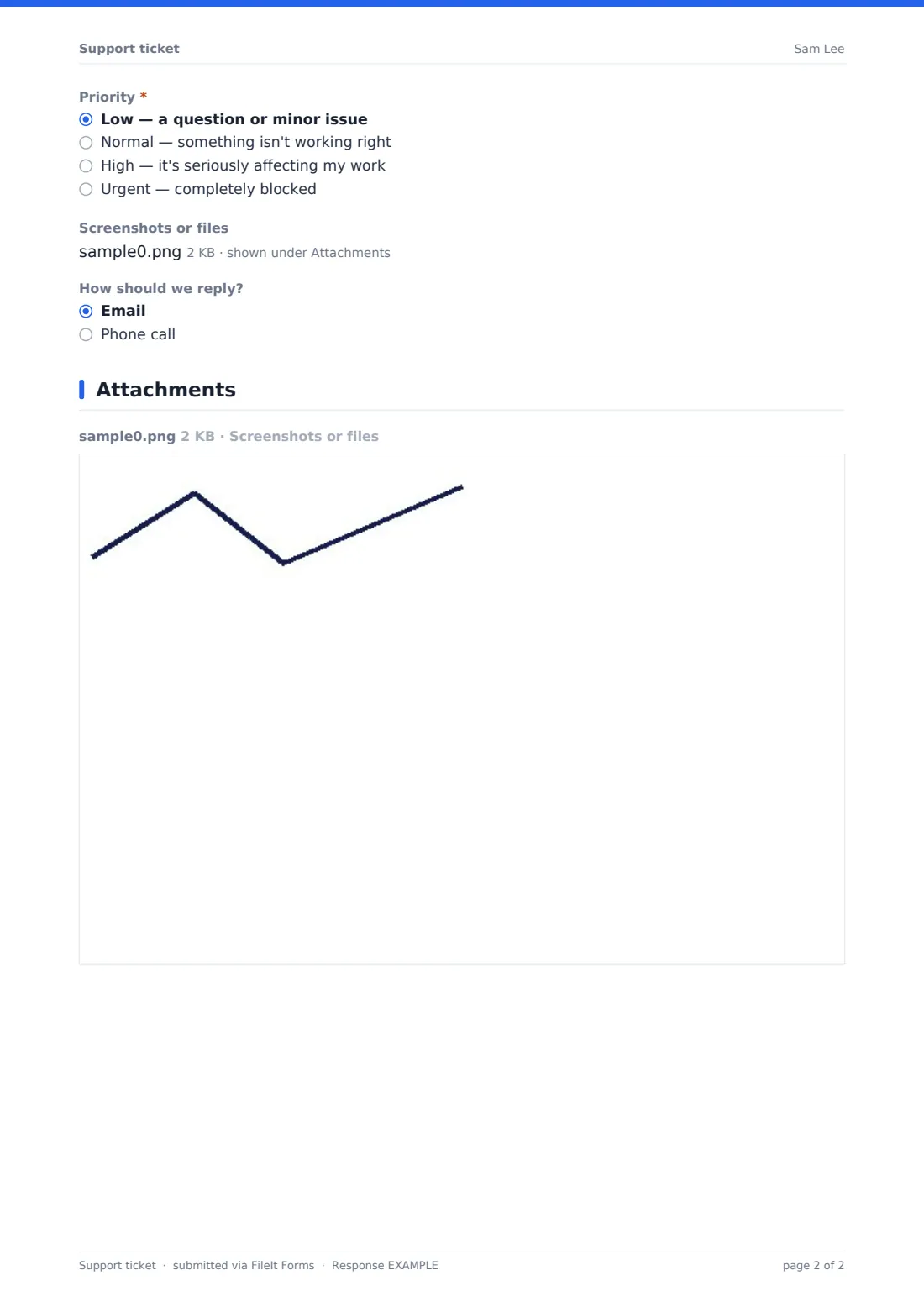
- Priority* Low — a question or minor issue · Normal — something isn't working right · High — it's seriously affecting my work · Urgent — completely blocked
- What is the impact?* asked only when it applies
- Screenshots or files
- How should we reply? Email · Phone call
The support ticket form, page by page
1 About you
The form starts with the customer's name, email and optional phone number, plus their company or account name and a customer or order number if they have one — enough to identify who's asking and look up their account quickly.
2 The issue
Customers pick the product or service involved, or specify their own if it's something else, then choose the kind of issue it is: something isn't working, a "how do I" question, account or access, a billing question, or a feature request. They give a one-line subject and describe the issue in detail, including what they expected to happen.
If the issue is something not working, the form asks how often it happens and what's already been tried, such as restarting or clearing a cache. Every ticket records a priority — low, normal, high, or urgent — and choosing "Urgent" opens a question asking exactly what the impact is and who's affected, so genuinely blocking issues stand out clearly. Customers can attach screenshots or files, and choose whether they'd rather be contacted by email or phone.
Make the template yours
- Replace the product dropdown with your own actual product or service names
- Add a category for common issue types specific to your business, beyond the general options included
- Route notification emails to different addresses depending on urgency, if your team splits by priority
- Set the vault folder so tickets file automatically into a support or customer service area
- Turn on an emailed PDF copy so customers have a record of exactly what they reported
- Add a satisfaction question at the end if you want to track how a ticket was resolved later
Tips for a better support ticket form
- Reply to urgent tickets first, but confirm receipt of every ticket quickly so customers know it's been seen
- Ask customers what they've already tried before troubleshooting from scratch — it saves time on both sides
- Encourage screenshots for anything visual; a picture usually explains a bug faster than a paragraph
- Review low-priority tickets regularly too, since they often reveal small but fixable friction points
- Look for patterns across tickets rather than treating each one in isolation — repeated issues point to a fix worth making once
Every response becomes a PDF in your vault
The moment a customer submits a ticket, FileIt saves it as a PDF in your vault — including any screenshots — and sends you an email notification so nothing sits unseen. If you've turned on a copy for the respondent, the customer also gets a PDF confirming exactly what they reported.
From there, most teams use the Responses table to sort tickets by priority, open individual PDFs while working through a fix, and export everything to CSV if they want to review support volume or recurring issues over a longer period.
- Start from this template. It opens in the FileIt Forms designer — change any question, add pages, set the rules for when questions appear.
- Share it. Turn on a public link, or send it to people by email, each with their own link. They don’t need a FileIt account.
- Get the answers as PDFs. Each response is saved as a PDF in the vault folder you choose, with uploaded files attached — and listed in a Responses table you can export to CSV.
Support ticket form: frequently asked questions
Is this support ticket form template free?
Yes — it's included with the Forms app on every FileIt account, including the free plan, alongside more than 160 other ready-made templates.
Do customers need a FileIt account to submit a ticket?
No. You share a link — for example on your website or in a support email footer — and customers submit tickets without creating any account.
Where do submitted tickets go?
Every ticket is saved automatically as a PDF in your FileIt vault, and you can browse, filter and export all tickets from the Responses table.
Does the form ask extra questions for urgent tickets?
Yes — marking a ticket as urgent opens a question asking specifically about the impact and who's affected, using conditional logic already built into the template.
Can customers attach screenshots?
Yes — there's a file upload field for screenshots or other files, up to 10 MB each, attached directly to the ticket's PDF.
Does this form replace full helpdesk software?
It's not a live chat or ticket-tracking system with statuses and SLAs — it's a clear, structured way to receive and file support requests, which works well for teams that don't need a full helpdesk platform.
Can I set up automatic email notifications for new tickets?
Yes — you can have new tickets email you and additional addresses, so the right people see a new ticket the moment it's submitted.