What is the new hire IT setup form template?
A new hire's first day goes smoothly or badly depending almost entirely on whether IT knew what to prepare in advance. This template gives hiring managers a single form to describe exactly what a new starter needs — accounts, access level, hardware, software — early enough that it's all ready before they walk in the door or log on remotely.
Chasing this over email or Slack usually means half the details arrive in one message, half in a follow-up, and something important (like where to ship a laptop for a remote hire) gets missed entirely. A structured online form asks for everything up front, and shows extra questions only when they're relevant — an access end date only appears for fixed-term or contract hires, for example.
Every submitted request becomes a PDF saved straight into the vault, so there's a dated record of exactly what was requested for each new starter, useful for onboarding audits as much as for IT's own to-do list.
- Best for
- IT teams and hiring managers coordinating a new employee's first-day setup
- Filled in by
- The hiring manager, ideally at least a week before the start date
- Time to complete
- About 5-7 minutes
- Includes
- Conditional fields for remote shipping, contract end dates and elevated access justification
Who uses a new hire IT setup form?
- An HR or hiring manager kicking off IT provisioning as soon as an offer is accepted
- A remote-first company that needs to ship a laptop and peripherals before someone's first day
- An IT team standardising what information they need for every new starter, regardless of department
- A company managing mixed employment types — permanent staff, contractors and interns — with different access end dates
- A growing business replacing ad-hoc "can someone set up a laptop for Monday" messages with a proper request record
- An operations lead who wants a paper trail showing exactly what access was requested and why
Questions on this new hire IT setup form
25 questions over 4 pages · includes conditional questions, multiple pages.
1 The new starter
- New starter's name*
- Job title*
- Department* Operations · Sales · Marketing · Finance · Engineering · Customer support · Human resources · Other
- Start date*
- Employment type* Permanent · Fixed-term · Contractor · Intern
- Access end date* asked only when it applies
- Work location* Office · Hybrid · Remote
- Where should equipment be delivered?* asked only when it applies
- New starter's personal email
- Preferred work email address
2 Accounts & access
- Accounts to create* Email and calendar · Team chat · Single sign-on / directory · VPN / remote access · HR and payroll self-service · CRM · Finance / accounting system · Code repositories · Helpdesk / ticketing
- Mailing lists, shared drives and groups
- Access level* Standard user · Elevated (e.g. team admin) · System administrator
- Why is elevated access needed?* asked only when it applies
- Copy access from an existing colleague
3 Hardware & software
- Hardware Laptop · Desktop · Monitor(s) · Docking station · Headset · Mobile phone · Keyboard and mouse · Building access badge
- Laptop type asked only when it applies Standard · High spec (engineering, design, video) · Mac
- Software Office suite · PDF editor · Design tools · Developer tools / IDE · Data and analytics tools · Video conferencing · Password manager
- Other software or licences
- Needs a desk phone or extension?
4 Requested by
- Your name (hiring manager)*
- Your email*
- Your phone
- Cost centre
- Anything else IT should know?
The new hire IT setup form, page by page
1 The new starter
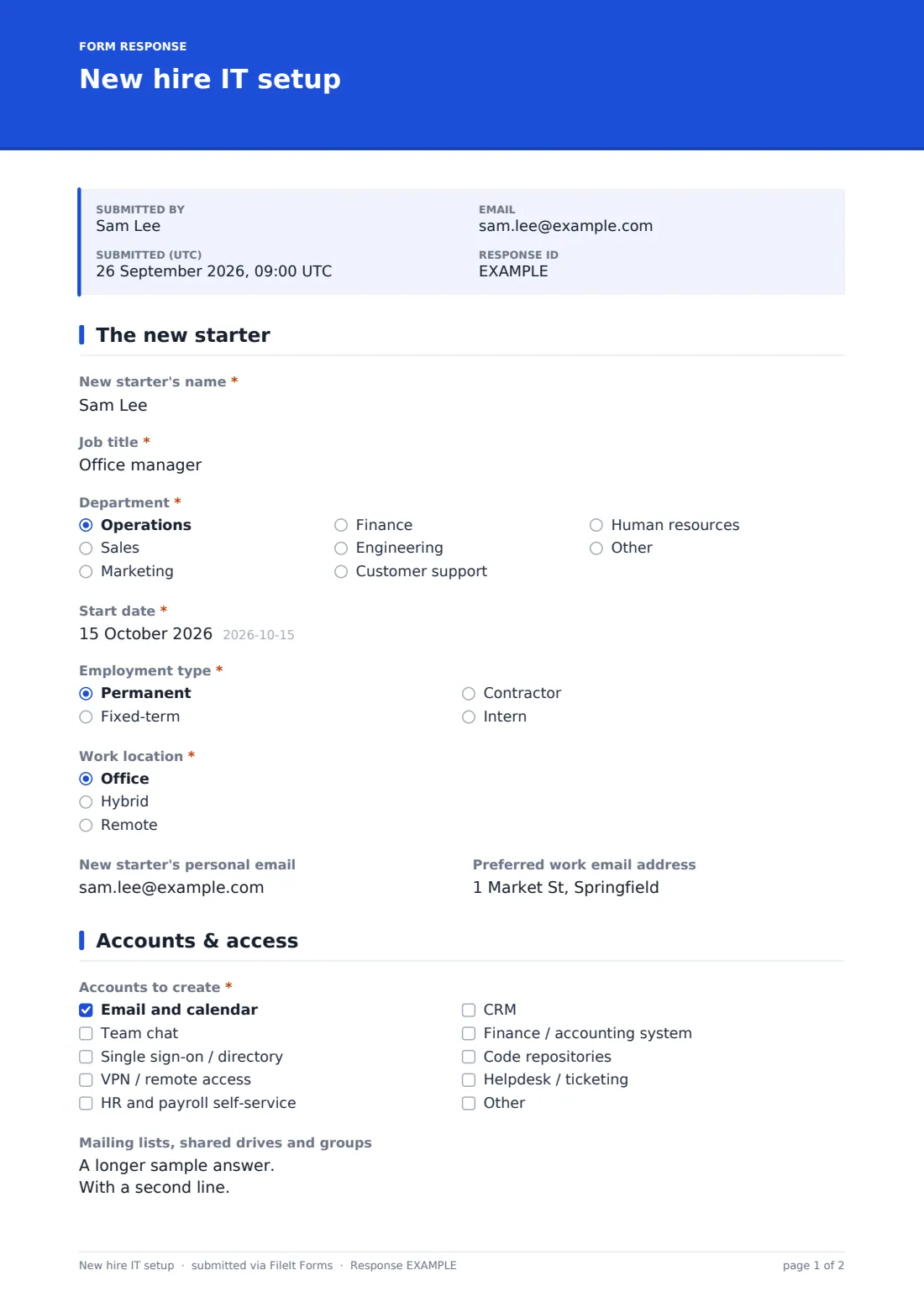
This page captures who's joining and when: New starter's name, Job title, Department, Start date and Employment type. If the employment type isn't permanent, an Access end date field appears so accounts can be set to expire automatically at the right time.
It also asks Work location — office, hybrid or remote — and if remote, a Where should equipment be delivered? address appears so hardware can be shipped in time. A Preferred work email address and the new starter's Personal email (used only for first-day login instructions) round out the page.
2 Accounts & access
A checklist of Accounts to create covers the basics — email and calendar, team chat, single sign-on, VPN, HR self-service, CRM, finance systems, code repositories and helpdesk — with an "other" option for anything specific to your organisation. A free-text field also captures Mailing lists, shared drives and groups the new starter should be added to.
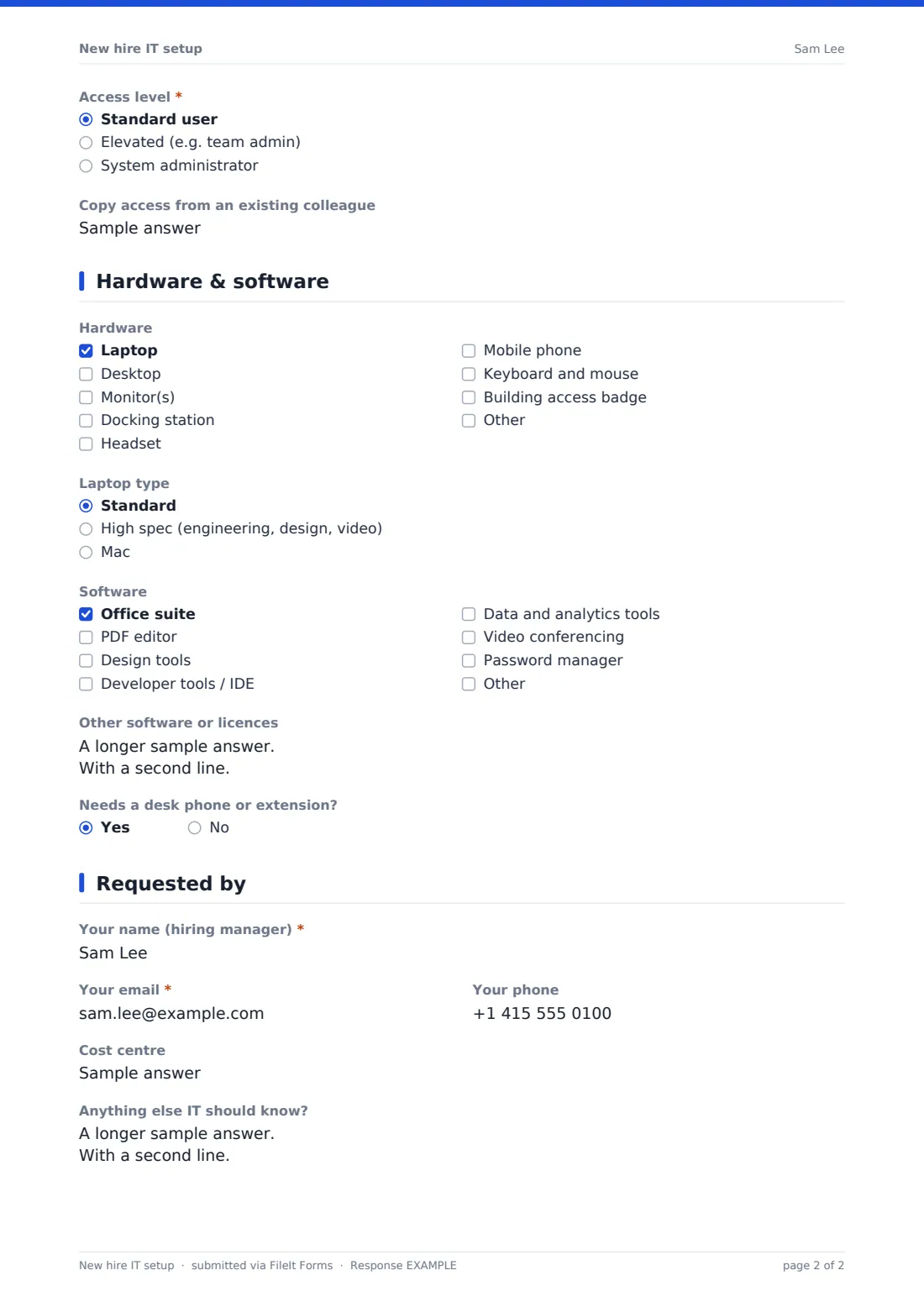
The Access level question (standard, elevated or admin) is deliberately visible: choosing anything other than standard triggers a required Why is elevated access needed? field, so requests for higher access always come with a justification IT can review before approving. An optional Copy access from an existing colleague field speeds up setup for like-for-like roles.
3 Hardware & software
A Hardware checklist covers laptops, desktops, monitors, docking stations, headsets, mobile phones and building access badges. Selecting "laptop" reveals a Laptop type question (standard, high spec, or Mac) so IT doesn't have to guess. A separate Software checklist covers office suites, PDF editors, design tools, developer tools, analytics tools, video conferencing and password managers, with a free-text field for anything else and licences needed.
A simple yes/no for whether the new starter needs a desk phone or extension finishes the page.
4 Requested by
The final page identifies who's making the request — Your name, Your email, Your phone and an optional Cost centre — plus an open Anything else IT should know? field for context that doesn't fit anywhere else, such as unusual working hours or a second manager who should also be copied in.
Make the template yours
- Add your organisation's actual software list to the checkboxes instead of the generic categories in the template
- Add a required approval question for elevated or admin access if your policy needs manager or security sign-off before IT proceeds
- Set the notification emails to go straight to your IT team's shared inbox rather than a single person
- Turn off the emailed copy to the requester if you don't want a duplicate record outside the vault
- File requests under a department or year folder so historical onboarding requests are easy to find later
- Add a field for the new starter's manager's name if you review requests separately from who submits them
Tips for a better new hire IT setup form
- Ask hiring managers to submit this as soon as a start date is confirmed, not the week before — hardware and account provisioning both take time
- Always require a reason for elevated or admin access, even for roles where it seems obvious — it makes access reviews far easier later
- Double-check the shipping address for remote hires; a wrong address is one of the most common causes of a missed first day
- Set access end dates for every contractor and fixed-term hire at the point of request, not as an afterthought when they leave
- Keep the accounts checklist up to date as your toolset changes, so IT isn't guessing what "other" software means
Every response becomes a PDF in your vault
The moment a manager submits the request, FileIt saves it as a PDF in your vault and notifies your IT team by email. Because the form captures start date, access level and shipping details in one place, IT can plan provisioning without a back-and-forth conversation, and the request stays available for reference if a question comes up later about what was originally asked for.
IT teams typically work from the Responses table, filtering by upcoming start dates to see what needs doing this week, and opening individual PDFs for the full detail on hardware, software and access. Because every request is dated and saved, it also becomes a simple audit trail — useful when reviewing who has elevated access and why, months after the original request was made.
- Start from this template. It opens in the FileIt Forms designer — change any question, add pages, set the rules for when questions appear.
- Share it. Turn on a public link, or send it to people by email, each with their own link. They don’t need a FileIt account.
- Get the answers as PDFs. Each response is saved as a PDF in the vault folder you choose, with uploaded files attached — and listed in a Responses table you can export to CSV.
New hire IT setup form: frequently asked questions
Is this new hire IT setup form template free?
Yes, it's included in FileIt's Forms app on every plan, including the free plan, and every field can be changed to match your own IT setup process.
Does the hiring manager need a FileIt account to submit a request?
No — you can share the form as a public link internally, or email it directly to managers, and they submit it without needing an account.
Do we get a record of every setup request?
Yes. Every submission is automatically saved as a PDF in your FileIt vault, and you can browse, filter and export all requests from the Responses table.
Can the form require justification for admin access?
Yes — choosing anything above "standard" for access level automatically shows a required field asking why elevated or admin access is needed.
Can we use this for remote employees who need equipment shipped?
Yes — selecting "Remote" as the work location reveals a delivery address field specifically for shipping hardware ahead of the start date.
Can we track contractors with a different access end date than permanent staff?
Yes — choosing any employment type other than permanent shows an access end date field, so contractor and fixed-term access can be set to expire automatically.
Can more than one person get notified about a new request?
Yes, you can add extra notification email addresses in the form settings so the whole IT team, not just one person, sees new requests.
Can we change the list of software and accounts to match our own tools?
Yes — every checkbox option is editable in the designer, so you can replace the generic examples with your actual systems and software.