
What is the employee onboarding form template?
When someone accepts a job, there's a stack of details to collect before their first day: their legal name and date of birth, where they live, their tax or social security number, which bank account to pay them into, who to call in an emergency, and proof of who they are. This template turns that stack into one online form a new hire fills in from their phone or laptop.
Paper onboarding packs get scanned, faxed or emailed back and forth, and bank details end up sitting in an inbox where anyone with access can read them. An online form keeps the flow the same, only the new hire answers once, in order, on pages that only show what's relevant to their employment type, and nothing gets lost in an email thread or retyped into a spreadsheet.
Once the new hire submits, FileIt turns their answers into a PDF and files it straight into the vault folder you've chosen. Any ID photo or work permit they uploaded is attached to the same PDF, so the whole starter record lives in one place.
- Best for
- HR teams and small business owners bringing on a new employee
- Filled in by
- The new hire, before or on their first day
- Time to complete
- About 10 minutes
- Includes
- Bank details, emergency contact, ID upload, signature, conditional contract-end date
Who uses a employee onboarding form?
- Small businesses and startups without a dedicated HR system that need a simple way to collect starter paperwork
- HR teams who want every new hire to go through the same standardized process, whether full-time, part-time or fixed-term
- Agencies and franchises onboarding staff across several locations who can't all visit an office to hand in paperwork
- Managers collecting emergency contact and bank details for interns or seasonal staff quickly
- Replacing an email chain of "please send your bank details" with one structured form
Questions on this employee onboarding form
26 questions over 5 pages · includes signature, file upload, conditional questions, multiple pages, consent checkbox.
1 Personal details
- Legal name*
- Preferred name
- Date of birth*
- Personal email*
- Mobile phone*
- Home address*
- Nationality
- Tax / social security number
2 Your role
- Job title*
- Department Operations · Sales · Marketing · Finance · Engineering · Customer support · Human resources · Other
- Start date*
- Employment type* Full-time · Part-time · Fixed-term contract · Internship
- Contract end date asked only when it applies
- Line manager
3 Bank details
- Account holder name*
- Bank name*
- IBAN / account number*
- SWIFT / BIC or sort code
4 Emergency contact
- Contact name*
- Relationship* Partner / spouse · Parent · Sibling · Child · Friend · Other
- Phone*
5 Documents & declaration
- Photo ID (passport or national ID card)*
- Work permit or visa (if you need one)
- Declaration*
- Signature*
The employee onboarding form, page by page
1 Personal details
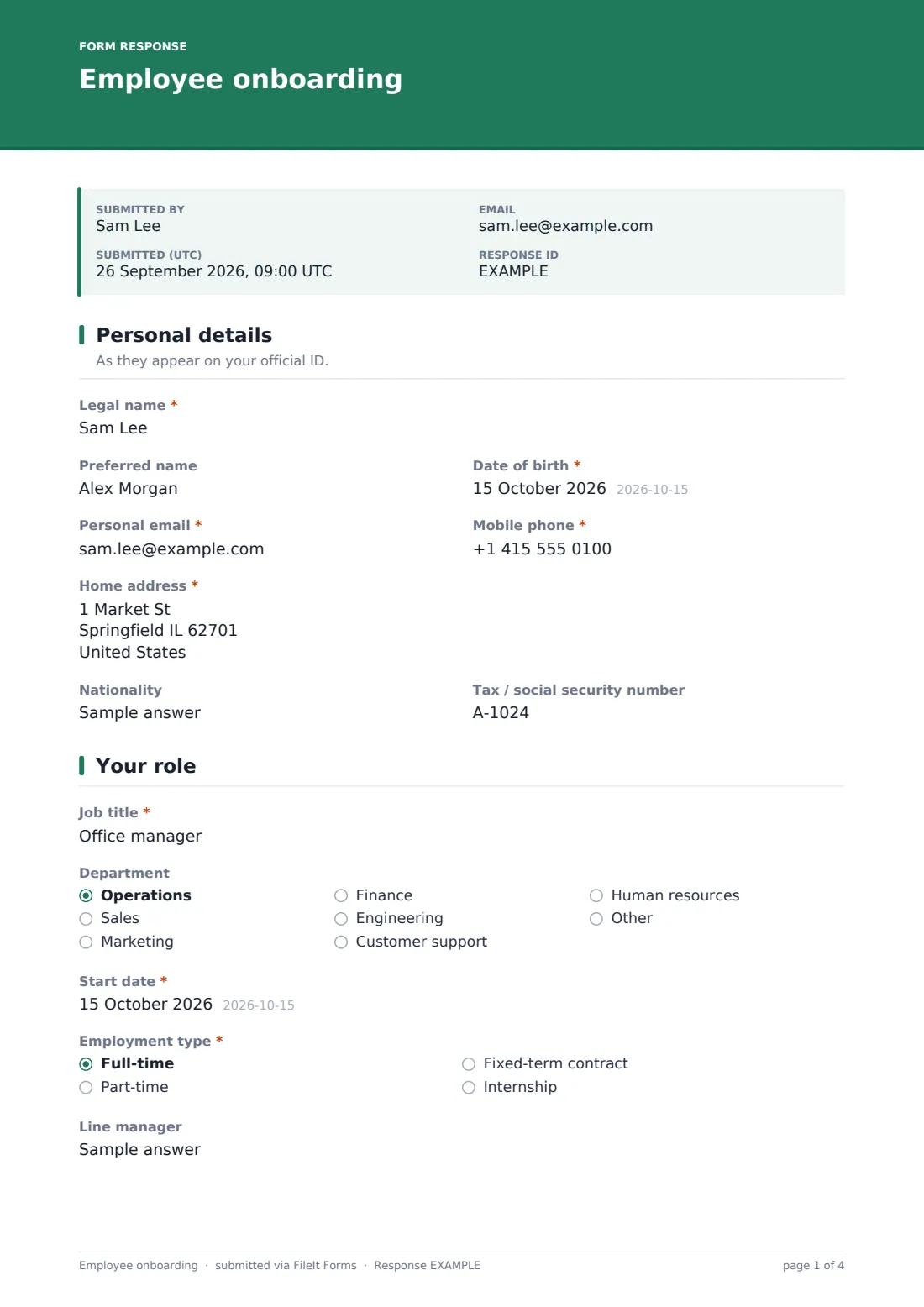
The first page asks for the new hire's Legal name, an optional Preferred name for what colleagues should call them, Date of birth, Personal email, Mobile phone and Home address. It also asks for Nationality and a Tax / social security number, both marked optional since not every employer needs them at this stage.
Because the page reminds the new hire these should match their official ID, the details collected here line up with whatever photo ID they upload later, reducing back-and-forth if something doesn't match.
2 Your role
Page two covers the employment basics: Job title, Department (chosen from a dropdown including Operations, Sales, Engineering and Human resources), Start date and Employment type — full-time, part-time, fixed-term contract or internship. Choosing fixed-term contract opens an extra question, Contract end date, that stays hidden for everyone else. There's also an optional Line manager field.
This conditional logic means someone hired on a permanent full-time basis never sees a contract-end question that doesn't apply to them, keeping the form shorter for most people.
3 Bank details
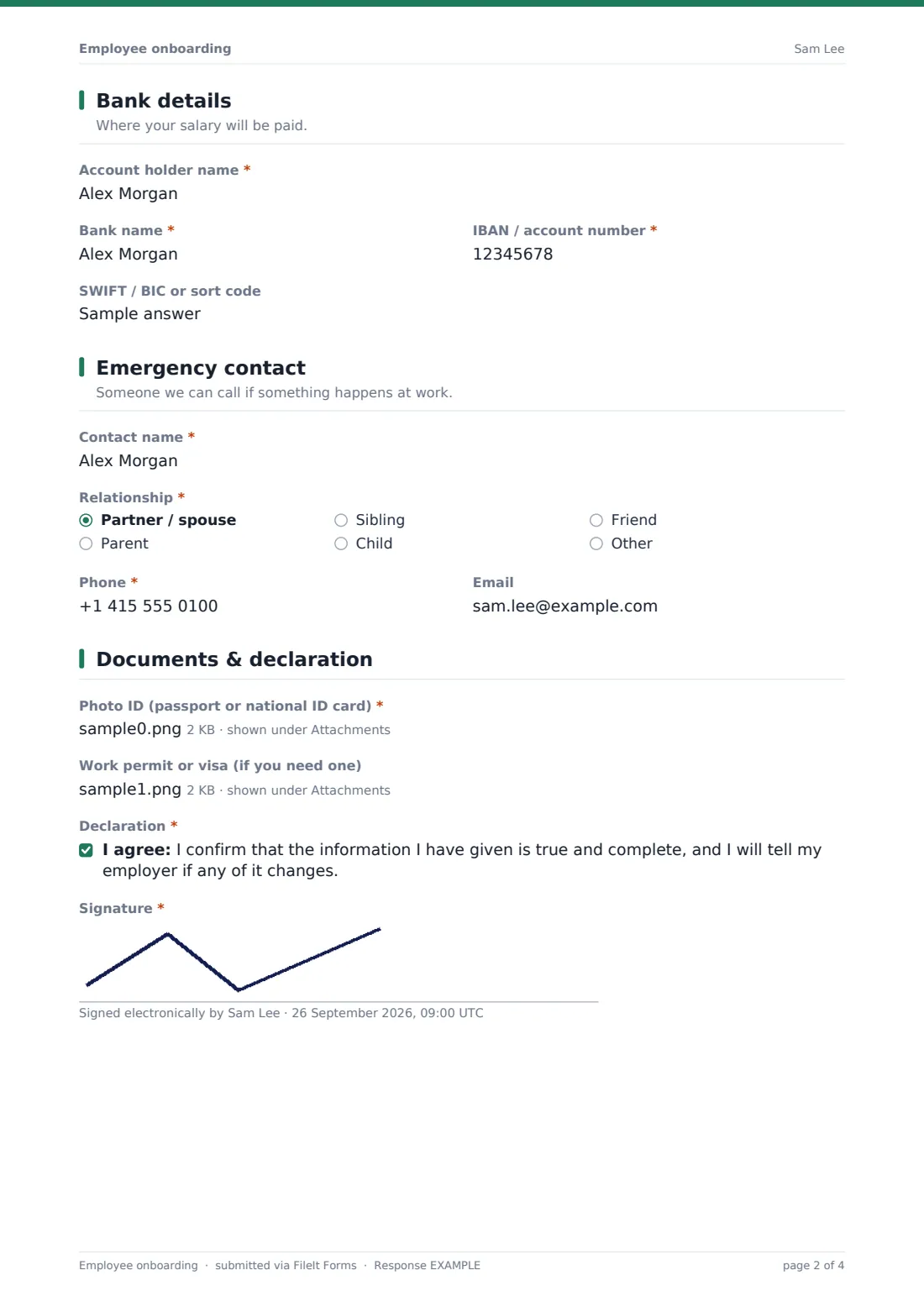
Page three collects Account holder name, Bank name, IBAN / account number and an optional SWIFT / BIC or sort code — everything payroll needs to pay the new hire's first salary. Because FileIt encrypts answers at rest, this is a safer way to move that information than pasting it into an email.
4 Emergency contact
Page four asks who to call if something happens at work: Contact name, Relationship (partner/spouse, parent, sibling, child, friend or other), Phone and an optional Email.
5 Documents & declaration
The final page asks for Photo ID (passport or national ID card) and, if it applies, a Work permit or visa, both uploaded as a PDF or photo. The new hire then confirms a declaration that the information given is true and complete and will be updated if it changes, and signs with the built-in signature pad.
Make the template yours
- Swap the Department options for your own team names, or add a field for office location if you have more than one site
- Add a question about equipment they'll need for their first day (pair it with the Equipment request template)
- Use conditional logic to show extra questions only for certain employment types, the same way Contract end date only appears for fixed-term contracts
- Set a closing date if you only want this form open around a hiring wave, or leave it open indefinitely for rolling recruitment
- Change the vault folder, family member or entity each response files under, and edit the document title so submissions are easy to find later
- Turn on an emailed PDF copy to the new hire so they have a record of what they submitted
Tips for a better employee onboarding form
- Ask for only the personal details you actually need for payroll and compliance — fewer sensitive fields means less risk if anything is mishandled later
- Tell new hires in advance to have their ID and bank details ready so they're not hunting for a passport mid-form
- Review submissions promptly so bank and ID details reach payroll before the first pay run
- Keep a short, clear confirmation message so new hires know their onboarding form has been received and what happens next
- Store any physical documents you also collect, like a signed contract, in the same vault folder for one complete record
Every response becomes a PDF in your vault
As soon as a new hire submits the form, FileIt generates a PDF of their answers, including any ID photos or work permit files they attached, and saves it in the vault folder you've set up for HR paperwork. You, and anyone else you've added under email notifications, get an alert that a new submission has arrived, and if you've turned on a copy for the respondent, the new hire receives their own PDF too.
From there, whoever handles onboarding can open the submission from the Responses table, check the details against the uploaded ID, and pass the bank information to payroll. If you're processing several new hires around the same time, the Responses table's filters and CSV export make it easy to work through them in one batch rather than opening each PDF individually.
- Start from this template. It opens in the FileIt Forms designer — change any question, add pages, set the rules for when questions appear.
- Share it. Turn on a public link, or send it to people by email, each with their own link. They don’t need a FileIt account.
- Get the answers as PDFs. Each response is saved as a PDF in the vault folder you choose, with uploaded files attached — and listed in a Responses table you can export to CSV.
Employee onboarding form: frequently asked questions
Is this employee onboarding form template free?
Yes. It's one of 160 ready-made templates included in FileIt's Forms app, available on every FileIt account, including the free plan. You can use it as it is or edit every question.
Does the new hire need a FileIt account to fill it in?
No. You share a public link or send them a personal emailed link, and they fill in the form and submit it without signing up for anything.
Where do the responses go?
Each submission is turned into a PDF and saved automatically in the vault folder you choose, with any uploaded ID or work permit files attached to it. You can also see every response in a filterable table and export them as CSV.
Is collecting bank details through an online form safe?
Answers submitted through FileIt forms are encrypted at rest, and the new hire never needs to email a document or type their account number into a spreadsheet. As the form owner, you're still responsible for who has access to your vault folder.
Can I add my own onboarding questions?
Yes. The template is a starting point — add, remove or reorder any question in the designer, add new pages, and add conditional logic so a question only appears when it's relevant.
Can I require an ID upload but not a work permit?
Yes. In this template the ID upload is required and the work permit upload is optional, but you can change either requirement, or show the work permit question only for certain employment types using conditional logic.
Does this form calculate payroll or file anything with the government?
No. It only collects the details you ask for from the new hire and saves each response as a PDF in your own vault — you handle payroll and any filings separately.