
What is the file restore request form template?
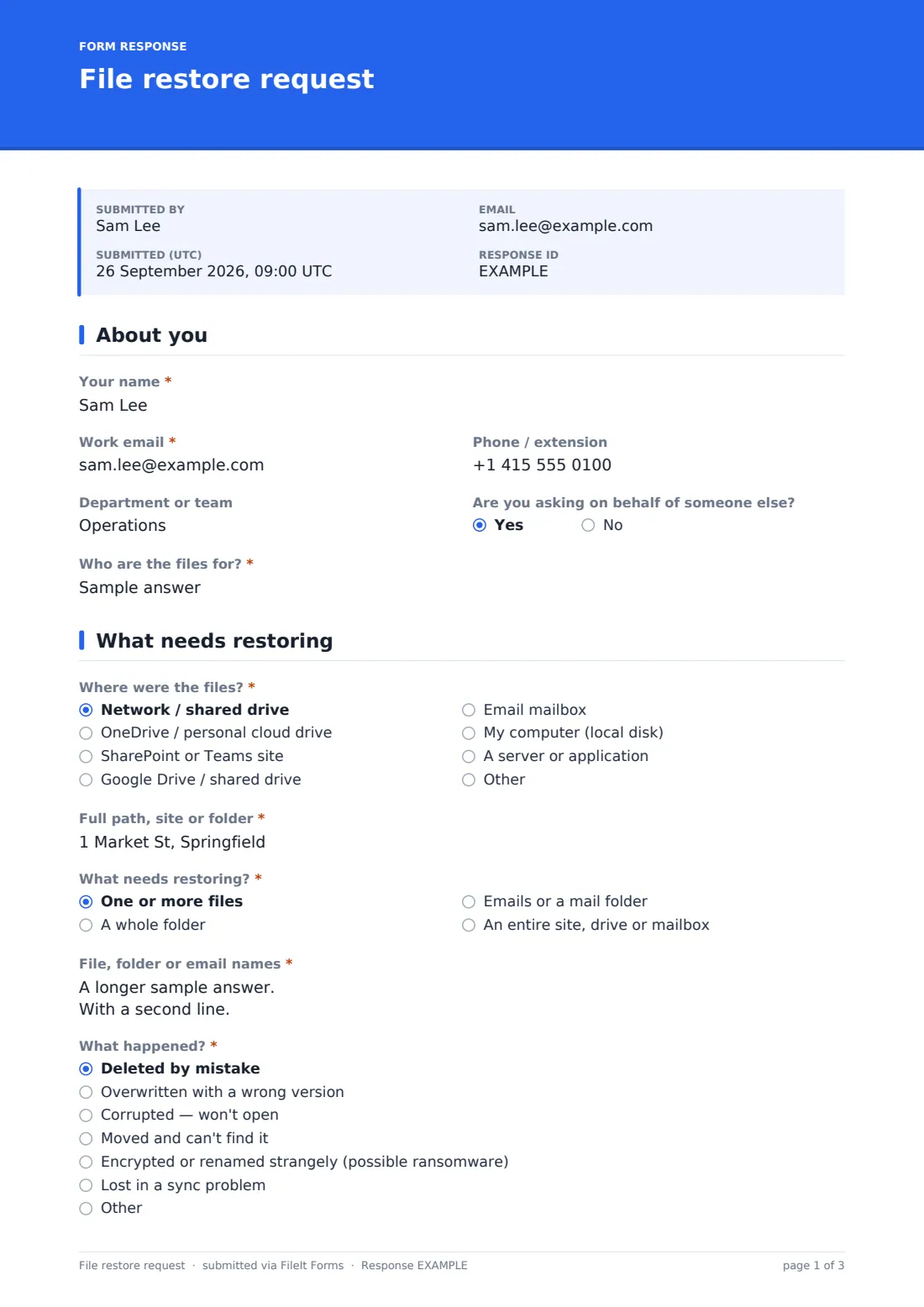
A file restore request form asks the person who lost a file for the details a backup restore actually depends on: where the file lived, its exact name, what happened to it, when it was last correct and which version they want back. This template collects all of that, plus where the restored copy should go and how urgent it is.
Restore requests by email or chat tend to arrive as "I lost my spreadsheet, can you get it back?" — which starts a round of questions before anyone can open the backup console. A structured form gets the path, the filenames and the date range up front, and flags possible ransomware so it gets treated as a security incident rather than a routine ticket.
The template runs on FileIt's Forms app, included on every FileIt account. Staff fill it in from a shared link without needing a FileIt account, and every request becomes a PDF in your vault that doubles as a record of who asked for which data to be restored.
- Best for
- IT teams, managed service providers and office managers handling backup restores
- Filled in by
- The employee who needs the files back, or someone on their behalf
- Time to complete
- About 3–5 minutes
- Includes
- Restore point and destination logic, ransomware warning, screenshot upload, confirmation
Who uses a file restore request form?
- A spreadsheet deleted from a shared drive by mistake
- A document overwritten with the wrong version and saved
- A folder that disappeared from SharePoint, Teams or OneDrive after a sync problem
- Emails or a mail folder deleted and emptied from the deleted items folder
- Files that suddenly won't open or have been renamed with an unfamiliar extension
- A manager requesting a leaver's files back from backup
Questions on this file restore request form
25 questions over 4 pages · includes file upload, conditional questions, multiple pages, consent checkbox.
1 About you
- Your name*
- Work email*
- Phone / extension
- Department or team
- Are you asking on behalf of someone else?
- Who are the files for?* asked only when it applies
2 What needs restoring
- Where were the files?* Network / shared drive · OneDrive / personal cloud drive · SharePoint or Teams site · Google Drive / shared drive · Email mailbox · My computer (local disk) · A server or application
- Full path, site or folder*
- What needs restoring?* One or more files · A whole folder · Emails or a mail folder · An entire site, drive or mailbox
- File, folder or email names*
- What happened?* Deleted by mistake · Overwritten with a wrong version · Corrupted — won't open · Moved and can't find it · Encrypted or renamed strangely (possible ransomware) · Lost in a sync problem
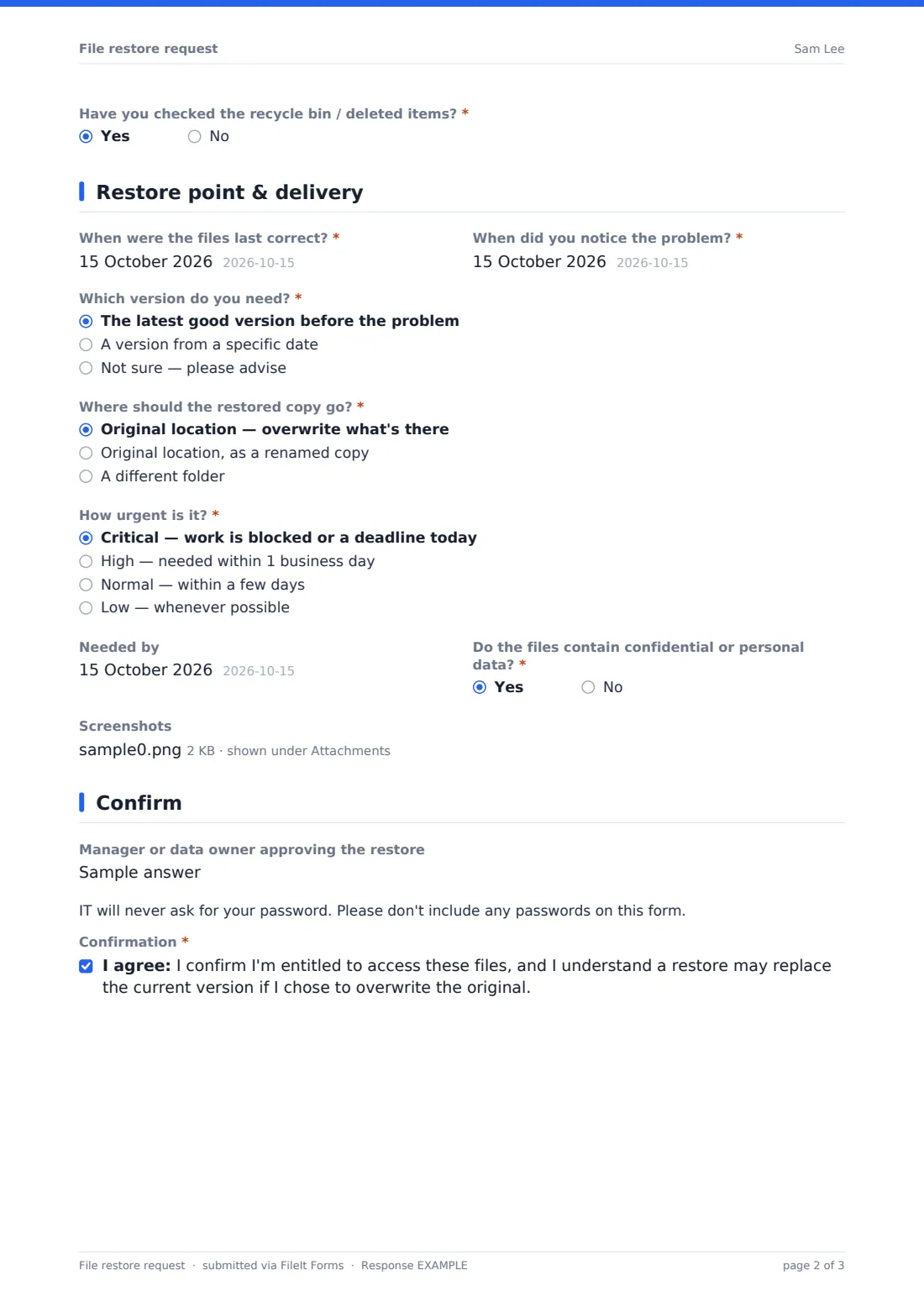
- Have you checked the recycle bin / deleted items?*
3 Restore point & delivery
- When were the files last correct?*
- When did you notice the problem?*
- Which version do you need?* The latest good version before the problem · A version from a specific date · Not sure — please advise
- Version date needed* asked only when it applies
- Approximate time asked only when it applies
- Where should the restored copy go?* Original location — overwrite what's there · Original location, as a renamed copy · A different folder
- Restore to which folder?* asked only when it applies
- How urgent is it?* Critical — work is blocked or a deadline today · High — needed within 1 business day · Normal — within a few days · Low — whenever possible
- Needed by
- Do the files contain confidential or personal data?*
- Screenshots
4 Confirm
- Manager or data owner approving the restore
- Confirmation*
The file restore request form, page by page
1 About you
Name, work email, phone and department identify the requester. If they're asking on behalf of someone else, the form asks whose files these are.
2 What needs restoring
The requester picks where the files were — network drive, OneDrive, SharePoint or Teams, Google Drive, a mailbox, a local disk or an application — and pastes the full path. They say whether it's files, a folder, mail items or a whole site, list the names one per line, and choose what happened. Choosing encrypted or strangely renamed files shows a warning to disconnect from the network and call the service desk. The last question checks they've already looked in the recycle bin.
3 Restore point & delivery
Two dates — when the files were last correct and when the problem was noticed — narrow down the backup to use. The requester asks for the latest good version, a specific date and time, or advice. They choose to overwrite the original, restore alongside it as a renamed copy, or restore to a different folder. Urgency, a needed-by date, a confidential-data flag and up to three screenshots complete the request.
4 Confirm
An optional field names the manager or data owner approving the restore when the files aren't the requester's own. A reminder that IT never asks for passwords sits above the final confirmation that the requester is entitled to the files.
Make the template yours
- Edit the location list to match the storage your organisation actually uses
- Make manager approval required if your policy says every restore needs sign-off
- Add your backup retention period to the cover text so people know how far back you can go
- Route requests marked critical to an on-call address in the notification settings
- File requests into a folder per client if you're a managed service provider
- Add a field for a ticket number from your own service desk system
Tips for a better file restore request form
- Ask for the exact path — it saves more time than any other single answer
- Encourage restoring to a separate folder first so nothing current gets overwritten
- Treat anything flagged as possible ransomware as a security incident, not a restore
- Check the recycle bin and version history before going to backup — the form prompts for this
- Record who approved restores of other people's files
- Tell requesters how far back your backups go so they don't ask for the impossible
Every response becomes a PDF in your vault
Each request is saved as a PDF titled with the requester's name and the date, filed in the vault folder you chose, with any screenshots attached. You're notified and the requester gets a copy of what they submitted.
The Responses table lets you sort open requests by urgency and export them to CSV — useful for reviewing how often restores are needed and which locations they come from.
- Start from this template. It opens in the FileIt Forms designer — change any question, add pages, set the rules for when questions appear.
- Share it. Turn on a public link, or send it to people by email, each with their own link. They don’t need a FileIt account.
- Get the answers as PDFs. Each response is saved as a PDF in the vault folder you choose, with uploaded files attached — and listed in a Responses table you can export to CSV.
File restore request form: frequently asked questions
Is this file restore request template free?
Yes. It's included with the Forms app on every FileIt account, including the free plan.
Do staff need a FileIt account to submit a request?
No. They fill it in from the link you share — nothing to sign up for.
Does FileIt restore the files?
No. The form collects the request. Your IT team or provider carries out the restore using your own backup system.
Why does the form ask when the files were last correct?
Backups are taken at points in time. Knowing when the file was last good tells IT which backup to restore from.
What happens if someone picks the ransomware option?
A warning appears telling them to disconnect from the network and call the service desk. The form still submits so you have the details.
Can people attach screenshots?
Yes. Up to three images or PDFs of error messages or the folder as it looks now.
Can I require manager approval?
Yes. Make the approval field required in the designer, or add a signature field for the approver.