What is the expense reimbursement claim form template?
Chasing paper receipts, spreadsheet claims and email threads is slow for everyone involved. This expense reimbursement form template gives employees a single online place to list what they spent, attach a photo or PDF of each receipt, and say how they'd like to be paid back — whether that's with their next salary or a separate bank transfer.
An online claim form beats a stapled envelope of receipts because every claim has a date, category, description, amount and a receipt, so nothing gets left out or lost. Conditional logic adds a second and third expense only when the employee needs it, so a one-item claim stays short.
Every time someone submits this form, FileIt turns it into a PDF — the claim details, the declaration and the attached receipts together — and files it in the vault folder you choose. You get an email the moment a claim lands, and can open the Responses table any time to review, filter or export claims to CSV for payroll.
- Best for
- Small businesses and teams reimbursing staff for work expenses
- Filled in by
- Employees, contractors or anyone claiming costs back
- Time to complete
- About 3–5 minutes for one expense, longer with several
- Includes
- Receipt uploads, conditional logic for extra expenses, bank details, signature
Who uses a expense reimbursement claim form?
- A sales rep claims back a client dinner, a taxi and a hotel night after a trip
- An office manager reimburses a team member who bought supplies with their own card
- A remote employee claims a portion of home broadband or a co-working day pass
- A field engineer submits mileage for using their own vehicle between job sites
- A new starter is reimbursed for a professional certification or training course
- A finance team collects claims from several departments in one consistent format ready for payroll
Questions on this expense reimbursement claim form
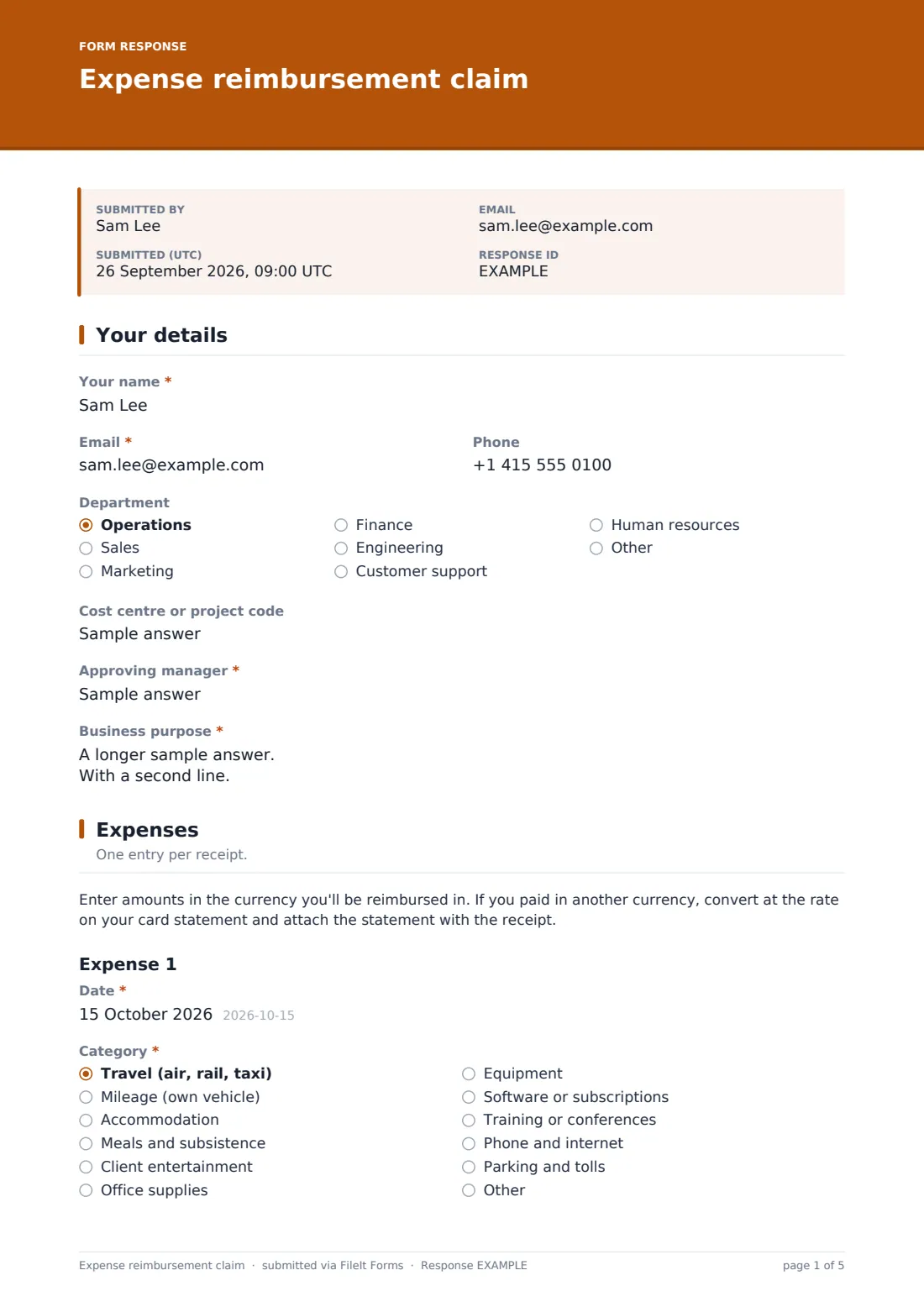
34 questions over 3 pages · includes signature, file upload, conditional questions, multiple pages, consent checkbox.
1 Your details
- Your name*
- Email*
- Phone
- Department Operations · Sales · Marketing · Finance · Engineering · Customer support · Human resources · Other
- Cost centre or project code
- Approving manager*
- Business purpose*
2 Expenses
- Date*
- Category* Travel (air, rail, taxi) · Mileage (own vehicle) · Accommodation · Meals and subsistence · Client entertainment · Office supplies · Equipment · Software or subscriptions · Training or conferences · Phone and internet · Parking and tolls · Other
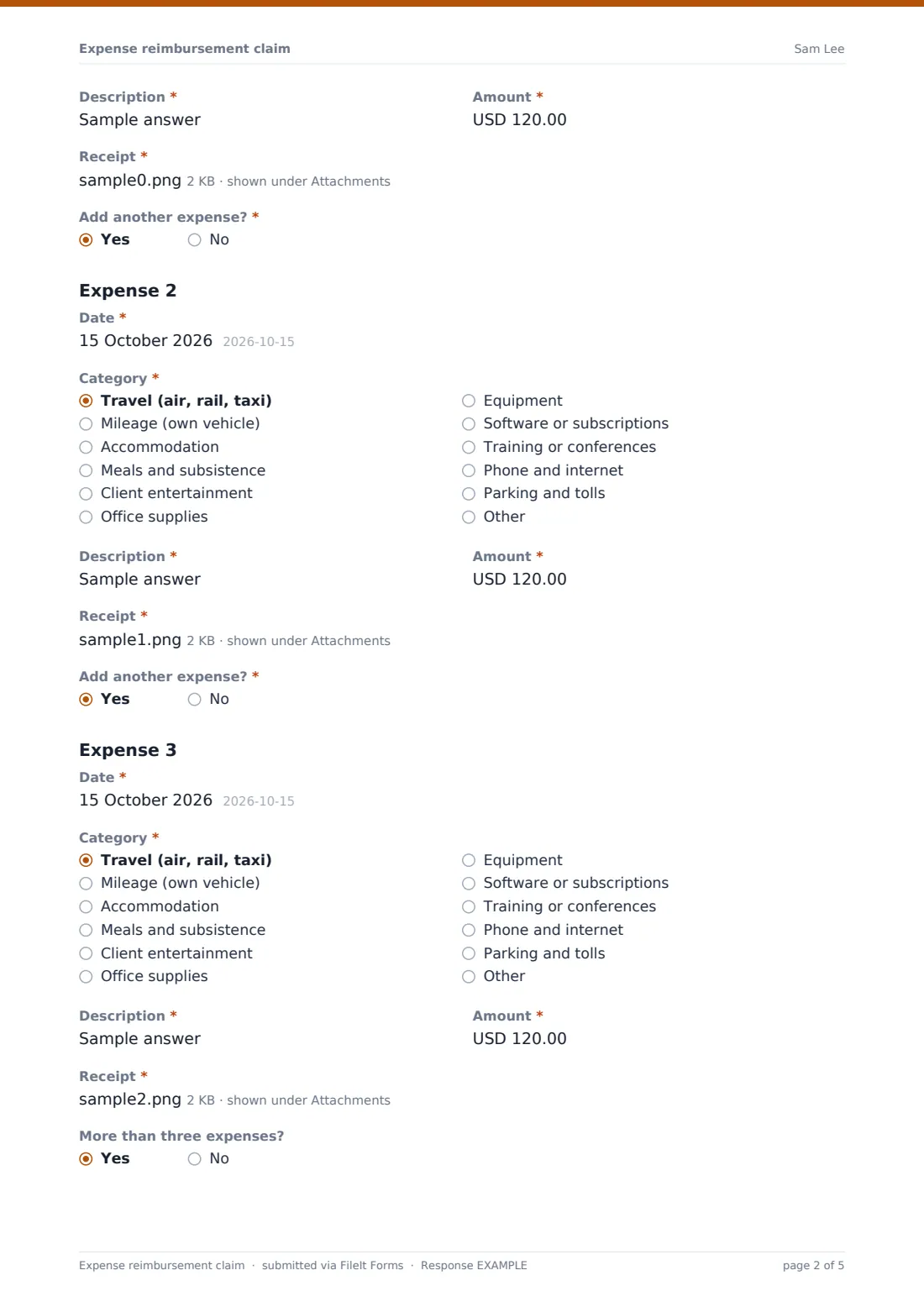
- Description*
- Amount*
- Receipt*
- Add another expense?*
- Date* asked only when it applies
- Category* asked only when it applies Travel (air, rail, taxi) · Mileage (own vehicle) · Accommodation · Meals and subsistence · Client entertainment · Office supplies · Equipment · Software or subscriptions · Training or conferences · Phone and internet · Parking and tolls · Other
- Description* asked only when it applies
- Amount* asked only when it applies
- Receipt* asked only when it applies
- Add another expense?* asked only when it applies
- Date* asked only when it applies
- Category* asked only when it applies Travel (air, rail, taxi) · Mileage (own vehicle) · Accommodation · Meals and subsistence · Client entertainment · Office supplies · Equipment · Software or subscriptions · Training or conferences · Phone and internet · Parking and tolls · Other
- Description* asked only when it applies
- Amount* asked only when it applies
- Receipt* asked only when it applies
- More than three expenses? asked only when it applies
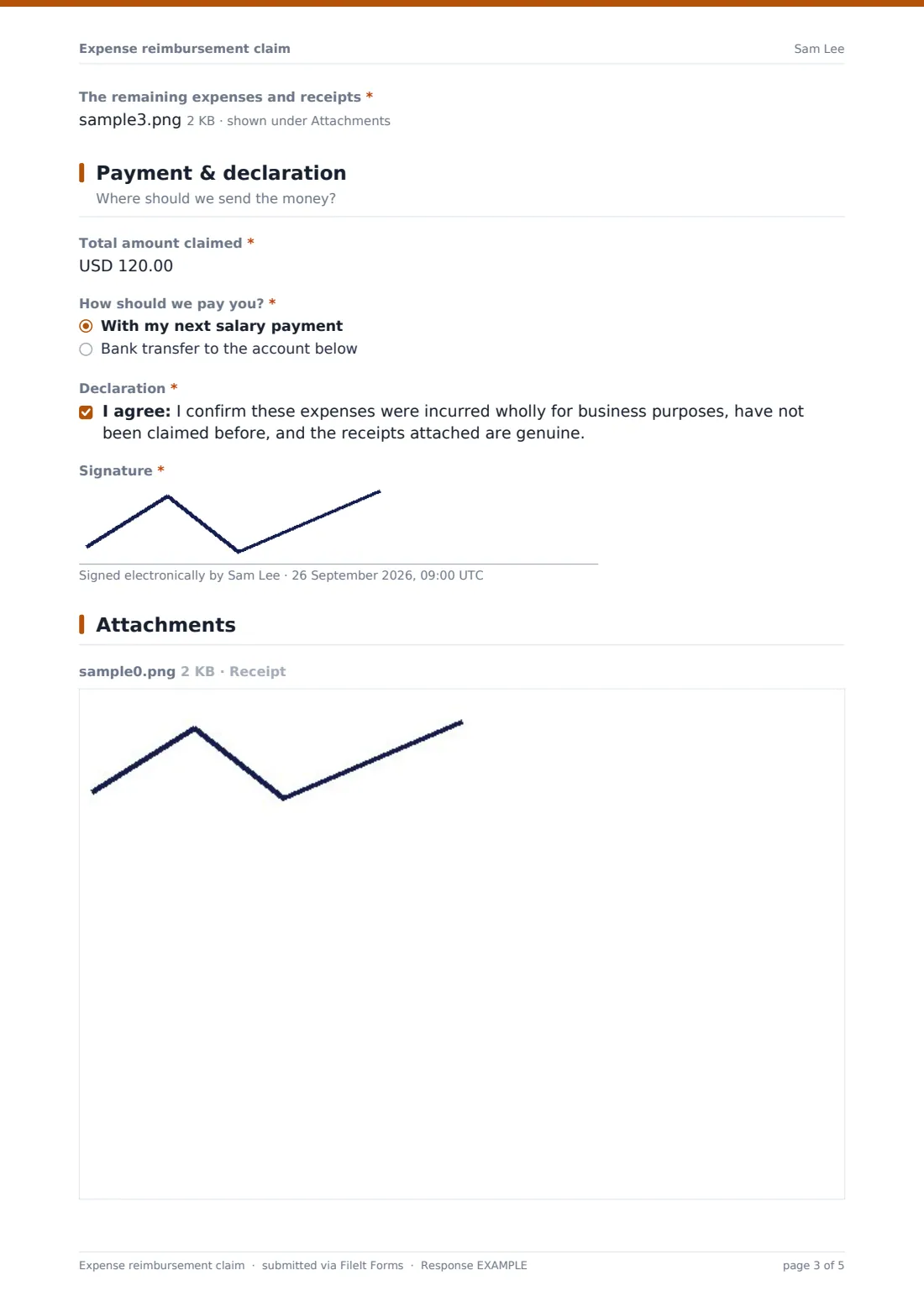
- The remaining expenses and receipts* asked only when it applies
3 Payment & declaration
- Total amount claimed*
- How should we pay you?* With my next salary payment · Bank transfer to the account below
- Account holder name* asked only when it applies
- Bank name* asked only when it applies
- IBAN / account number* asked only when it applies
- SWIFT / BIC, sort code or routing number asked only when it applies
- Declaration*
- Signature*
The expense reimbursement claim form, page by page
1 Your details
The claim opens with who is asking to be paid back: Your name, Email and Phone, plus a Department dropdown so claims can be routed or reported by team. A Cost centre or project code field tags a claim to a budget, Approving manager records who should sign off, and a Business purpose box gives the approver context before they look at the amounts.
Keeping this on its own page means the approver sees who it's from and why at a glance, before scrolling into the itemised costs.
2 Expenses
Each expense gets its own Date, a Category dropdown (travel, mileage, accommodation, meals, client entertainment, supplies, equipment, software, training, phone, parking, or other), a short Description and the Amount in currency. A Receipt upload sits next to each entry — a photo or PDF of the receipt, or for mileage a trip log — so the paperwork travels with the claim.
Conditional logic keeps a single-item claim short: a yes/no 'Add another expense?' question only reveals Expense 2's fields if needed, then repeats for a third. Beyond that, one more question reveals a single upload for a list of the remaining items and their receipts.
3 Payment & declaration
The claimant enters the Total amount claimed and chooses How should we pay you: with their next salary payment, or by bank transfer. Choosing bank transfer reveals Account holder name, Bank name, IBAN / account number (checked against a pattern) and an optional SWIFT / BIC or sort code.
A Declaration has the employee confirm the expenses were for business purposes and haven't been claimed before, and a Signature closes out the claim. Because the whole thing lands as one PDF, an approver has the story, the numbers, the receipts and the signed declaration in a single document.
Make the template yours
- Adjust the Category dropdown to match your own chart of accounts or expense policy
- Add a per-expense spending limit reminder using a paragraph block near the top of the Expenses page
- Set the vault folder so claims file automatically under the right department or cost centre
- Turn on a maximum number of responses if you run reimbursement rounds on a fixed schedule
- Add a second approver's email in the notification settings so both HR and a manager see new claims
- Rename the Payment & declaration page's confirmation message to mention your usual payment run date
Tips for a better expense reimbursement claim form
- Ask for one receipt per expense line rather than a single bundled photo — it's much faster to check
- Keep the category list short and specific to your business; a long list slows people down
- Encourage claims to be submitted soon after the spend, while the receipt and the memory are both fresh
- Make the business purpose field genuinely required — 'client visit, 3–5 October' takes seconds and saves back-and-forth later
- Never ask staff to email or paste full card numbers anywhere on the form — bank account details for reimbursement are enough
Every response becomes a PDF in your vault
As soon as someone submits a claim, FileIt generates a PDF of the whole thing — every answer, the itemised expenses and every receipt — and saves it into the vault folder you've set for this form. You get an email notification immediately, and can add other addresses, such as a manager or payroll inbox, so the right people see it without needing their own FileIt account.
From there, most businesses open the Responses table to check the claim against receipts and approve it or follow up. Exporting to CSV once a batch is ready gives a clean list of names, amounts and payment methods for payroll, while the PDFs stay in the vault as the permanent record.
- Start from this template. It opens in the FileIt Forms designer — change any question, add pages, set the rules for when questions appear.
- Share it. Turn on a public link, or send it to people by email, each with their own link. They don’t need a FileIt account.
- Get the answers as PDFs. Each response is saved as a PDF in the vault folder you choose, with uploaded files attached — and listed in a Responses table you can export to CSV.
Expense reimbursement claim form: frequently asked questions
Is this expense reimbursement form template free?
Yes. It's one of the ready-made templates included in the Forms app on every FileIt account, including the free plan. You can use it as it is or edit every question in the designer.
Do employees need a FileIt account to submit a claim?
No. Share the form by public link or send personal email invitations, and anyone can fill it in and submit a claim without ever creating an account.
How do we get expense claims as PDFs?
Every submission is automatically converted into a PDF, with the answers and any uploaded receipts, and saved in the vault folder you choose when you set up the form.
Can employees attach more than one receipt to a single expense?
Yes, each expense's receipt field accepts up to three files, so a receipt plus a card statement, for example, can go in together.
What happens if someone has more than three expenses on one claim?
A follow-up question appears after the third expense asking if there are more, and if so it reveals a single upload field where they can attach a spreadsheet or list covering the rest along with the receipts.
Is bank account information collected on this form kept secure?
Answers are encrypted at rest in FileIt, the same as every other form response, though only ask for the payment details you actually need to process reimbursement.
Can we route expense claims to different vault folders by department?
You can set one filing folder per form. Many businesses duplicate this template per department or approver so each team's claims land in their own folder automatically.