
What is the work order form template?
A work order needs to work for two different people at two different moments: the office raising the job, and the technician standing in someone's kitchen an hour later trying to remember what they found and what they used. This template covers both — the office (or the customer) describes the job up front, and the technician fills in what was actually done, all in the same document.
Because it's one continuous form rather than a job sheet plus a separate invoice note plus a separate sign-off slip, nothing about the job gets lost between systems. Parts, labour hours and costs sit right next to the description of what was found and fixed, and the customer signs off on the same page that says exactly what was completed.
Every work order becomes a PDF saved automatically to your FileIt vault, with any photos of the problem attached, so a completed job is fully documented and easy to find again if a customer calls back with a follow-up question.
- Best for
- Trades businesses, maintenance teams and field service technicians
- Filled in by
- The office or technician raising the job, then the technician completing it, then the customer signing off
- Time to complete
- About 5-8 minutes to complete fully
- Includes
- Priority levels, photo upload, parts and labour tracking, customer signature
Who uses a work order form?
- A plumbing or electrical business raises a work order for every job, from initial call to signed completion
- A property maintenance team logs repairs across multiple rental units using a consistent format
- A field service technician records parts used and labour hours on site, right after finishing a job
- A facilities team tracks emergency call-outs separately from routine or planned maintenance using the priority field
- A handyman or general contractor gets a customer's signature confirming work was completed to their satisfaction
- A business flags jobs that couldn't be finished in one visit, with a reason and a scheduled return date
Questions on this work order form
32 questions over 4 pages · includes signature, file upload, conditional questions, multiple pages, consent checkbox.
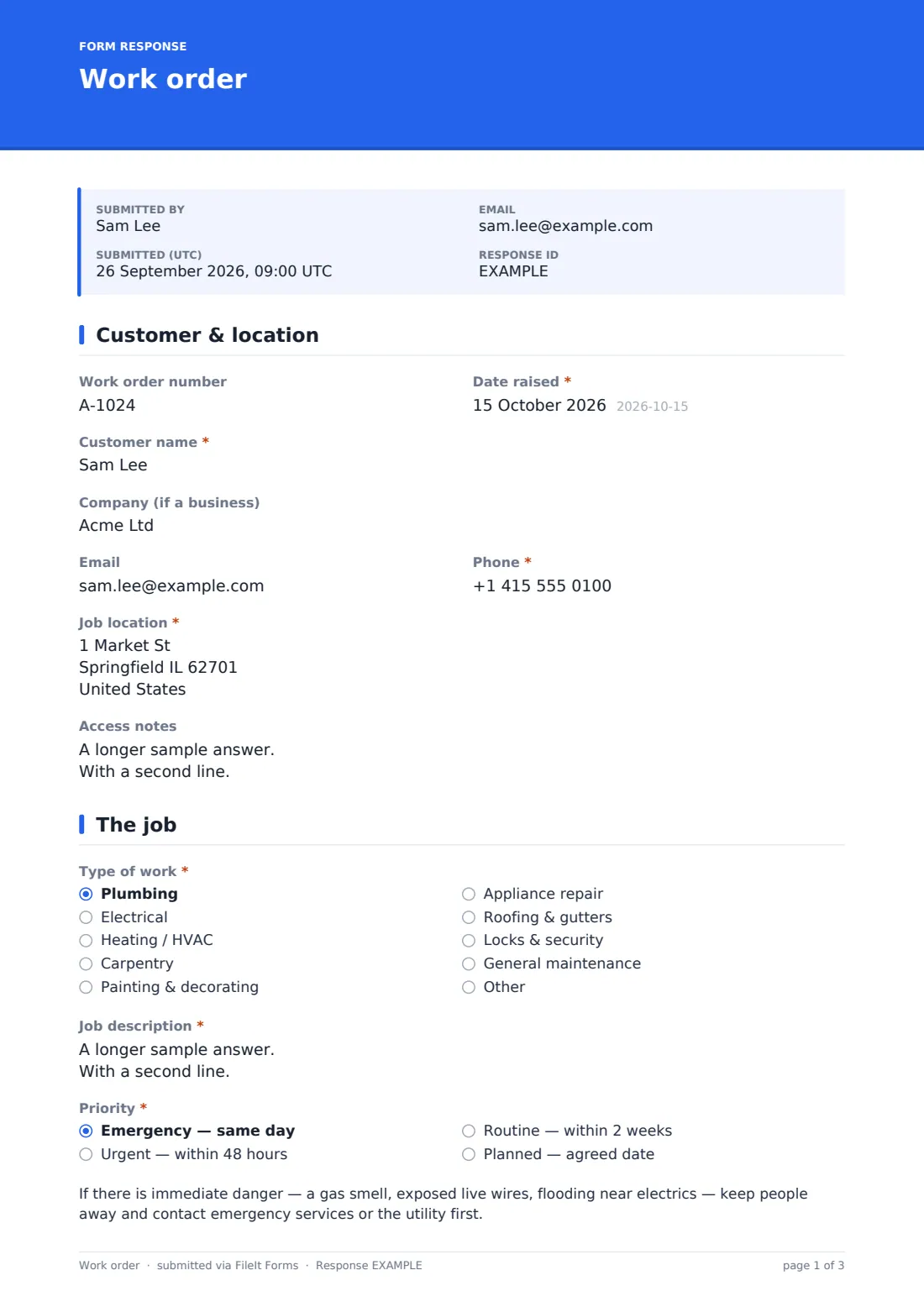
1 Customer & location
- Work order number
- Date raised*
- Customer name*
- Company (if a business)
- Phone*
- Job location*
- Access notes
2 The job
- Type of work* Plumbing · Electrical · Heating / HVAC · Carpentry · Painting & decorating · Appliance repair · Roofing & gutters · Locks & security · General maintenance · Other
- Other — please specify* asked only when it applies
- Job description*
- Priority* Emergency — same day · Urgent — within 48 hours · Routine — within 2 weeks · Planned — agreed date
- Agreed visit date* asked only when it applies
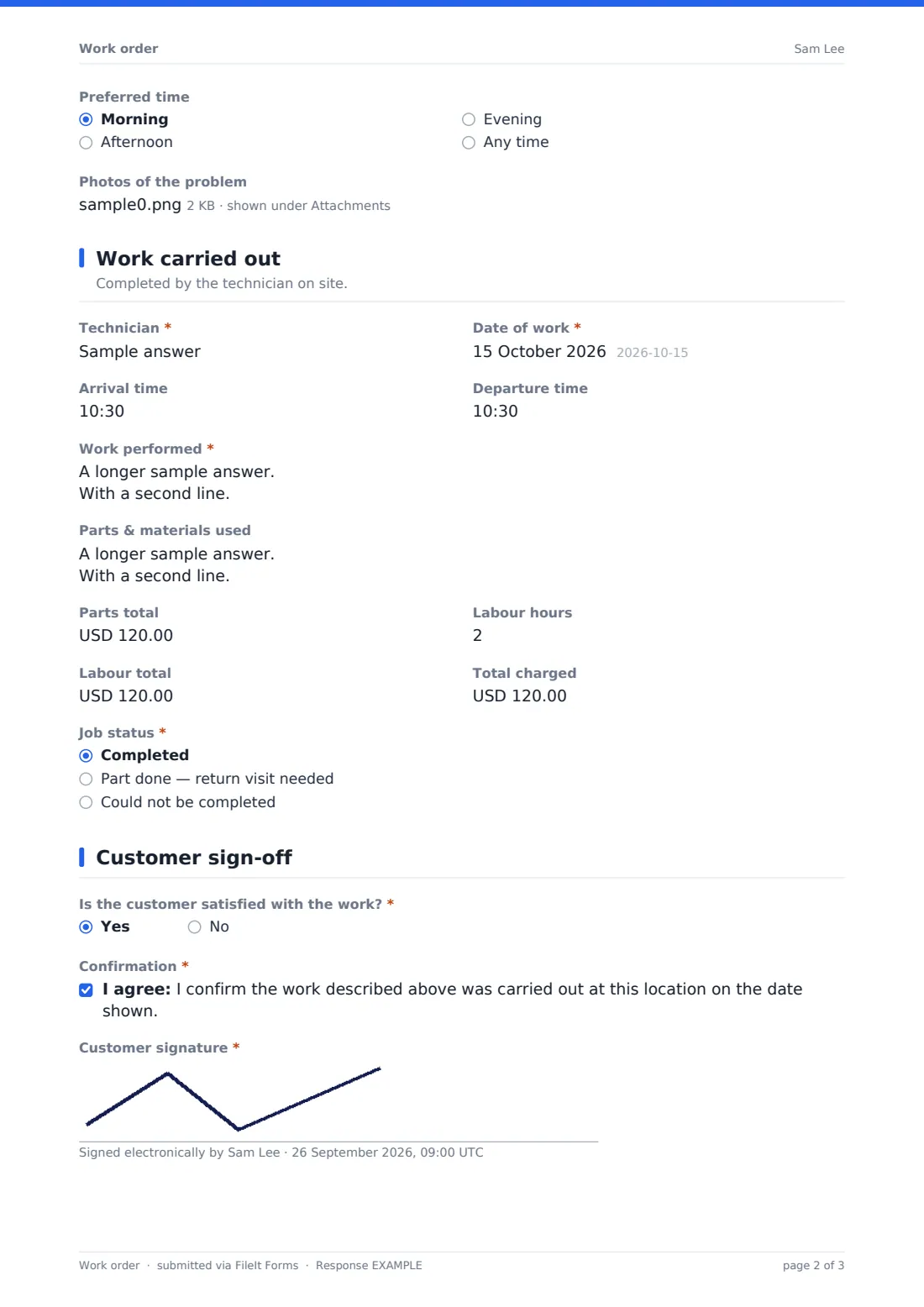
- Preferred time Morning · Afternoon · Evening · Any time
- Photos of the problem
3 Work carried out
- Technician*
- Date of work*
- Arrival time
- Departure time
- Work performed*
- Parts & materials used
- Parts total
- Labour hours
- Labour total
- Total charged
- Job status* Completed · Part done — return visit needed · Could not be completed
- What's outstanding and why?* asked only when it applies
- Return visit date asked only when it applies
4 Customer sign-off
- Is the customer satisfied with the work?*
- Customer's concerns* asked only when it applies
- Confirmation*
- Customer signature*
The work order form, page by page
1 Customer & location
The work order opens with an optional work order number, the date raised, and the customer's name, company (if applicable), email and phone. A job location address and access notes — parking instructions, entry codes, pets, working hours — give the technician everything they need to actually get to the job without a separate phone call.
2 The job
A dropdown covers common trades — plumbing, electrical, heating/HVAC, carpentry, painting & decorating, appliance repair, roofing & gutters, locks & security, general maintenance, or other, with a free-text field for anything outside that list. A required job description explains what's wrong or what needs doing, and a priority question (emergency, urgent, routine or planned) sets expectations for timing — choosing emergency reveals a safety note about immediate danger, like a gas smell or exposed wiring, telling people to contact emergency services first. Choosing "planned" reveals an agreed visit date field, and an optional photo upload lets anyone raising the job show the problem directly.
3 Work carried out
This page is filled in by the technician on site: their name, the date of work, arrival and departure times, and a description of the work actually performed — what they found and what they did. A parts and materials field lists everything used, one line per item, alongside separate cost fields for parts and labour hours, plus a total charged field. A job status question — completed, part done with a return visit needed, or could not be completed — reveals a required explanation and an optional return date whenever the job isn't fully finished.
4 Customer sign-off
Before finishing, the customer is asked directly whether they're satisfied with the work; answering no reveals a required field to describe their concerns, so any dissatisfaction is captured at the point of sign-off rather than discovered later. A final consent statement confirms the work described was carried out at the stated location on the stated date, and the customer signs on screen to complete the record.
Make the template yours
- Adjust the trade categories to match the services your business actually offers
- Add a warranty or guarantee statement to the completion consent if your business offers one on completed work
- Make the customer satisfaction question trigger a follow-up call automatically by routing "no" answers to a manager's notification email
- File each work order into a folder by customer, or by property, depending on how your business organises jobs
- Add a scheduled technician field if jobs are assigned before the technician arrives on site
- Set up invoicing separately once a work order is marked completed, since the form only records costs, not payment
- Add a follow-up reminder question for jobs marked "return visit needed", so nothing is forgotten
Tips for a better work order form
- Ask technicians to fill in the work carried out section on site, right after finishing, while details are still fresh
- Be specific in the job description from the start — vague requests like "fix the tap" lead to return visits for missing parts
- Use the priority field honestly; treating every job as an emergency makes the field meaningless for genuine emergencies
- Always get a customer's signature at completion, even for small jobs, since it's the clearest record that work was done and accepted
- Follow up immediately on any "not satisfied" answer rather than letting it sit in a file
- Keep parts lists specific (quantity, size, type) so reordering or warranty claims are straightforward later
Every response becomes a PDF in your vault
Once the work order is signed off, FileIt saves it as a PDF in your vault, in the folder you've set up — often by customer or by job type — with any photos attached. You're notified by email as soon as it's submitted, and the confirmation message tells the customer the signed copy is filed with the job.
From there, the business typically uses the completed work order to raise an invoice, using the parts and labour totals already recorded, and checks the Responses table for any jobs still marked "return visit needed" so nothing falls through the cracks. Because every job follows the same structure, comparing job costs or completion rates across a team is straightforward with a CSV export.
- Start from this template. It opens in the FileIt Forms designer — change any question, add pages, set the rules for when questions appear.
- Share it. Turn on a public link, or send it to people by email, each with their own link. They don’t need a FileIt account.
- Get the answers as PDFs. Each response is saved as a PDF in the vault folder you choose, with uploaded files attached — and listed in a Responses table you can export to CSV.
Work order form: frequently asked questions
Is this work order form template free?
Yes. It's included in FileIt's Forms app on every plan, including the free plan, and every field can be edited to match your business.
Do customers need a FileIt account to sign off on a work order?
No. The work order can be filled in on a shared device or the technician's phone, and the customer signs on screen without needing an account.
Can the same work order be used from job request through to completion?
Yes, that's exactly how it's designed — the office or customer raises the job on the early pages, and the technician and customer complete the rest at the job itself.
How do we access completed work orders?
Every work order is saved automatically as a signed PDF in your FileIt vault, and you can browse, filter and export the full list to CSV.
Does this form generate an invoice?
No, it records parts and labour costs and a total charged, but doesn't generate or send an invoice — that's a separate step in your own invoicing process.
Can technicians attach photos of the completed job?
There's a photo upload for the problem before the job starts; you can add a second upload for after-photos in the designer if you want that too.
Can we track jobs that need a return visit?
Yes, marking a job as "part done" or "could not be completed" reveals a required explanation, and "part done" also reveals a return visit date field.
Can we require the customer's signature before the job is marked complete?
The signature is required by default in this template, so a job isn't considered finished in your records until the customer has signed off.