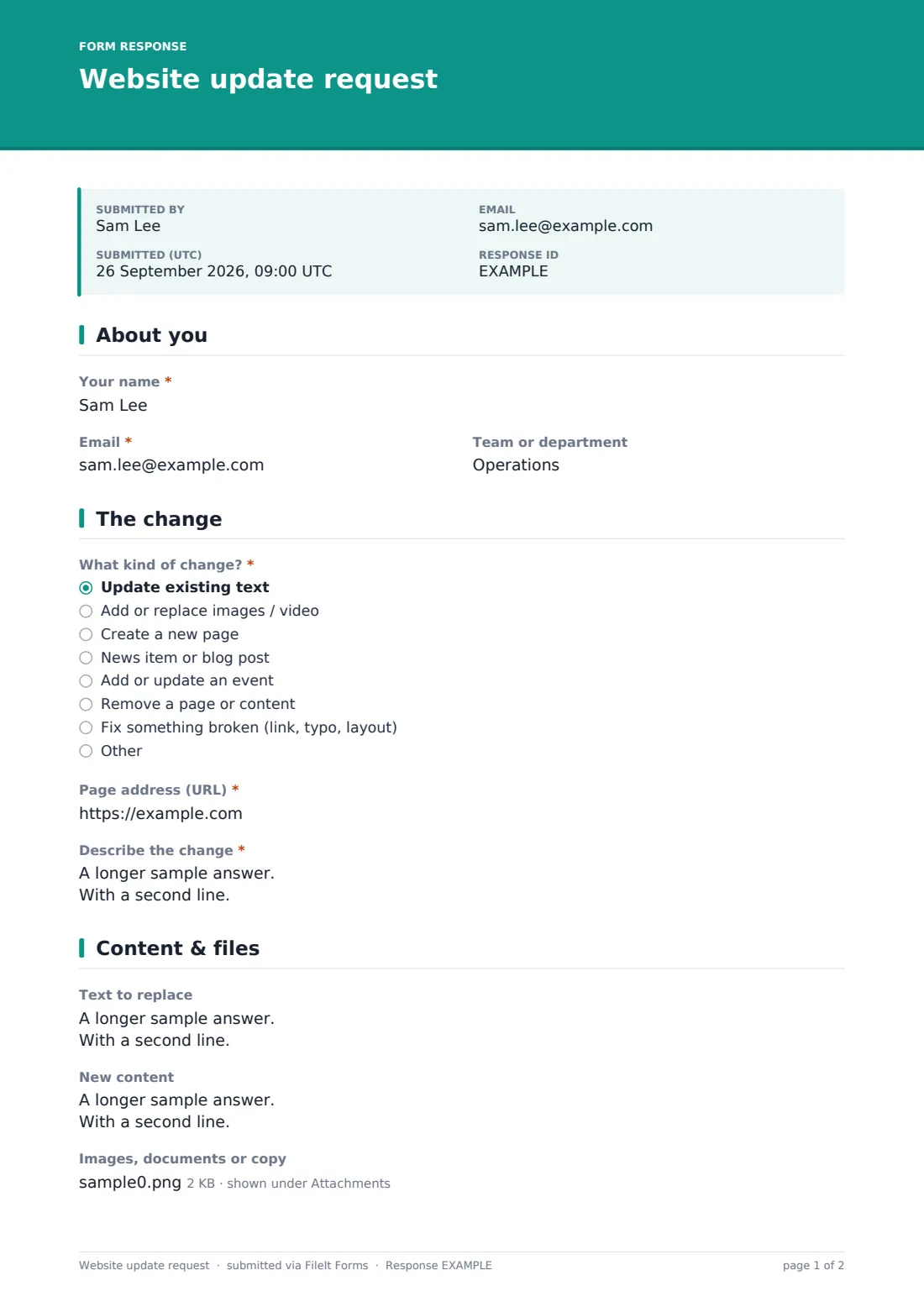
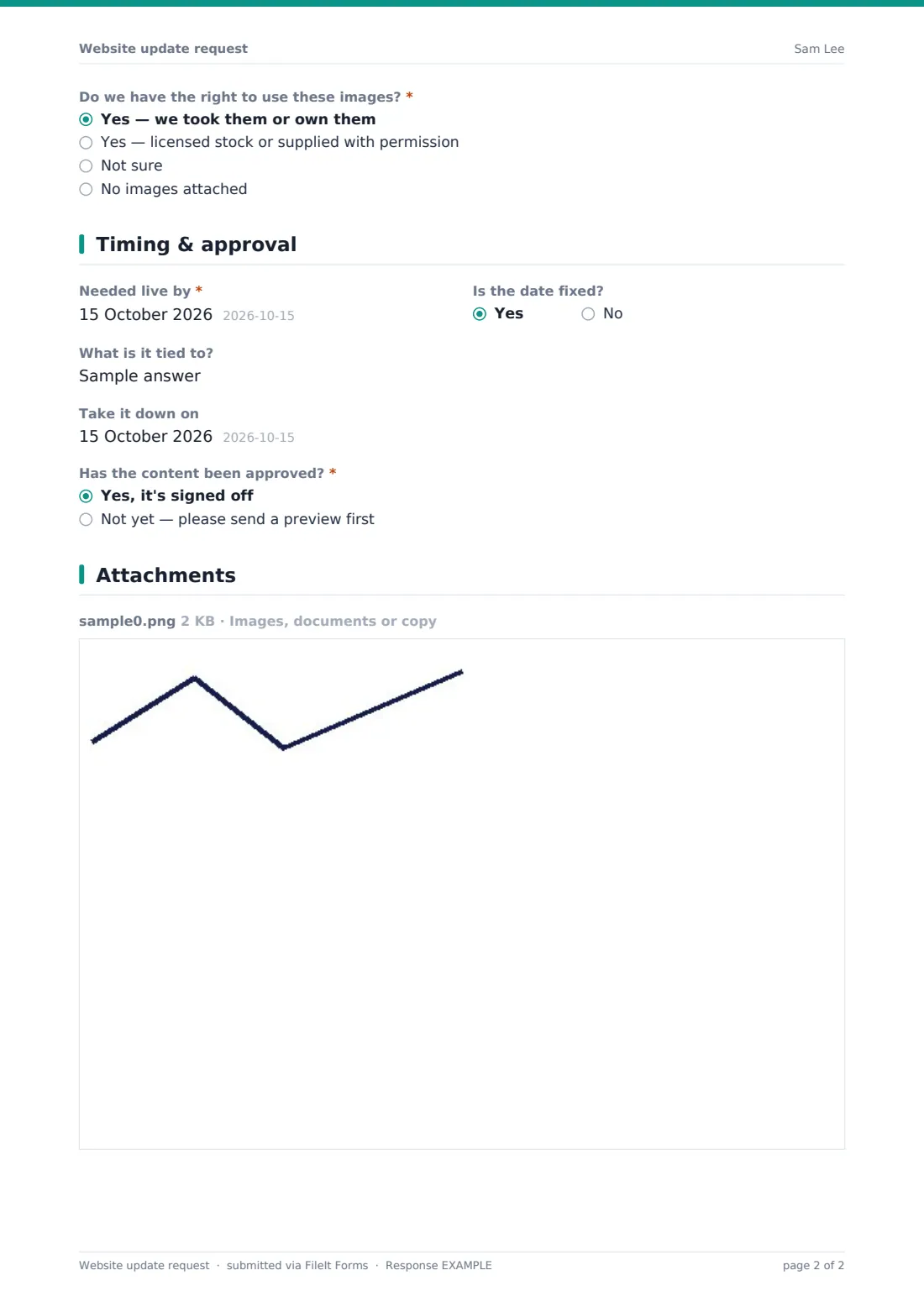
What is the website update request form template?
Website update requests tend to arrive as a quick Slack message or a half-finished email — "can you fix the typo on the about page" — with the actual new wording following an hour later, and the deadline mentioned as an afterthought. This template collects everything a web team needs in one submission: which page, what kind of change, the final content, any files, and when it's actually needed live.
Splitting the request by change type keeps it efficient — someone asking to fix a broken link doesn't need to paste a paragraph of new copy, while someone requesting a whole new page gets asked where in the site it should sit. A required question about image rights closes a common gap: images arrive without anyone confirming the requester actually has permission to use them.
Every submission becomes a PDF in your FileIt vault, with any attached images, documents or copy, so a web team has a durable record of exactly what was asked for and when — useful for tracking down "who approved this" long after the change has gone live.
- Best for
- Marketing teams, web developers and agencies managing website change requests
- Filled in by
- Anyone in the organisation asking for a website change
- Time to complete
- About 5 minutes
- Includes
- Conditional fields by change type, file upload, approval tracking
Who uses a website update request form?
- A marketing department requires every team to submit changes through this form instead of emailing the developer directly
- A web agency uses it to take structured update requests from multiple retained clients
- An in-house web team tracks approval status so nothing goes live without proper sign-off
- A department requests a new page and specifies exactly where it should appear in the site's navigation
- A content editor reports a broken link or a typo using the "fix something broken" option, without needing to describe a whole content change
- A comms team submits a time-limited announcement with both a go-live date and a take-down date
Questions on this website update request form
22 questions over 4 pages · includes file upload, conditional questions, multiple pages.
1 About you
- Your name*
- Email*
- Team or department
2 The change
- What kind of change?* Update existing text · Add or replace images / video · Create a new page · News item or blog post · Add or update an event · Remove a page or content · Fix something broken (link, typo, layout)
- Page address (URL)* asked only when it applies
- New page title* asked only when it applies
- Where should it appear? asked only when it applies
- Where should visitors be sent instead? asked only when it applies
- Describe the change*
3 Content & files
- Text to replace asked only when it applies
- New content asked only when it applies
- Images, documents or copy
- Do we have the right to use these images?* asked only when it applies Yes — we took them or own them · Yes — licensed stock or supplied with permission · Not sure · No images attached
- Credit line, if required asked only when it applies
- Search description or keywords asked only when it applies
4 Timing & approval
- Needed live by*
- Is the date fixed?
- What is it tied to? asked only when it applies
- Take it down on
- Has the content been approved?* Yes, it's signed off · Not yet — please send a preview first
- Who approves it? asked only when it applies
- Approver's email asked only when it applies
The website update request form, page by page
1 About you
A short page collects the requester's name, email and optional team or department, so the web team knows who to follow up with and which part of the organisation is asking.
2 The change
A radio question sets the type of change — updating existing text, adding or replacing images or video, creating a new page, a news item or blog post, adding or updating an event, removing a page or content, or fixing something broken. Every option except "new page" reveals a field for the page's URL, while choosing "new page" instead asks for a title and where it should appear in the site. Choosing "remove" reveals an optional redirect field, so old links don't quietly break. A required summary field describes the change in the requester's own words, regardless of type.
3 Content & files
For a text edit, the requester can paste the current wording to replace, which helps the web team find the right spot on the page quickly. For anything except a removal, a new content field holds the final, proofread wording exactly as it should appear. A file upload accepts images, PDFs, Word or Excel files, and a required question — Do we have the right to use these images? — appears whenever a file is attached, with an optional credit line field if the images are licensed. A search description or keywords field appears only for a new page, to help with search visibility.
4 Timing & approval
The requester gives a needed-live-by date and can flag whether that date is fixed, which reveals a field explaining what it's tied to — a launch, a press release, an event. An optional take-it-down-on date covers time-limited content like offers or events. Finally, an approval question asks whether the content has already been signed off; choosing "not yet" reveals fields for who approves it and their email, so the web team knows to send a preview before publishing rather than going straight live.
Make the template yours
- Add a priority or urgency field if your team needs to triage requests beyond just the requested date
- Remove the SEO/keywords question if your team handles search optimisation separately from the request itself
- Route requests by change type to different team members, such as content edits to one person and new pages to another
- File each request into a folder by month or by requesting department, matching how your team tracks work
- Add a status field internally (in your own tracker) once a request is actioned, since the form itself doesn't track completion
- Set a required approval field instead of optional, if your organisation never allows unapproved content to be requested
- Adjust the confirmation message to link to your team's usual turnaround time or a status page
Tips for a better website update request form
- Ask requesters to paste final, proofread copy rather than a rough draft — it saves a round of clarifying questions
- Always confirm image rights before publishing, even for images that look like stock photography
- Push back gently on "needed live by" dates that aren't actually fixed to anything, to protect time for genuinely urgent requests
- Keep a simple internal rule for what counts as approved, so the web team isn't guessing whether content is ready to publish
- Use the redirect field seriously whenever a page is removed — broken links are one of the most common site-quality complaints
- Review submitted requests weekly even if they're not urgent, so nothing sits unactioned for months
Every response becomes a PDF in your vault
As soon as someone submits a request, FileIt saves it as a PDF in your vault, with any attached files, in the folder you've set up for website requests. You're notified by email right away, and the requester's confirmation message tells them the request is in the queue.
The web team then works through the Responses table, prioritising by deadline and reviewing approval status before making the change. Because every request captures the same structured detail — page, content, files, and sign-off — there's rarely a need to go back and ask the requester basic clarifying questions before starting the work.
- Start from this template. It opens in the FileIt Forms designer — change any question, add pages, set the rules for when questions appear.
- Share it. Turn on a public link, or send it to people by email, each with their own link. They don’t need a FileIt account.
- Get the answers as PDFs. Each response is saved as a PDF in the vault folder you choose, with uploaded files attached — and listed in a Responses table you can export to CSV.
Website update request form: frequently asked questions
Is this website update request form template free?
Yes. It's included in FileIt's Forms app on every plan, including the free plan, and every question can be edited to match your workflow.
Do requesters need a FileIt account to submit a request?
No. Share it internally as a public link, or send a personal link to specific teams — no account is required to respond.
How do we track the requests that come in?
Every request is saved automatically as a PDF in your FileIt vault, and the Responses table lets you filter and export the full list to CSV.
Does this form actually publish the change to our website?
No. It only collects the request — your web team or developer still makes the change on your actual website or CMS.
Can we require approval before a request is even submitted?
The form asks whether content is already approved and reveals approver details if not, so your team knows to get sign-off before publishing rather than assuming it's done.
Can requesters attach images and documents?
Yes, files up to 10 MB each can be attached, including images, PDFs, Word and Excel documents.
Can we track requests by department?
Yes, there's an optional team or department field, and you can filter or export the Responses table by that field.
Can we set a deadline for when content should come down again?
Yes, there's an optional "take it down on" date for time-limited content like offers or event announcements.