What is the webinar feedback form template?
Attendance numbers show who turned up, not whether the webinar was worth their time. A short survey sent right after the session, or linked in the final slide, tells a marketing or training team whether the content was relevant, the speaker clear and the tech smooth.
This template asks how people watched — live from start to finish, joined late, left early or on the recording — and asks early leavers why. It rates content, speakers, length and Q&A, then audio, video, joining and platform features, with a follow-up for anyone who hit technical problems.
It finishes with what people learned, the formats, topics and times they'd like next, a recommend score, and an optional follow-up for the recording, slides or a call. Each response is saved as a PDF in your FileIt vault.
- Best for
- Marketing teams, trainers, associations and anyone running online events
- Filled in by
- Webinar attendees, live or on-demand
- Time to complete
- About 2–3 minutes
- Includes
- Attendance-aware questions, content, speaker and technical grids, next-topic ideas and follow-up requests
Who uses a webinar feedback form?
- A link on the last slide or in the thank-you email after a live webinar
- Comparing speakers across a webinar series
- Checking a new webinar platform's audio and joining experience
- Collecting topic ideas for the next quarter's program
- Identifying attendees who want a demo or call
- Reviewing online training sessions
Questions on this webinar feedback form
22 questions over 4 pages · includes conditional questions, multiple pages, ratings.
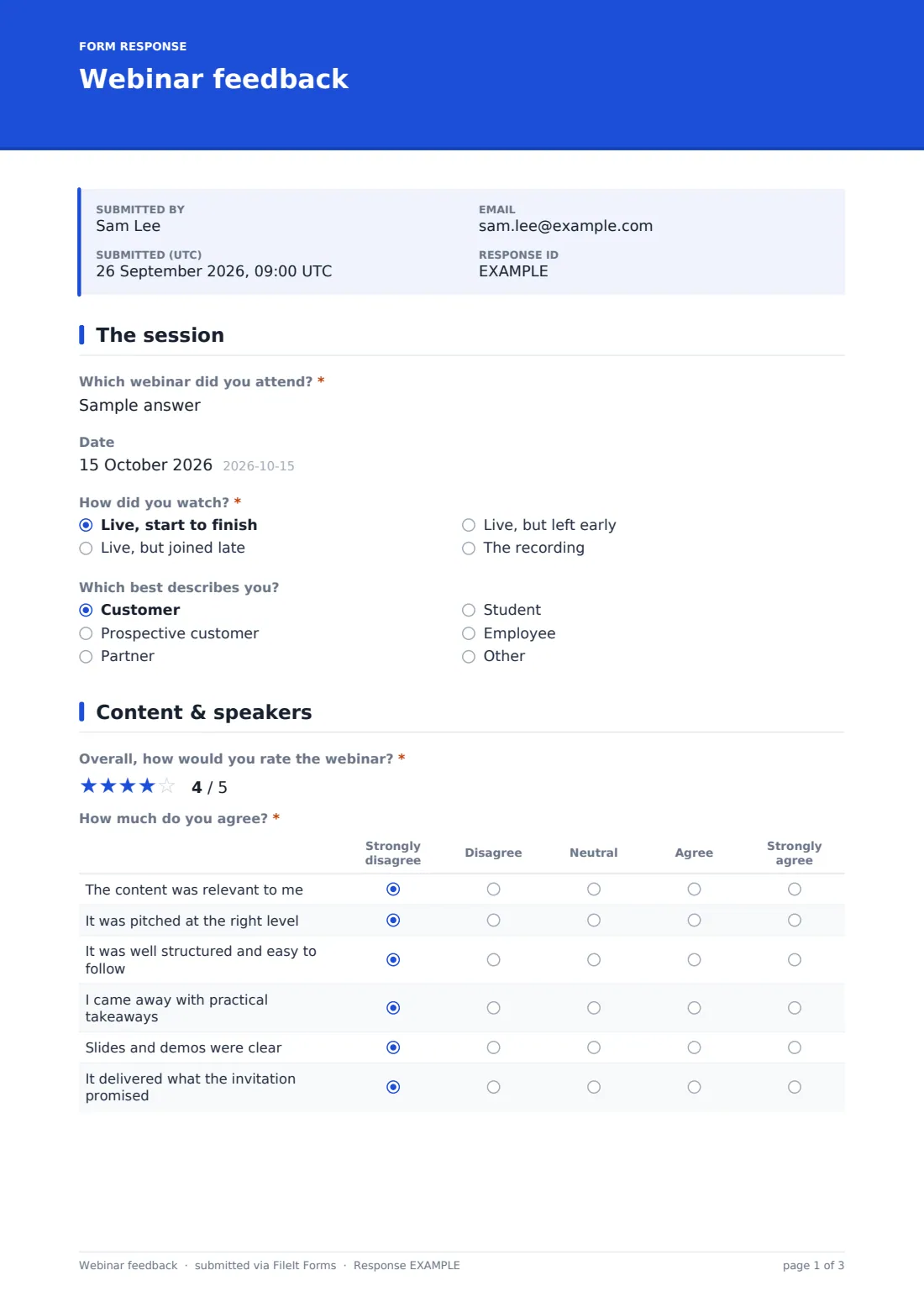
1 The session
- Which webinar did you attend?*
- Date
- How did you watch?* Live, start to finish · Live, but joined late · Live, but left early · The recording
- Why did you leave early? asked only when it applies Another commitment · Content wasn't what I expected · Technical problems · It ran over time
- Which best describes you? Customer · Prospective customer · Partner · Student · Employee · Other
2 Content & speakers
- Overall, how would you rate the webinar?*
- How much do you agree?* Strongly disagree · Disagree · Neutral · Agree · Strongly agree
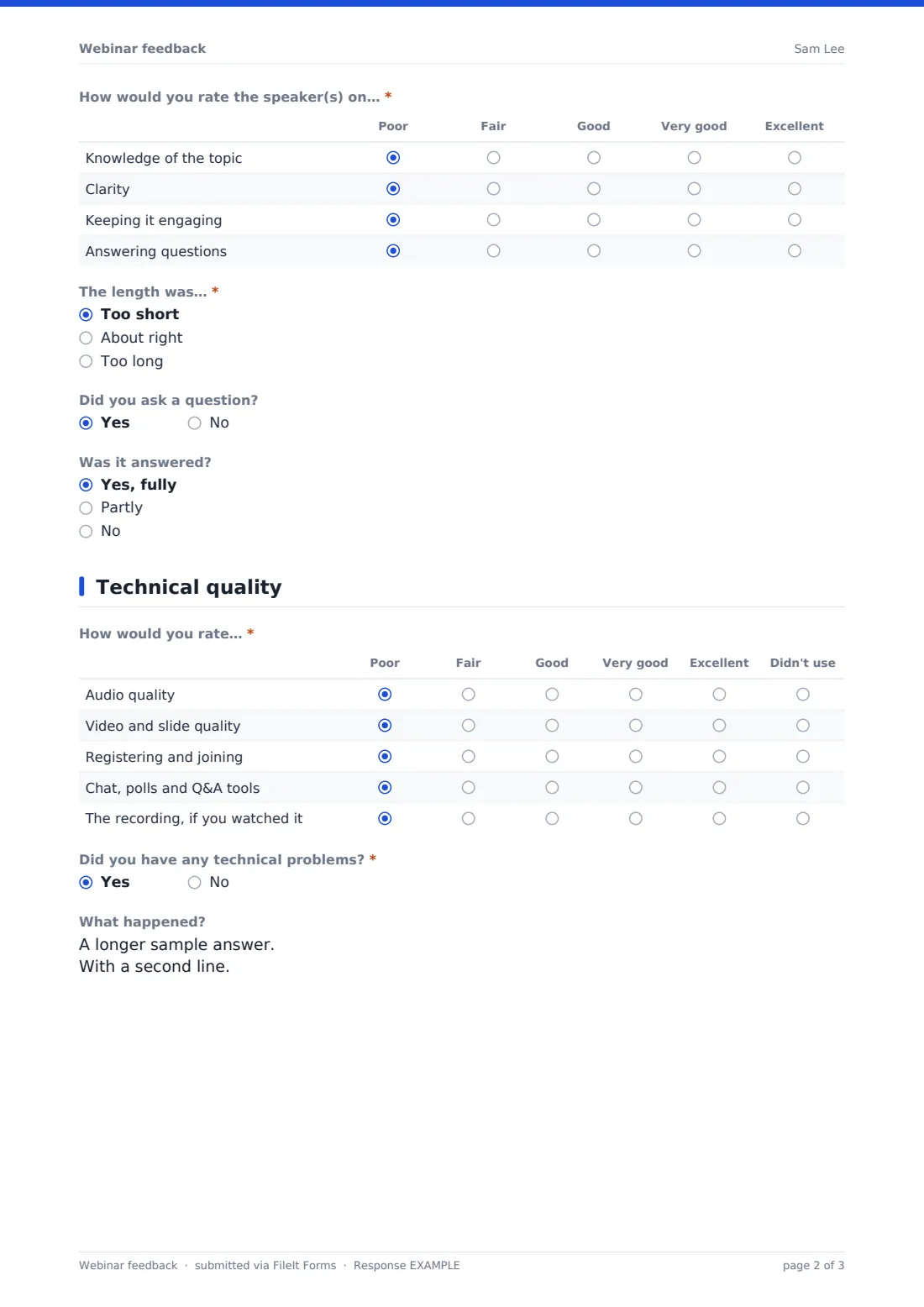
- How would you rate the speaker(s) on…* Poor · Fair · Good · Very good · Excellent
- The length was…* Too short · About right · Too long
- Did you ask a question?
- Was it answered? asked only when it applies Yes, fully · Partly · No
3 Technical quality
- How would you rate…* Poor · Fair · Good · Very good · Excellent · Didn't use
- Did you have any technical problems?*
- What happened? asked only when it applies
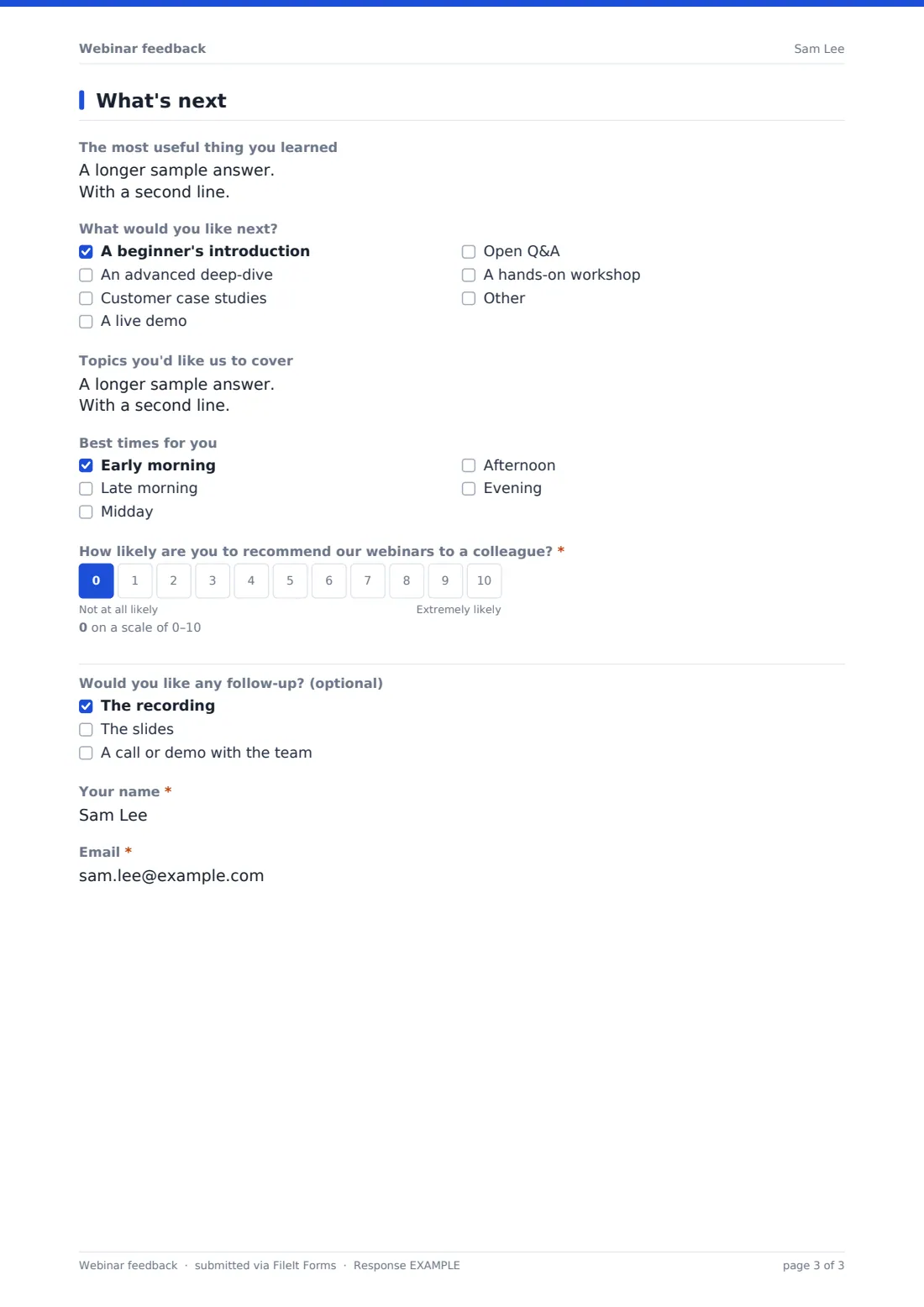
4 What's next
- The most useful thing you learned
- What would you like next? A beginner's introduction · An advanced deep-dive · Customer case studies · A live demo · Open Q&A · A hands-on workshop
- Topics you'd like us to cover
- Best times for you Early morning · Late morning · Midday · Afternoon · Evening
- How likely are you to recommend our webinars to a colleague?*
- Would you like any follow-up? (optional) The recording · The slides · A call or demo with the team
- Your name* asked only when it applies
- Email* asked only when it applies
The webinar feedback form, page by page
1 The session
The attendee names the webinar and date and says how they watched. Those who left early choose why — another commitment, content not as expected, technical problems, running over time, or other. An optional dropdown asks whether they're a customer, prospect, partner, student or employee.
2 Content & speakers
A required star rating overall, six agreement statements on relevance, level, structure, practical takeaways, clear slides and delivering what was promised, and a Poor-to-Excellent grid for the speakers' knowledge, clarity, engagement and Q&A. Attendees say whether the length was right and, if they asked a question, whether it was answered.
3 Technical quality
A grid rates audio, video and slides, registering and joining, chat, polls and Q&A tools, and the recording, with 'Didn't use' for anything not relevant. A required yes/no on technical problems opens a box to describe them.
4 What's next
The most useful thing they learned, formats they'd like next (beginner, deep-dive, case studies, demo, Q&A, workshop), topic ideas, best times and a 0–10 recommend score. If they tick the recording, slides or a call, name and email fields appear.
Make the template yours
- Name the session in the cover text, or swap the webinar field for a dropdown of your sessions
- Change the attendee types to your audience segments
- Edit the next-format options to match what you can offer
- Add NotifyEmails for sales so demo requests are seen quickly
- Duplicate the form for each webinar in a series
- Set a close date a week after the session
Tips for a better webinar feedback form
- Share the link in the chat and on the last slide while people are still there
- Also include it in the recording email for on-demand viewers
- Follow up demo and call requests within a day
- Read the early-leaver reasons — they often point to timing or pacing
- Share speaker feedback with the speakers
- Use topic ideas to plan the next session
Every response becomes a PDF in your vault
Each response is saved as a PDF titled with the date in the vault folder you choose, and you're notified by email.
Filter the Responses table by webinar, how people attended or follow-up requests, and export to CSV to compare sessions and build a follow-up list.
- Start from this template. It opens in the FileIt Forms designer — change any question, add pages, set the rules for when questions appear.
- Share it. Turn on a public link, or send it to people by email, each with their own link. They don’t need a FileIt account.
- Get the answers as PDFs. Each response is saved as a PDF in the vault folder you choose, with uploaded files attached — and listed in a Responses table you can export to CSV.
Webinar feedback form: frequently asked questions
Is this webinar feedback template free?
Yes. It's a starter template in the FileIt Forms app, and every question can be edited.
Does it work for people who watched the recording?
Yes. 'The recording' is one of the ways to attend, and the technical grid includes the recording.
Is it anonymous?
Yes, unless the attendee asks for a follow-up such as the slides, which reveals name and email fields.
Does it connect to my webinar platform?
No. Share the link in the chat, on a slide or in your follow-up email.
Can I use one form for a whole series?
Yes — attendees name the webinar. Many teams make a copy per session to keep results separate.
Do attendees need an account?
No. They open the link.