What is the timecard correction request form template?
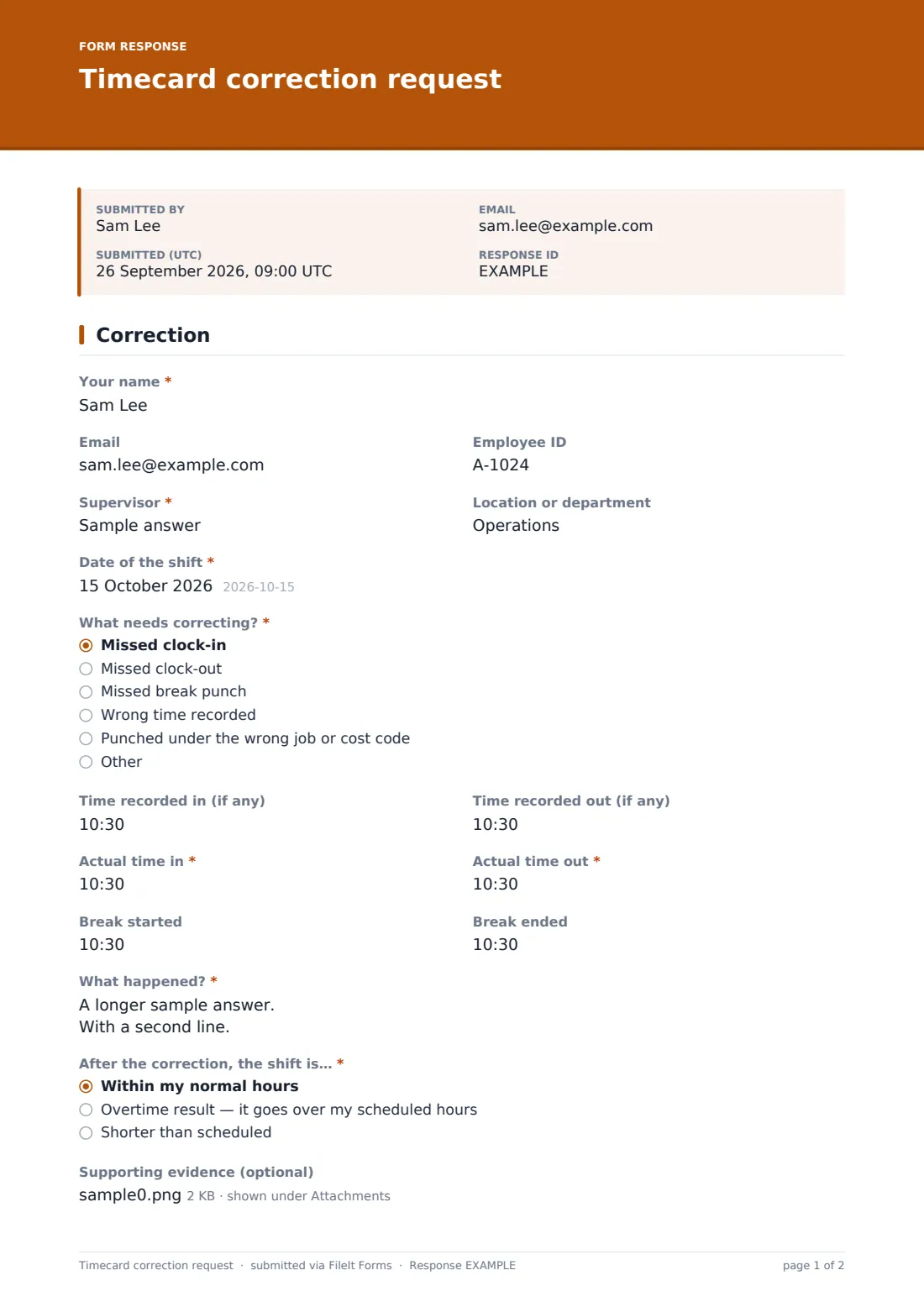
Time clocks fail, phones die, people forget to punch back in after lunch. Each slip turns into a small payroll problem, and when corrections arrive as sticky notes or verbal promises, they're easy to lose and hard to check later. This timecard correction form gives every fix a proper record: the shift, what the clock recorded, what actually happened, why, and the supervisor's decision.
The employee picks “What needs correcting?”: missed clock-in, missed clock-out, missed break punch, wrong time recorded, punched under the wrong job or cost code, or something else. They enter the times recorded (if any), the actual time in and out, and break times. A wrong-code correction asks for the correct job or cost code.
Then the form asks what the correction does to the shift. “After the correction, the shift is…” offers within normal hours, an overtime result, or shorter than scheduled. Choosing the overtime result asks “Was the overtime approved in advance?” and for the overtime hours. A yes asks who approved it, and a no asks why it wasn't approved beforehand, so payroll isn't left guessing. Each correction becomes a PDF in your FileIt vault.
- Best for
- Shift-based employers in retail, hospitality, healthcare, manufacturing and field services
- Filled in by
- The employee, with a supervisor approval section at the end
- Time to complete
- About 2 minutes
- Includes
- Recorded vs. actual times, break punches, cost code fixes, overtime pre-approval check, optional evidence and supervisor signature
Who uses a timecard correction request form?
- A restaurant server who forgot to clock out after a late close
- A warehouse worker whose badge didn't register at the door
- A care worker who logged a visit against the wrong client cost code
- A supervisor who wants overtime from missed punches flagged before payroll approves it
- A payroll team that needs one consistent record for every manual timecard edit
Questions on this timecard correction request form
25 questions · includes signature, file upload, conditional questions, consent checkbox.
1 Correction
- Your name*
- Employee ID
- Supervisor*
- Location or department
- Date of the shift*
- What needs correcting?* Missed clock-in · Missed clock-out · Missed break punch · Wrong time recorded · Punched under the wrong job or cost code
- Time recorded in (if any)
- Time recorded out (if any)
- Actual time in*
- Actual time out*
- Break started
- Break ended
- Correct job or cost code* asked only when it applies
- What happened?*
- After the correction, the shift is…* Within my normal hours · Overtime result — it goes over my scheduled hours · Shorter than scheduled
- Was the overtime approved in advance?* asked only when it applies
- Overtime hours* asked only when it applies
- Who approved it?* asked only when it applies
- Why wasn't it approved beforehand?* asked only when it applies
- Supporting evidence (optional)
- Declaration*
- Decision Approved · Approved with changes · Not approved
- Supervisor comment asked only when it applies
- Supervisor's signature asked only when it applies
The timecard correction request form, page by page
1 Correction
The employee gives their name, email, employee ID, supervisor and location or department, then the “Date of the shift”. After choosing what needs correcting, they fill in “Time recorded in (if any)” and “Time recorded out (if any)”, then the required “Actual time in” and “Actual time out”, plus break start and end. “What happened?” asks for a short explanation, with an example about an offline clock.
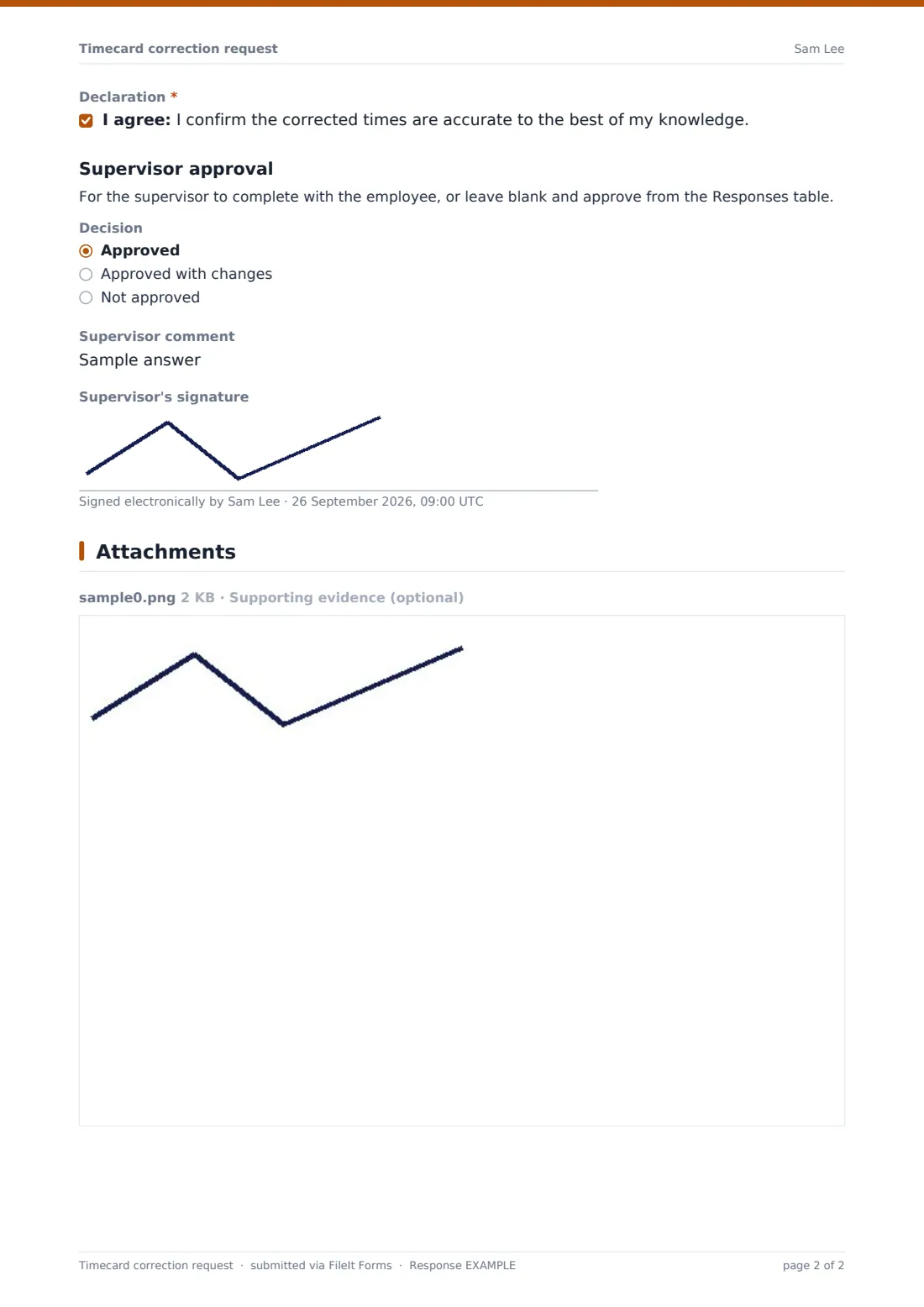
The overtime questions follow the shift result. An optional upload takes up to two files of supporting evidence, such as a job sheet or door log, and the employee confirms the corrected times are accurate.
The last section, “Supervisor approval”, is for the supervisor to complete alongside the employee, or to leave blank. Choosing a “Decision” — approved, approved with changes, or not approved — shows a comment box and a signature pad.
Make the template yours
- Rename “Employee ID” to match your payroll system's term, such as badge or clock number
- Change the overtime step from quarter hours if your rounding rules differ
- Make the evidence upload required for missed clock-ins
- Notify payroll as well as the owner, using the extra notification emails
- Add your pay period end date to the cover text so staff know the cut-off
Tips for a better timecard correction request form
- Ask staff to submit corrections the same day, while times are fresh
- Compare the recorded and actual times — a pattern of missed punches may point to a faulty clock
- Follow up on overtime that wasn't approved in advance, but still make sure the hours are paid correctly
- Keep supervisor decisions short and specific when approving with changes
- Export corrections each pay period and attach them to your payroll records
Every response becomes a PDF in your vault
FileIt files each correction as a PDF in your vault and emails you straight away. The employee gets a copy when they've given an email address, so they can check it against their payslip.
Payroll can work from the Responses table, filtering by date or searching by name, and export corrections to CSV. If the supervisor didn't sign on the day, the response can still be reviewed there and the decision recorded in your payroll system.
- Start from this template. It opens in the FileIt Forms designer — change any question, add pages, set the rules for when questions appear.
- Share it. Turn on a public link, or send it to people by email, each with their own link. They don’t need a FileIt account.
- Get the answers as PDFs. Each response is saved as a PDF in the vault folder you choose, with uploaded files attached — and listed in a Responses table you can export to CSV.
Timecard correction request form: frequently asked questions
Is this timecard correction form free?
Yes. It's included in FileIt's Forms app as a starter template, on every account including the free plan.
Does it change the time clock automatically?
No. It records the request. Payroll or a supervisor makes the change in your timekeeping system.
What happens if the correction creates overtime?
The form asks whether the overtime was approved in advance and how many hours it adds. A yes asks who approved it, and a no asks why it wasn't approved beforehand.
Does the supervisor need a FileIt account?
No. The supervisor section sits at the end of the same form, so it can be signed on the employee's device or tablet.
Can employees attach proof?
Yes, up to two files — PDFs or photos such as a job sheet or a screenshot of a door log.
Can one form cover several shifts?
It's designed for one shift per submission, which keeps each correction clear. Staff can submit it as many times as they need.