What is the crew daily timesheet form template?
On a job site, hours are usually recorded by the person who saw them worked: the foreman. A daily crew timesheet captures the whole crew at once, along with the job it should be costed to and what the crew actually got done, so payroll and job costing both start from the same sheet.
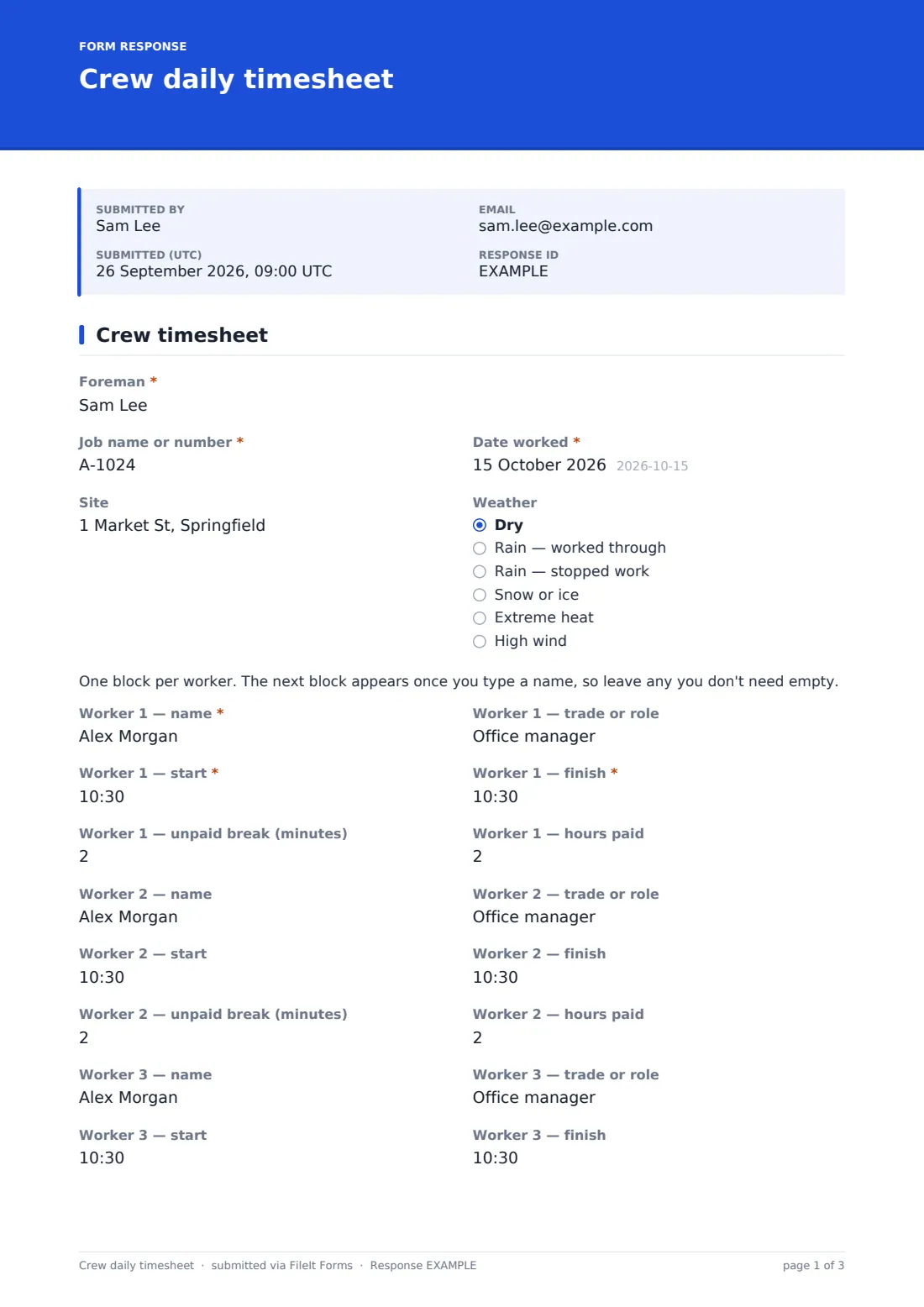
This template fits on a single page. The foreman enters the job, date and weather, then a block for each worker with their trade, start, finish, unpaid break and hours paid. Each new worker block appears as soon as the one before it has a name, so a three-person crew doesn't scroll past empty rows. Tasks completed, equipment used and delays follow. The moment the overtime total is more than zero, an approval section opens asking who worked it, why, when it was approved and by whom.
Every timesheet is saved as a PDF in your FileIt vault, and the office is notified when one is submitted.
- Best for
- Construction, landscaping, roofing, electrical and civil crews
- Filled in by
- The foreman or crew lead, at the end of the shift
- Time to complete
- About 3–5 minutes
- Includes
- Up to six worker blocks, tasks and equipment, overtime approval, incident flag, signatures
Who uses a crew daily timesheet form?
- A framing crew logging hours against a house number at the end of each day
- A landscaping foreman recording three crews across two sites
- A roofing crew working late to beat the rain, with overtime signed off on site
- A subcontractor sending daily hours to a general contractor on a cost-plus job
- A civil crew noting time lost to weather and waiting for inspections
- An office reconciling payroll against what the foreman saw worked
Questions on this crew daily timesheet form
56 questions · includes signature, conditional questions, consent checkbox.
1 Crew timesheet
- Foreman*
- Job name or number*
- Date worked*
- Site
- Weather Dry · Rain — worked through · Rain — stopped work · Snow or ice · Extreme heat · High wind
- Worker 1 — name*
- Worker 1 — trade or role
- Worker 1 — start*
- Worker 1 — finish*
- Worker 1 — unpaid break (minutes)
- Worker 1 — hours paid
- Worker 2 — name asked only when it applies
- Worker 2 — trade or role asked only when it applies
- Worker 2 — start asked only when it applies
- Worker 2 — finish asked only when it applies
- Worker 2 — unpaid break (minutes) asked only when it applies
- Worker 2 — hours paid asked only when it applies
- Worker 3 — name asked only when it applies
- Worker 3 — trade or role asked only when it applies
- Worker 3 — start asked only when it applies
- Worker 3 — finish asked only when it applies
- Worker 3 — unpaid break (minutes) asked only when it applies
- Worker 3 — hours paid asked only when it applies
- Worker 4 — name asked only when it applies
- Worker 4 — trade or role asked only when it applies
- Worker 4 — start asked only when it applies
- Worker 4 — finish asked only when it applies
- Worker 4 — unpaid break (minutes) asked only when it applies
- Worker 4 — hours paid asked only when it applies
- Worker 5 — name asked only when it applies
- Worker 5 — trade or role asked only when it applies
- Worker 5 — start asked only when it applies
- Worker 5 — finish asked only when it applies
- Worker 5 — unpaid break (minutes) asked only when it applies
- Worker 5 — hours paid asked only when it applies
- Worker 6 — name asked only when it applies
- Worker 6 — trade or role asked only when it applies
- Worker 6 — start asked only when it applies
- Worker 6 — finish asked only when it applies
- Worker 6 — unpaid break (minutes) asked only when it applies
- Worker 6 — hours paid asked only when it applies
- More workers
- Tasks completed today*
- Equipment and plant used
- Delays or lost time
- Total crew hours*
- Overtime hours (all crew)*
- Who worked overtime* asked only when it applies
- Why was overtime needed?* asked only when it applies
- Overtime was approved* asked only when it applies Before the work · After the work
- Approved by* asked only when it applies
- Approver signature asked only when it applies
- Any injuries or incidents today?*
- What happened?* asked only when it applies
- Foreman's confirmation*
- Foreman signature*
The crew daily timesheet form, page by page
1 Crew timesheet
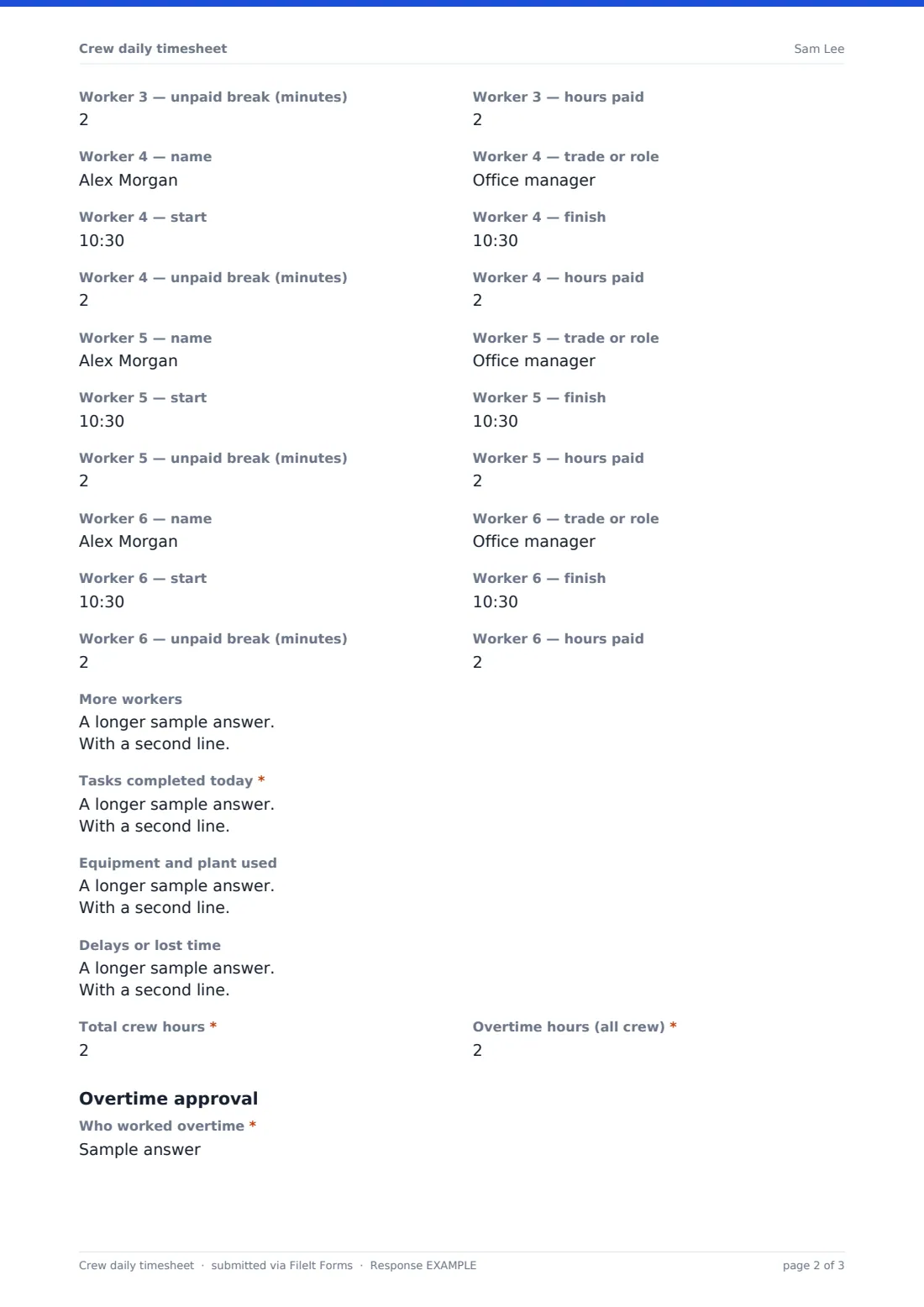
The form starts with the Foreman, Job name or number, Date worked, Site and Weather — including whether rain stopped work. A short note explains the worker blocks. Each block has "Worker 1 — name", trade or role, start, finish, unpaid break (minutes) and hours paid; the first worker's name and times are required, and Worker 2 to Worker 6 appear one at a time as names are entered. A More workers box takes anyone beyond six.
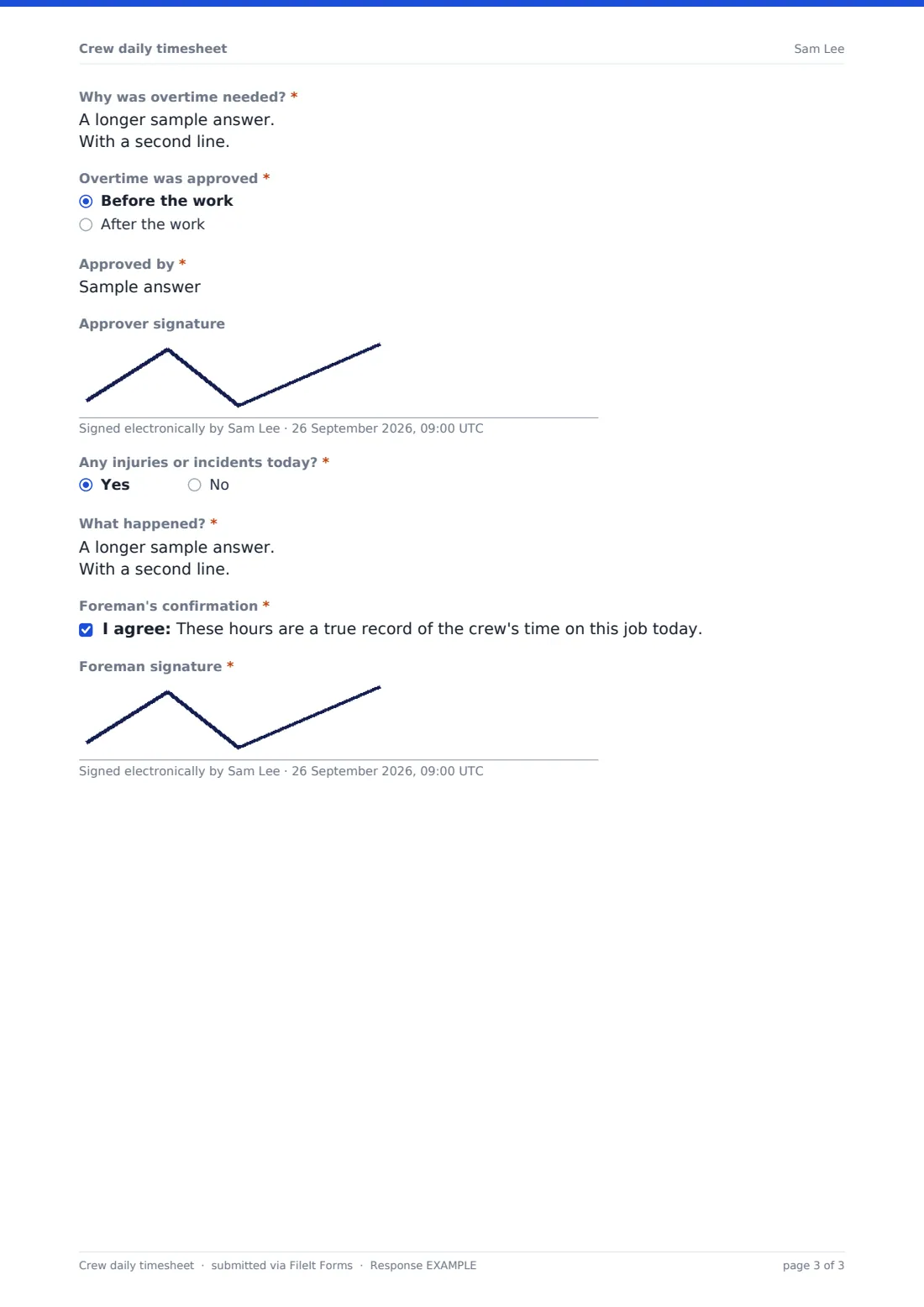
Tasks completed today is required, with Equipment and plant used and Delays or lost time optional. Total crew hours and Overtime hours (all crew) are both required. If overtime is above zero, the Overtime approval section asks "Who worked overtime", "Why was overtime needed?", whether it was approved before or after the work, who approved it and their signature.
"Any injuries or incidents today?" is a required yes or no; yes asks what happened and reminds the foreman to report it the usual way too. The foreman confirms the hours are a true record and signs.
Make the template yours
- Add or remove worker blocks to match your usual crew size
- Replace the job name with a dropdown of your active jobs or cost codes
- Add a per-worker field for the cost code or phase if you cost by task
- Add your payroll inbox to the notification emails
- Turn off the overtime approver signature if approvals happen in another system
- File each job's timesheets into the job's own vault folder
Tips for a better crew daily timesheet form
- Fill it in before the crew leaves — memory of start times fades by the next morning
- Write tasks as quantities where you can: "hung 40 sheets", not "drywall"
- Log weather delays even when nobody's paid for them; they matter for the schedule
- Get overtime approved before the work wherever possible
- Keep the total crew hours in step with the worker blocks — the office will check
- Mention equipment hours if you bill plant to the client
Every response becomes a PDF in your vault
Each timesheet is filed in your FileIt vault as a PDF named with the foreman and date, and the account owner is notified. Add a payroll or project manager address to the notification emails if they should hear about every one.
Payroll teams usually export the week's responses to CSV from the Responses table, and the PDFs stay in the vault as the signed daily record for each job.
- Start from this template. It opens in the FileIt Forms designer — change any question, add pages, set the rules for when questions appear.
- Share it. Turn on a public link, or send it to people by email, each with their own link. They don’t need a FileIt account.
- Get the answers as PDFs. Each response is saved as a PDF in the vault folder you choose, with uploaded files attached — and listed in a Responses table you can export to CSV.
Crew daily timesheet form: frequently asked questions
Is this crew timesheet template free?
Yes. It's included in the Forms app on every FileIt account, including the free plan.
How many workers can one timesheet hold?
Six worker blocks, each appearing once the one before has a name, plus a box for any extra workers. You can add more blocks in the designer.
Does the form add up the hours?
No. The foreman enters each worker's hours paid and the crew total. Exporting to CSV makes it easy to check the sums in a spreadsheet.
When does the overtime approval appear?
As soon as Overtime hours (all crew) is more than zero. It asks who worked it, why, when it was approved, by whom, and for a signature.
Can I use it for a single worker?
Yes, though a weekly timesheet usually suits individuals better. Fill in Worker 1 only and leave the rest.
Is the incident question an incident report?
No. It flags that something happened on the timesheet. Use your incident or near-miss form for the full report.