What is the headcount plan request form template?
Annual or quarterly workforce planning usually starts with a spreadsheet sent to every department head — and comes back as a dozen spreadsheets in different layouts, some with costs, some without, and few saying what matters most if budget runs short.
This template asks each department for the same information. The head gives the department, plan period and current position: permanent headcount, open vacancies and contractors, plus what's changing next period. Up to five role lines each capture the title, whether it's a new role, a backfill, a contractor or a conversion to permanent, how many people, grade, start date and annual cost per person.
A cost and justification page records the total, whether it's within budget and how any extra would be funded, the business case, alternatives considered and which roles come first if only part is approved. Supporting files can be attached, and the plan is signed and filed as a PDF in your FileIt vault.
- Best for
- HR, finance and leadership teams running workforce planning
- Filled in by
- Department heads or budget holders
- Time to complete
- About 15 minutes
- Includes
- Current headcount, five role lines with cost, budget fit, prioritisation, attachments and signature
Who uses a headcount plan request form?
- Annual budget planning across all departments
- A quarterly hiring review in a fast-growing startup
- A hospital or school planning staffing for the next term or year
- Deciding which contractors to convert to permanent roles
- A project-based business planning staff for newly won contracts
- Finance comparing staffing requests against a fixed budget
Questions on this headcount plan request form
49 questions over 4 pages · includes signature, file upload, conditional questions, multiple pages, consent checkbox.
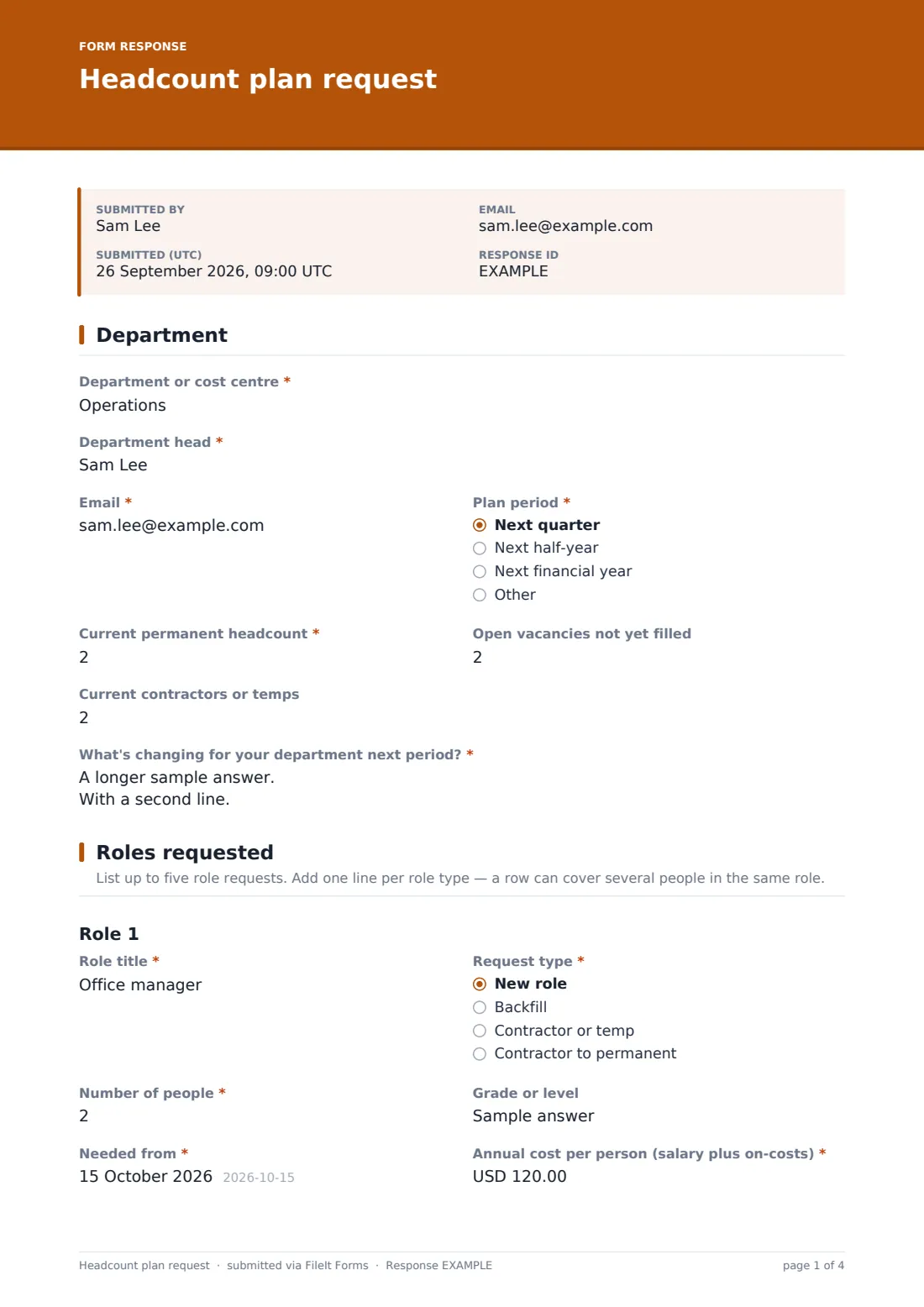
1 Department
- Department or cost centre*
- Department head*
- Email*
- Plan period* Next quarter · Next half-year · Next financial year
- Current permanent headcount*
- Open vacancies not yet filled
- Current contractors or temps
- What's changing for your department next period?*
2 Roles requested
- Role title*
- Request type* New role · Backfill · Contractor or temp · Contractor to permanent
- Number of people*
- Grade or level
- Needed from*
- Annual cost per person (salary plus on-costs)*
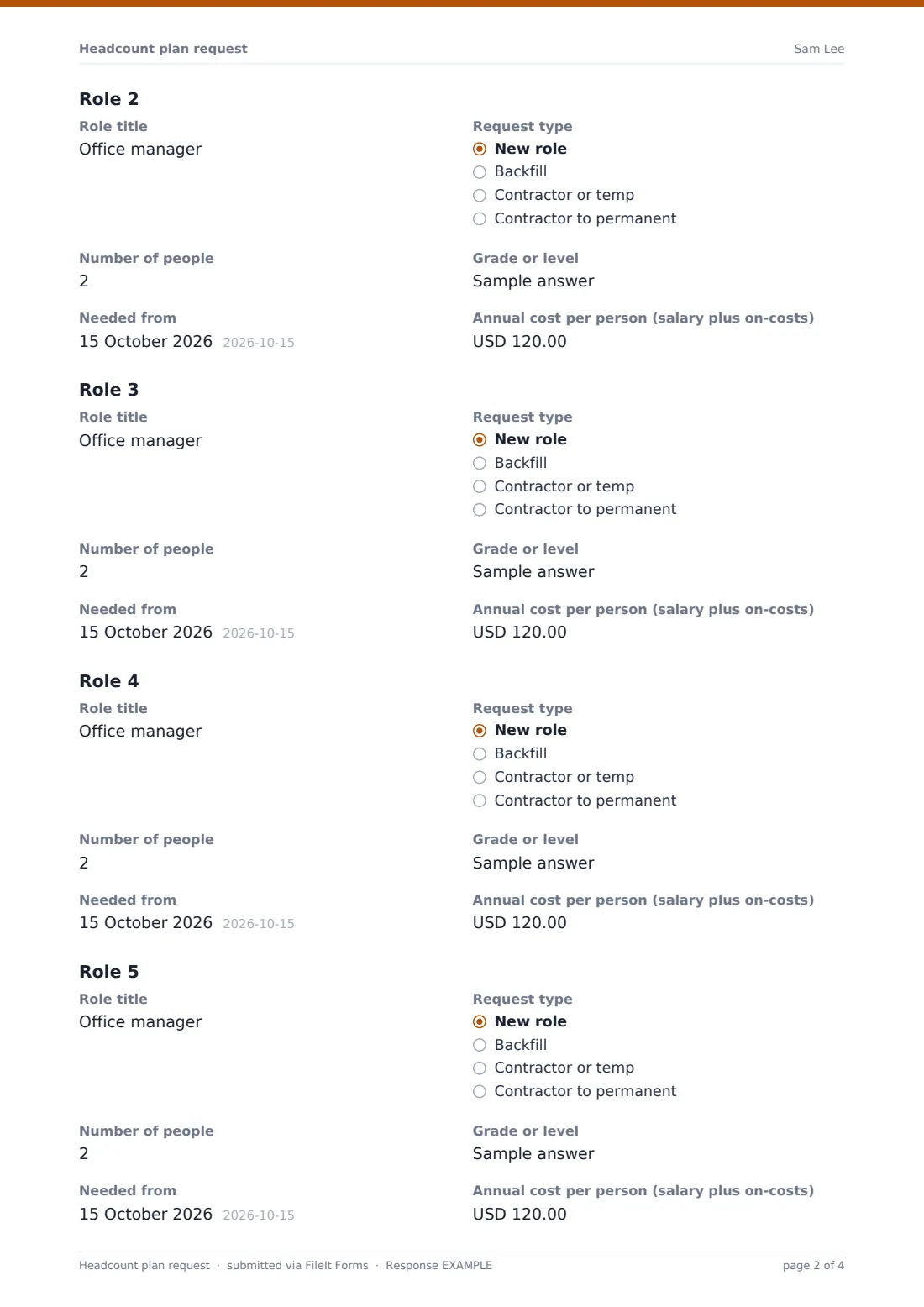
- Role title
- Request type New role · Backfill · Contractor or temp · Contractor to permanent
- Number of people
- Grade or level
- Needed from
- Annual cost per person (salary plus on-costs)
- Role title
- Request type New role · Backfill · Contractor or temp · Contractor to permanent
- Number of people
- Grade or level
- Needed from
- Annual cost per person (salary plus on-costs)
- Role title
- Request type New role · Backfill · Contractor or temp · Contractor to permanent
- Number of people
- Grade or level
- Needed from
- Annual cost per person (salary plus on-costs)
- Role title
- Request type New role · Backfill · Contractor or temp · Contractor to permanent
- Number of people
- Grade or level
- Needed from
- Annual cost per person (salary plus on-costs)
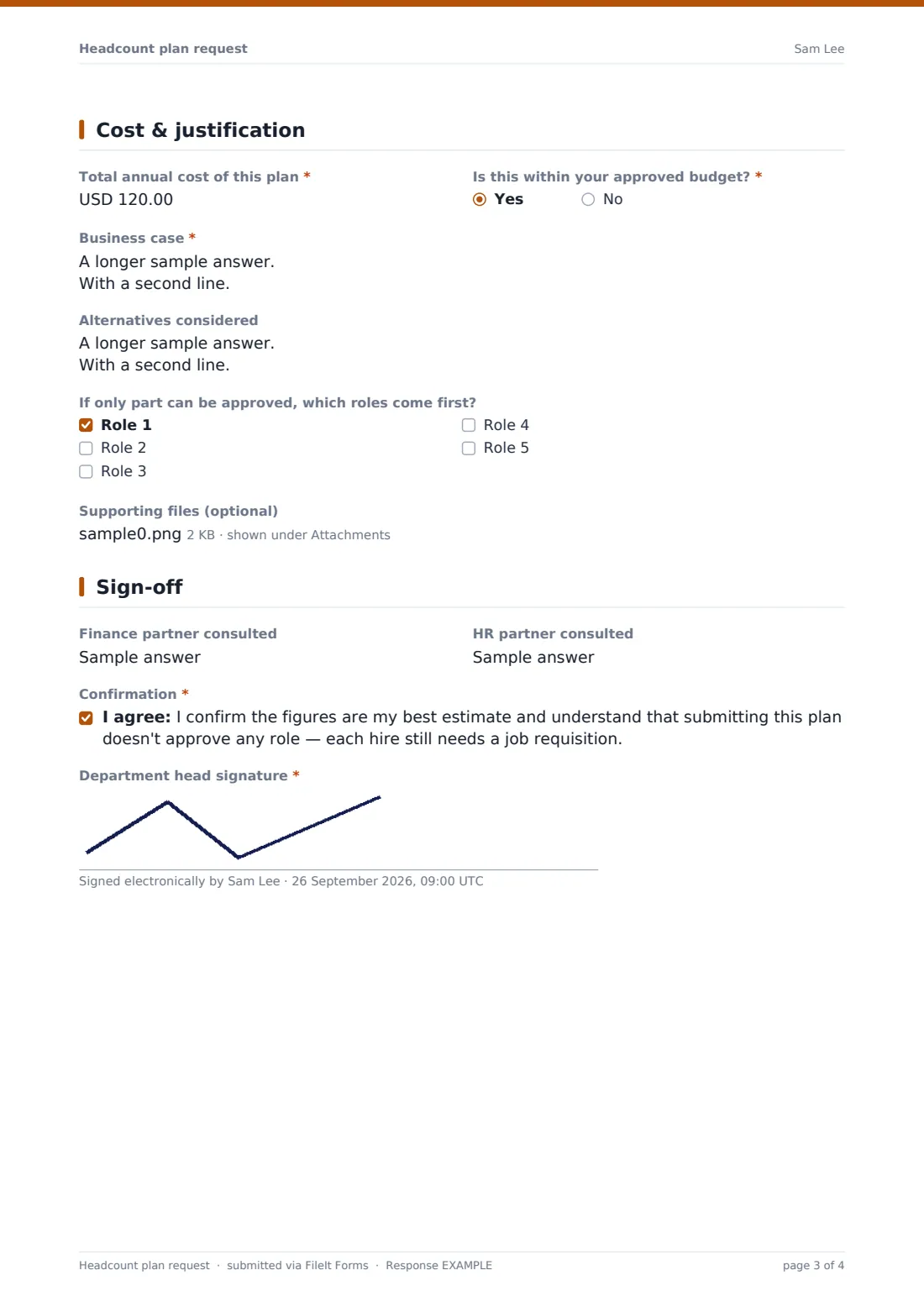
3 Cost & justification
- Total annual cost of this plan*
- Is this within your approved budget?*
- How would the extra cost be funded?* asked only when it applies
- Business case*
- Alternatives considered
- If only part can be approved, which roles come first? Role 1 · Role 2 · Role 3 · Role 4 · Role 5
- Supporting files (optional)
4 Sign-off
- Finance partner consulted
- HR partner consulted
- Confirmation*
- Department head signature*
The headcount plan request form, page by page
1 Department
The department head enters the Department or cost centre, their name and email, the Plan period, Current permanent headcount, Open vacancies, Current contractors or temps and what's changing for the department next period.
2 Roles requested
Five identical role blocks each ask for the Role title, Request type (new role, backfill, contractor or temp, or contractor to permanent), Number of people, Grade or level, Needed from date and Annual cost per person. Only the first role is required.
3 Cost & justification
The head gives the Total annual cost, says whether it's within the approved budget and, if not, how the extra cost would be funded. A business case, alternatives considered and a tick list of which roles come first follow, with an optional upload for an org chart, workload data or budget model.
4 Sign-off
The plan records the finance and HR partners consulted, a confirmation that submitting the plan doesn't approve any role, and the department head's signature.
Make the template yours
- Change the currency on the cost questions to your reporting currency
- Add or remove role blocks to suit the size of your departments
- Replace Grade or level with a dropdown of your pay bands
- Set a closing date to match your budget timetable
- Add the finance team's inbox to notifications
- File each plan into a vault folder for the planning year
Tips for a better headcount plan request form
- Share your on-cost assumptions so every department calculates cost per person the same way
- Ask for prioritisation upfront — it makes trade-off conversations much faster
- Check backfills against actual leavers so the same vacancy isn't counted twice
- Compare requests with open vacancies; unfilled roles may matter more than new ones
- Keep the business case short and focused on outcomes
- Follow approved plans with individual job requisitions so each hire is still checked
Every response becomes a PDF in your vault
Each plan is saved as a signed PDF in your vault with any attachments, and each carries the department head's name, email and signature, so HR and Finance always know who submitted which plan.
Exporting responses to a CSV gives a single list of every requested role, cost and start date across departments — the starting point for your planning meeting.
- Start from this template. It opens in the FileIt Forms designer — change any question, add pages, set the rules for when questions appear.
- Share it. Turn on a public link, or send it to people by email, each with their own link. They don’t need a FileIt account.
- Get the answers as PDFs. Each response is saved as a PDF in the vault folder you choose, with uploaded files attached — and listed in a Responses table you can export to CSV.
Headcount plan request form: frequently asked questions
Is this headcount plan template free?
Yes. It's included in the FileIt Forms app on every plan, including the free plan.
Does submitting the plan approve the roles?
No. The confirmation states that each hire still needs a job requisition.
How many roles can one plan include?
Five role lines, and each line can cover several people in the same role. You can add more blocks in the designer.
Can we change the currency?
Yes. Each currency question has its own currency setting in the designer.
Can departments attach their own spreadsheets?
Yes. There's an optional upload for up to five files, including spreadsheets and PDFs.
How do we compare plans across departments?
Export the responses to a CSV to see every department's roles, costs and priorities side by side.