What is the site safety inspection form template?
A site safety inspection form takes an inspector through a full pass, fail or not-applicable checklist for a work site — from perimeter fencing and welfare facilities to PPE and working at height — and captures findings, corrective actions and photos when something needs fixing. It's built for the kind of routine or pre-start walk-round that construction, trades and field teams carry out regularly.
A paper clipboard checklist is easy to lose or leave in a site cabin, and typing up findings afterwards from memory means detail gets lost between the walk-round and the record. A form lets an inspector mark each item as they go, attach photos on the spot from a phone, and produce a complete, signed record before they've even left the site.
This template runs on FileIt's Forms app, included on every FileIt account including the free plan. Inspectors fill it in and submit it directly — no separate FileIt account is needed if you're sending the form to a subcontractor or site manager to complete. Every inspection becomes a PDF, automatically filed in your vault under the site or project it covers.
- Best for
- Construction sites, trades businesses and field teams running routine safety checks
- Filled in by
- A site inspector, supervisor or safety officer
- Time to complete
- About 15–20 minutes for a full walk-round
- Includes
- Two rating matrices, risk-level and corrective-action logic, photo upload, inspector signature
Who uses a site safety inspection form?
- A routine weekly or monthly safety walk-round of an active construction site
- A pre-start check before work begins for the day
- A follow-up inspection to confirm an earlier finding has been corrected
- An inspection carried out after an incident to check conditions on site
- A client or regulator audit requiring a documented, signed inspection record
- A site manager tracking recurring failures across several routine inspections
Questions on this site safety inspection form
25 questions over 4 pages · includes signature, file upload, conditional questions, multiple pages, consent checkbox, ratings.
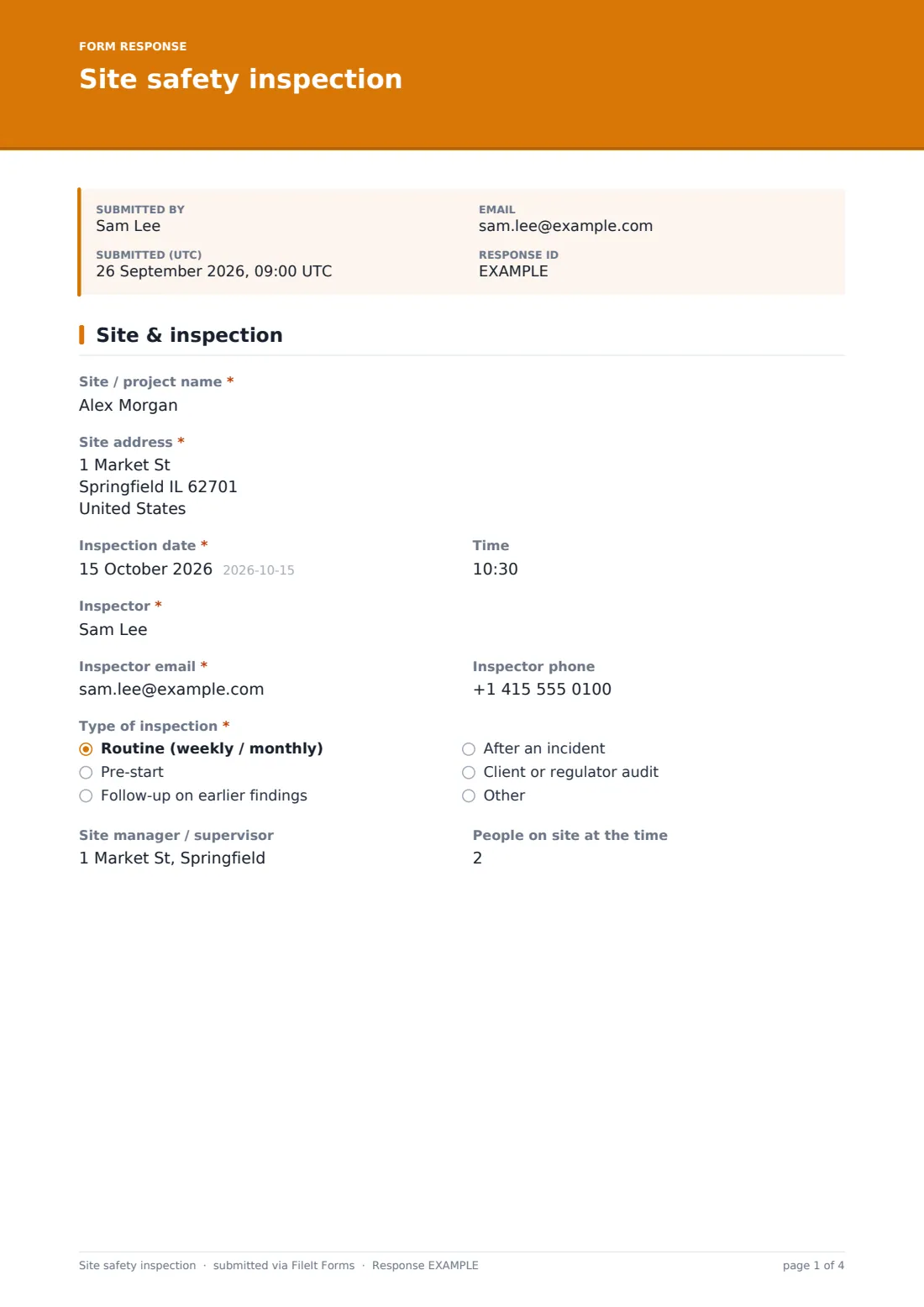
1 Site & inspection
- Site / project name*
- Site address*
- Inspection date*
- Time
- Inspector*
- Inspector email*
- Inspector phone
- Type of inspection* Routine (weekly / monthly) · Pre-start · Follow-up on earlier findings · After an incident · Client or regulator audit
- Site manager / supervisor
- People on site at the time
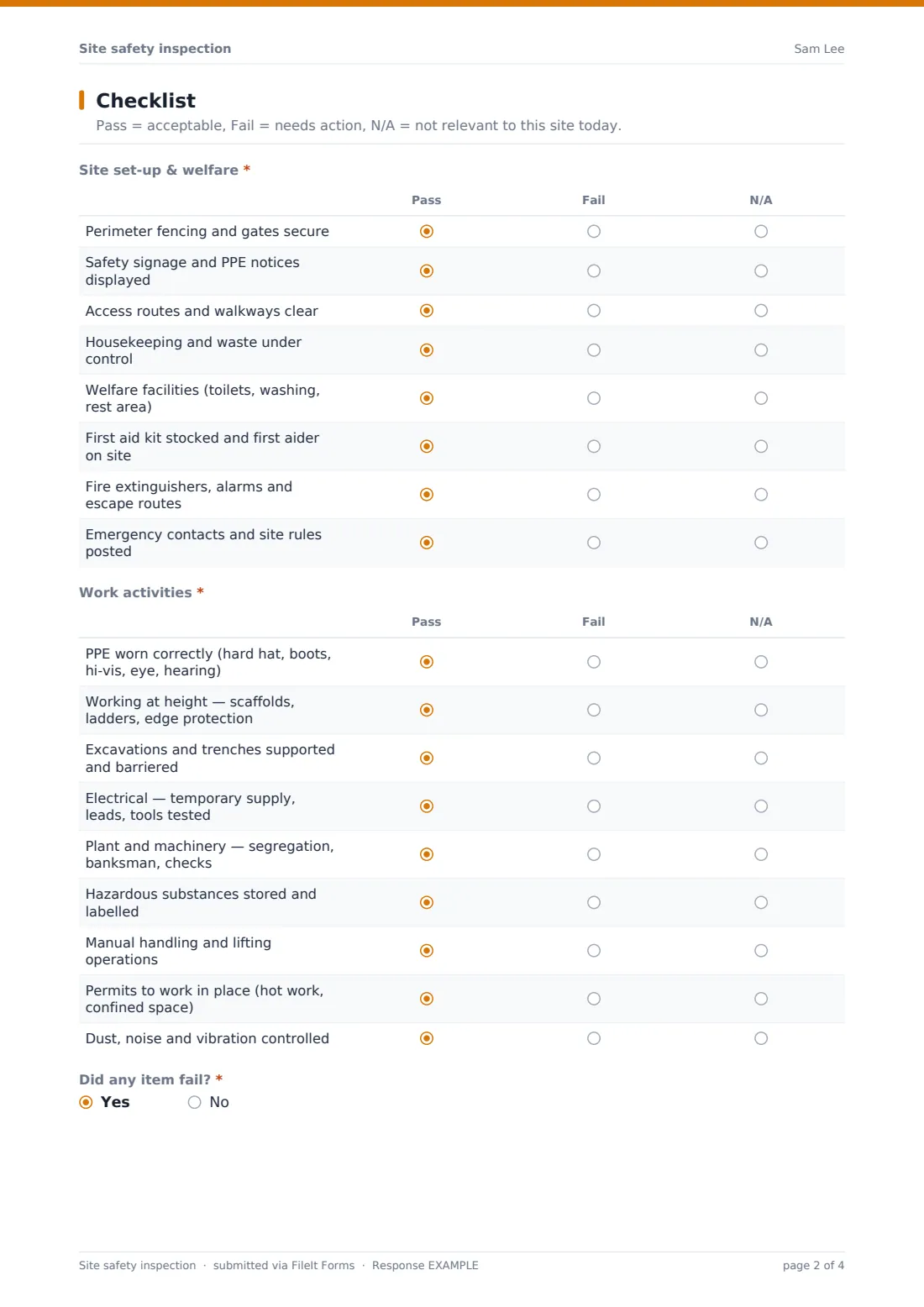
2 Checklist
- Site set-up & welfare* Pass · Fail · N/A
- Work activities* Pass · Fail · N/A
- Did any item fail?*
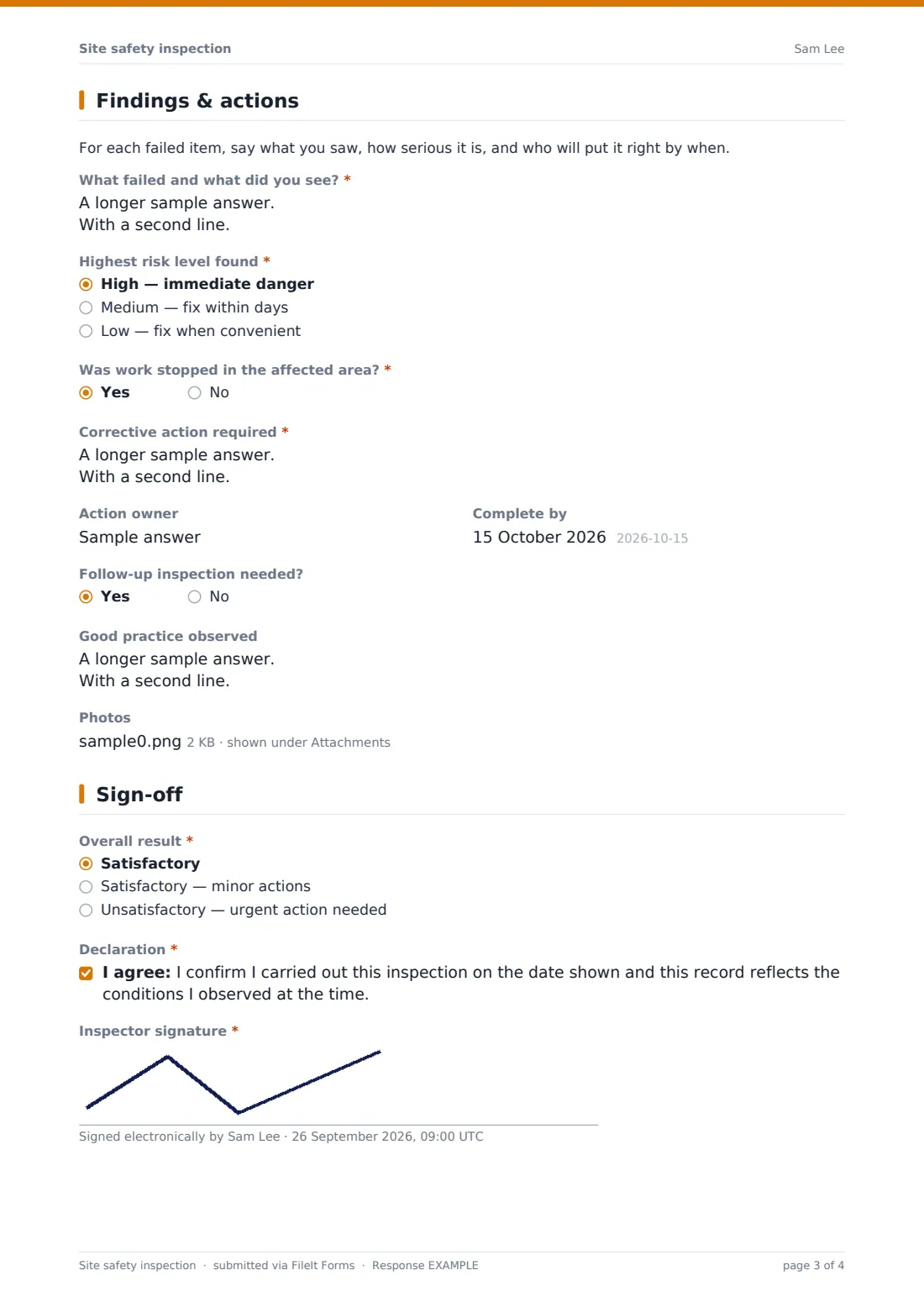
3 Findings & actions
- What failed and what did you see?* asked only when it applies
- Highest risk level found* asked only when it applies High — immediate danger · Medium — fix within days · Low — fix when convenient
- Was work stopped in the affected area?* asked only when it applies
- Corrective action required* asked only when it applies
- Action owner asked only when it applies
- Complete by asked only when it applies
- Follow-up inspection needed? asked only when it applies
- Good practice observed
- Photos
4 Sign-off
- Overall result* Satisfactory · Satisfactory — minor actions · Unsatisfactory — urgent action needed
- Declaration*
- Inspector signature*
The site safety inspection form, page by page
1 Site & inspection
The form opens with Site / project name, Site address, Inspection date and time, and the Inspector's name, email and phone. Type of inspection covers routine, pre-start, a follow-up on earlier findings, after an incident, or a client or regulator audit, and optional fields for the site manager and the number of people on site round out the context for the record.
2 Checklist
Site set-up & welfare is a rating matrix covering eight items — perimeter fencing, safety signage, clear access routes, housekeeping, welfare facilities, first aid provision, fire safety, and posted emergency contacts and site rules — each rated Pass, Fail or N/A. Work activities is a second matrix covering nine items including PPE worn correctly, working at height, excavations, electrical safety, plant and machinery, hazardous substances, manual handling, permits to work, and dust, noise and vibration control. Did any item fail? is the question that decides what the rest of the form asks next.
3 Findings & actions
A failed item opens a required What failed and what did you see? field, prompting specific, observable detail rather than a general comment. Highest risk level found — high, medium or low — and, for high-risk findings, Was work stopped in the affected area? capture how serious the issue is and what was done about it immediately. Corrective action required, an Action owner, a Complete by date, and whether a follow-up inspection is needed set out exactly what happens next, while an optional Good practice observed field lets the inspector note anything worth recognising, not just problems. Up to ten photos can be attached to support the record.
4 Sign-off
Overall result summarises the inspection as satisfactory, satisfactory with minor actions, or unsatisfactory with urgent action needed. The inspector then confirms the record reflects the conditions observed on the date shown and signs it with a drawn signature, completing a document that stands on its own if it's ever reviewed later.
Make the template yours
- Adjust the checklist items in both matrices to match the trades and hazards specific to your sites
- Add a client or contractor sign-off field alongside the inspector's own signature for shared-site work
- Route inspections into a folder per project so a site's full inspection history is easy to review
- Turn on immediate owner notification for any inspection marked unsatisfactory or high risk
- Add a field linking a corrective action back to the specific permit or method statement it affects
- Set a recurring reminder to run this inspection on your chosen routine schedule
Tips for a better site safety inspection form
- Describe failed items in specific, observable terms — location, what you saw, and why it matters
- Attach photos for every failed item where possible; they make corrective action far easier to verify
- Assign a named action owner and a real completion date for every corrective action, not just a general note
- Stop work immediately in any area with a high-risk finding, and record that decision on the same form
- Review the good-practice field too — it's a useful way to reinforce what's working well on site
- Keep a running view of failed items across inspections to spot recurring problems early
Every response becomes a PDF in your vault
As soon as the inspector submits the form, FileIt saves it — including any photos attached — as a PDF titled with the inspection date, and files it in the vault folder you've set up for that site or project. With owner notification and a copy to the inspector both switched on by default, the wider team is alerted immediately and the inspector has their own record of what they submitted.
From there, most site teams use the Responses table to track open corrective actions across every inspection, filter by risk level or overall result, and export records to CSV for a client or regulator audit trail. As the built-in confirmation message notes, the site team can act on any listed actions as soon as the inspection is filed.
- Start from this template. It opens in the FileIt Forms designer — change any question, add pages, set the rules for when questions appear.
- Share it. Turn on a public link, or send it to people by email, each with their own link. They don’t need a FileIt account.
- Get the answers as PDFs. Each response is saved as a PDF in the vault folder you choose, with uploaded files attached — and listed in a Responses table you can export to CSV.
Site safety inspection form: frequently asked questions
Is this site safety inspection form template free?
Yes. It's included with the Forms app on every FileIt account, including the free plan.
Does the inspector need a FileIt account to complete it?
No. Whoever fills in and submits the form uses only the link you share — no FileIt account is needed.
How do I get inspection records as PDFs?
Every submission, including attached photos, is automatically saved as a PDF in the vault folder you choose, and the full history is browsable and exportable to CSV from the Responses table.
Can inspectors attach photos of hazards or failed items?
Yes. Up to ten photos can be attached per inspection, in common image formats, up to 10 MB each.
Does this form meet legal health and safety requirements?
FileIt doesn't provide legal advice, and this template is a starting point for recording an inspection — you should check the checklist items and process fit your own regulatory requirements and site-specific risks.
Can I customise the checklist for my own trade or industry?
Yes. Every checklist item, matrix row and question can be edited, added to or removed in the designer.
Can I track corrective actions until they're resolved?
The form records the action, owner, due date and whether a follow-up inspection is needed; you can track resolution across inspections using the Responses table and CSV export, or link it to your own action-tracking system.
Can I require immediate notification for serious findings?
Yes — owner notification is already switched on by default, and you can add extra notification addresses in the form's settings for anything marked high risk or unsatisfactory.