What is SU496?
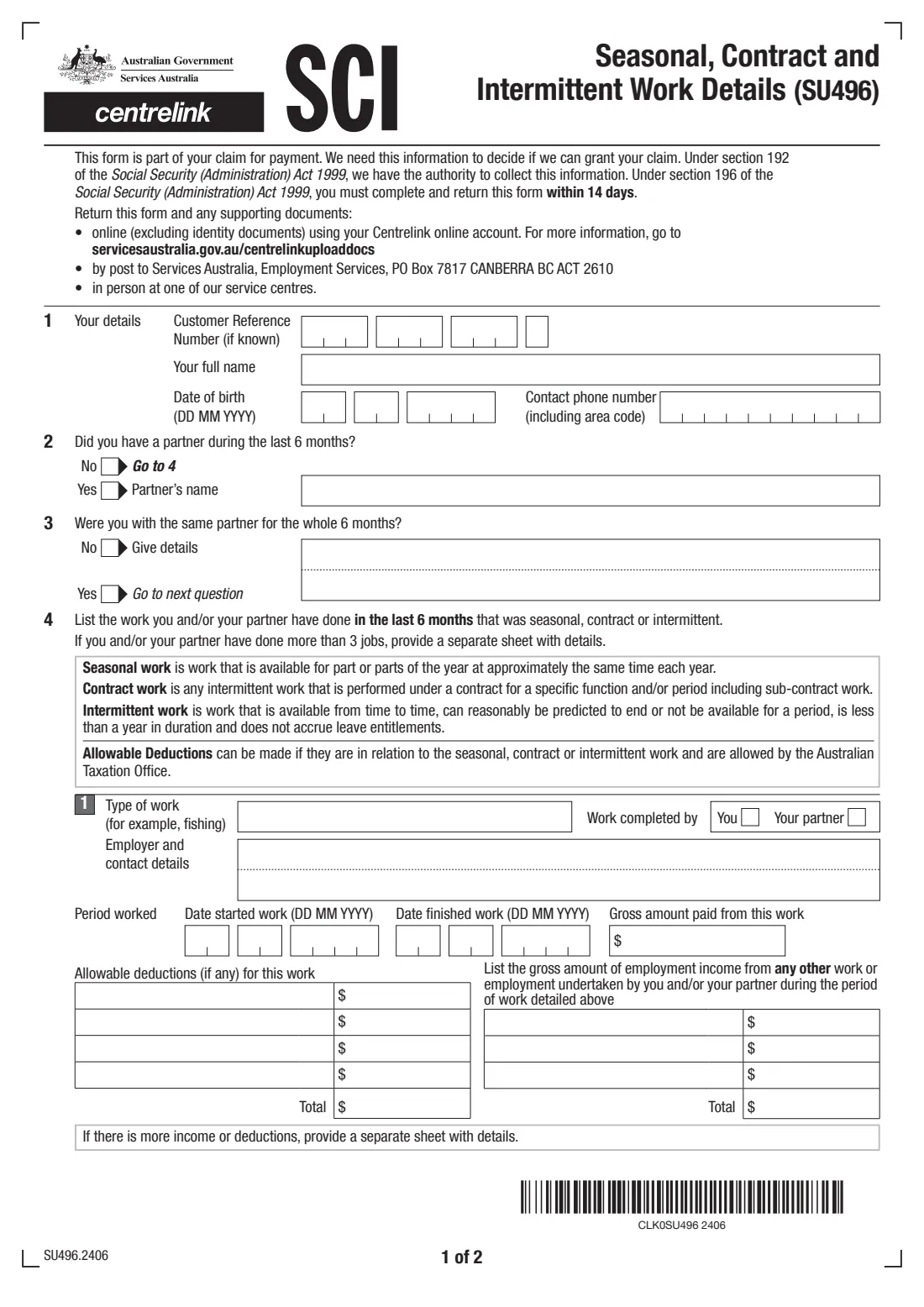
Form SU496, Seasonal, Contract and Intermittent Work Details, is a Services Australia (Centrelink) form that is part of your claim for payment. It asks about the seasonal, contract or intermittent work you and/or your partner did in the last 6 months: the type of work, the employer, when it started and finished, the gross amount paid, any allowable deductions, and income from any other work during the same period. Services Australia uses the information to decide if it can grant your claim.
The form defines the three kinds of work. Seasonal work is available for part or parts of the year at about the same time each year. Contract work is intermittent work done under a contract for a specific function or period, including sub-contract work. Intermittent work is available from time to time, can reasonably be predicted to end or not be available for a period, lasts less than a year and doesn't accrue leave entitlements.
FileIt asks the questions in plain language, adds up the deductions and other income for each job, and prints your answers into the official PDF (edition SU496.2406), including the comb boxes for your Customer Reference Number and dates. The finished PDF is saved in your vault. You return it to Services Australia yourself; FileIt never submits it.
- Who fills it
- A Centrelink claimant asked about seasonal, contract or intermittent work
- Returned to
- Services Australia: online, by post or at a service centre
- Deadline
- Within 14 days, the form says
- Period covered
- The last 6 months, for you and/or your partner
- Jobs on the form
- Up to 3; more on a separate sheet
- Edition
- SU496.2406
Who needs to fill out SU496?
- People claiming a Centrelink payment who did seasonal work in the last 6 months, such as fruit picking, fishing or shearing.
- Claimants who worked on contracts or sub-contracts, or whose partner did.
- Claimants with intermittent work that comes and goes, lasts less than a year and doesn't build up leave.
- Anyone Services Australia has asked to complete an SU496 as part of their claim.
When to use SU496
- When Services Australia asks for it as part of a claim for payment.
- Within 14 days, as the form requires under section 196 of the Social Security (Administration) Act 1999.
- When the work you or your partner did in the last 6 months was seasonal, contract or intermittent.
What you need before you start
- Your Customer Reference Number (CRN), if you know it.
- Your full name, date of birth and a contact phone number.
- Your partner's name, if you had a partner in the last 6 months.
- For each job: the type of work, the employer's name and contact details, start and finish dates and the gross amount paid.
- Any allowable deductions for that work, with amounts.
- The gross income from any other work you or your partner did during the same period.
- Documents that verify it: payslips, invoice books, payment summaries, profit and loss statements, time sheets or a letter from the employer.
What’s on SU496
The 2024 edition has 2 pages. FileIt asks for it in 6 parts, and it is signed by Customer:
- 1. Your detailsCustomer
- 2-3. Your partnerCustomer
- 4. Seasonal, contract or intermittent work: job 1Customer
- 4. Seasonal, contract or intermittent work: job 2Customer
- 4. Seasonal, contract or intermittent work: job 3Customer
- 5-6. Privacy and declarationCustomer
How to fill out SU496, step by step
1 1. Your details
Enter your Customer Reference Number if you know it (9 digits and a letter), your full name, your date of birth and a contact phone number with the area code. FileIt splits the CRN, date and phone number into the form's boxes.
2 2 and 3. Your partner
Say whether you had a partner at any time in the last 6 months and, if so, give their name. If you weren't with the same partner for the whole 6 months, give details, such as when a relationship started or ended.
3 4. The work
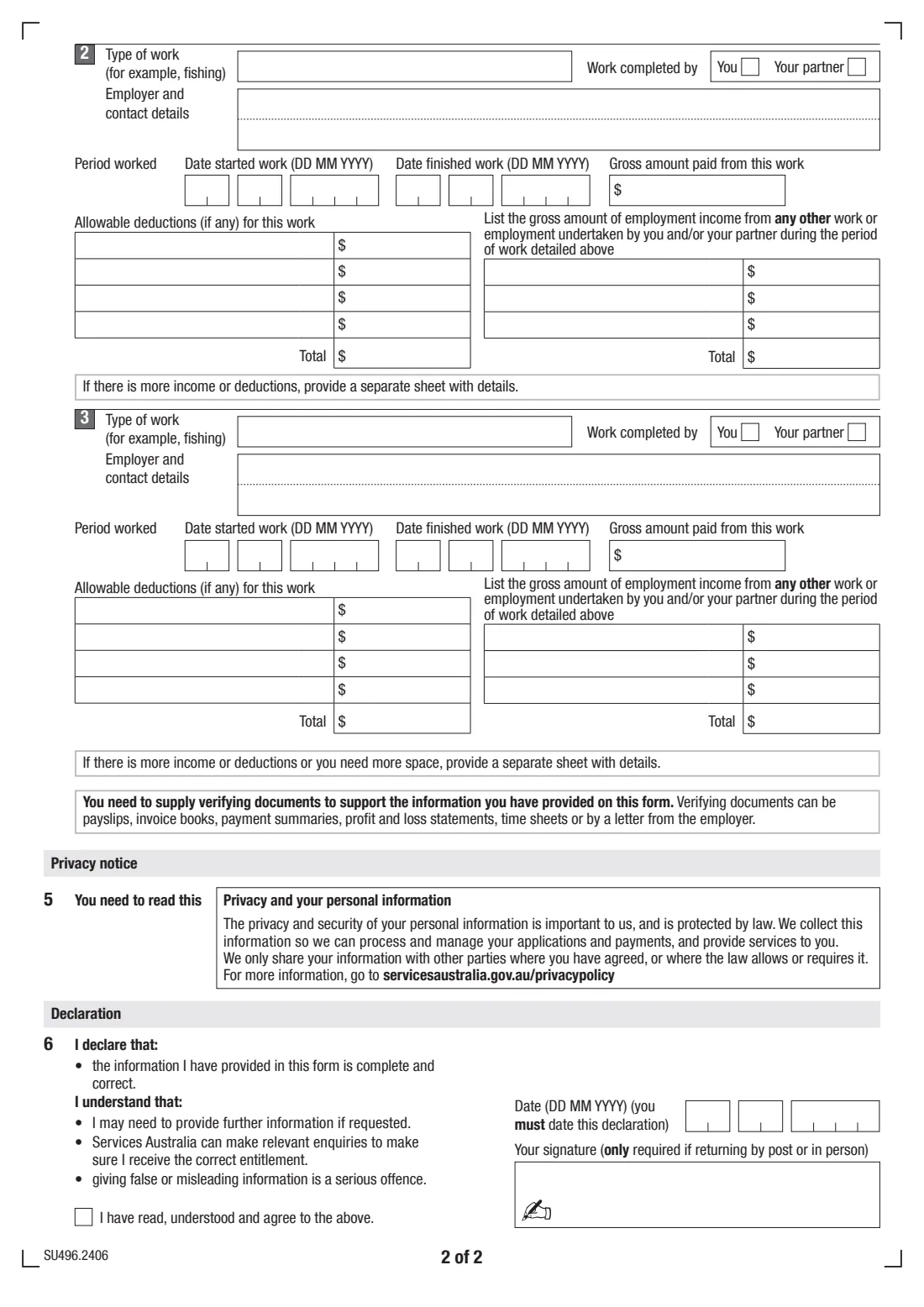
For each seasonal, contract or intermittent job, enter the type of work, the employer and their contact details, who did the work (you or your partner), the dates you started and finished, and the gross amount paid. The form has room for 3 jobs. If there were more, provide a separate sheet with the details.
4 Allowable deductions
List any deductions for that work that the Australian Taxation Office allows, with the amounts. FileIt adds them up for the Total box.
5 Other employment income
List the gross amount of employment income from any other work you and/or your partner did during the period of that job. FileIt adds this up too.
6 5 and 6. Privacy and declaration
Read the privacy notice, tick that you have read, understood and agree to the declaration, and date it. The form says your signature is only required if you return it by post or in person, but you must date the declaration.
Common mistakes to avoid
- Leaving out work your partner did. The form covers you and/or your partner.
- Listing work older than 6 months, or leaving out a job from that period.
- Entering the net amount instead of the gross amount paid.
- Claiming deductions the ATO doesn't allow, or deductions that aren't related to that work.
- Forgetting the verifying documents, such as payslips or a letter from the employer.
- Missing the 14-day deadline, or leaving the declaration undated.
After you fill it out
Check the PDF, tick the declaration and date it. If you'll post it or hand it in, sign it by hand or with FileIt's optional e-signature.
Return it with your supporting documents through your Centrelink online account (the form notes identity documents can't be uploaded that way), by post to Services Australia, Employment Services, PO Box 7817 CANBERRA BC ACT 2610, or in person at a service centre. FileIt doesn't send it for you.
A copy stays in the person's FileIt vault, so you have a record of what you told Services Australia.
Fill out SU496 online with FileIt
- Pick the person. Choose someone from People and FileIt fills in their name, date of birth, address and other details it already knows.
- Answer plain-language questions. One part of the form at a time, with the official help text beside each question — 80 fields in all. Your answers save as you go.
- Check the live preview. Watch your answers land on the real Services Australia (Centrelink) form, and let FileIt do any worksheet arithmetic.
- Generate the official PDF. FileIt prints your answers into the agency’s own PDF and files it in that person’s folder in your vault. Sign it, or send it for e-signature.
FileIt fills the form — it never files or submits anything for you. Deliver the finished form to whoever asked for it, the way the form’s instructions say.
Start SU496 now — it’s freeSU496: frequently asked questions
What is the SU496 form for?
It's part of your claim for a Centrelink payment. It records the seasonal, contract or intermittent work you and your partner did in the last 6 months, so Services Australia can decide if it can grant your claim.
How long do I have to return it?
The form says you must complete and return it within 14 days.
Do I have to sign it?
The form says your signature is only required if you return it by post or in person. You must date the declaration either way.
What if I had more than 3 jobs?
Provide a separate sheet with the details of the other jobs, or of any extra income or deductions.
What documents do I need to send?
Documents that verify what you entered, such as payslips, invoice books, payment summaries, profit and loss statements, time sheets or a letter from the employer.
Does FileIt lodge the form with Centrelink?
No. FileIt fills in the official PDF and saves it in your vault. You return it to Services Australia yourself.
Official sources
- Blank form (PDF), published by Services Australia (Centrelink): https://www.servicesaustralia.gov.au/sites/default/files/2024-06/su496-2406en-f.pdf
- Official instructions and guidance: https://www.servicesaustralia.gov.au/su496
- Edition shown on this page: SU496.2406 (checked 2026-09-28).
FileIt is not affiliated with or endorsed by Services Australia (Centrelink) or any government. This page explains the form in general terms and is not legal, tax or immigration advice. Always read the official instructions, and check that you are using the edition the recipient accepts. Page last reviewed 2026-09-28.