What is the suspicious email report form template?
Most organisations tell staff to "report anything suspicious" without giving them an easy way to do it. The result is a forwarded email with no context, a message in a chat channel, or — more often — nothing at all, because the person who clicked a link is embarrassed to say so.
This suspicious email report form makes reporting quick and blame-free. It asks how the message arrived and when, the sender's real address or number, the subject line for emails, what it pretended to be and what looked wrong. Then it asks plainly whether the person clicked, opened an attachment, or entered a password, code or payment details — and shows an instruction to call IT straight away if they did.
Each report is saved as a PDF in your FileIt vault with the screenshot attached, giving your security or IT lead a running log of phishing attempts that's useful for spotting campaigns and planning awareness training.
- Best for
- IT and security teams, office managers and any organisation training staff to spot phishing
- Filled in by
- Any member of staff who receives a suspicious email, text, chat message or call
- Time to complete
- About 2–4 minutes
- Includes
- Red-flag checklist, an urgent-action note when details were shared, screenshot upload
Who uses a suspicious email report form?
- Staff reporting a fake invoice or a supplier asking to change bank details
- An employee who clicked a link in a fake password-expiry email
- Reporting a text message pretending to be from a delivery company
- Collecting reports during a phishing simulation or awareness campaign
- A finance team flagging a message impersonating the CEO asking for an urgent payment
- A school or charity giving volunteers a simple way to report scams
Questions on this suspicious email report form
24 questions over 3 pages · includes file upload, conditional questions, multiple pages.
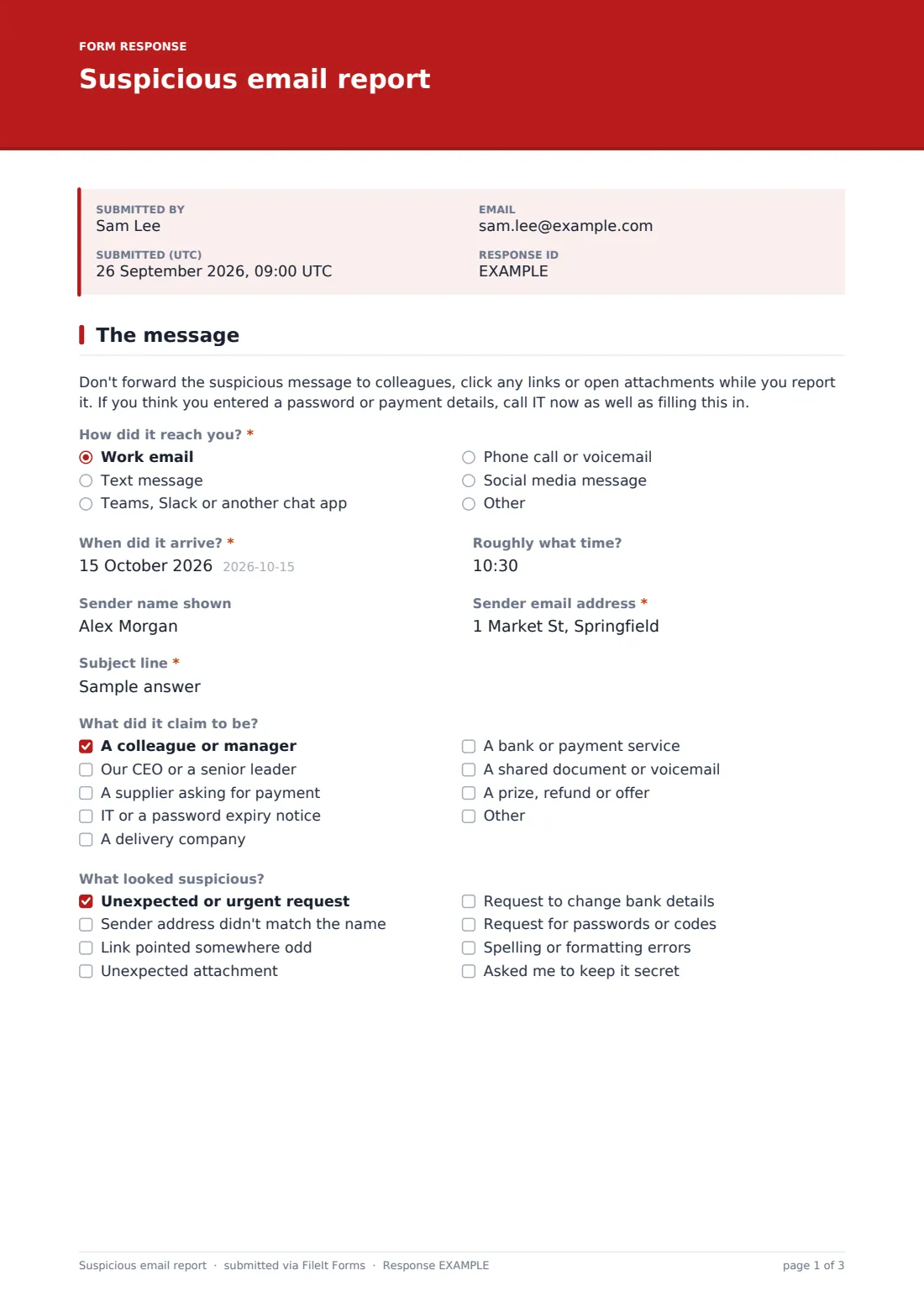
1 The message
- How did it reach you?* Work email · Text message · Teams, Slack or another chat app · Phone call or voicemail · Social media message
- When did it arrive?*
- Roughly what time?
- Sender name shown
- Sender email address* asked only when it applies
- Sender's number, account or handle asked only when it applies
- Subject line* asked only when it applies
- What did it claim to be? A colleague or manager · Our CEO or a senior leader · A supplier asking for payment · IT or a password expiry notice · A delivery company · A bank or payment service · A shared document or voicemail · A prize, refund or offer
- What looked suspicious? Unexpected or urgent request · Sender address didn't match the name · Link pointed somewhere odd · Unexpected attachment · Request to change bank details · Request for passwords or codes · Spelling or formatting errors · Asked me to keep it secret
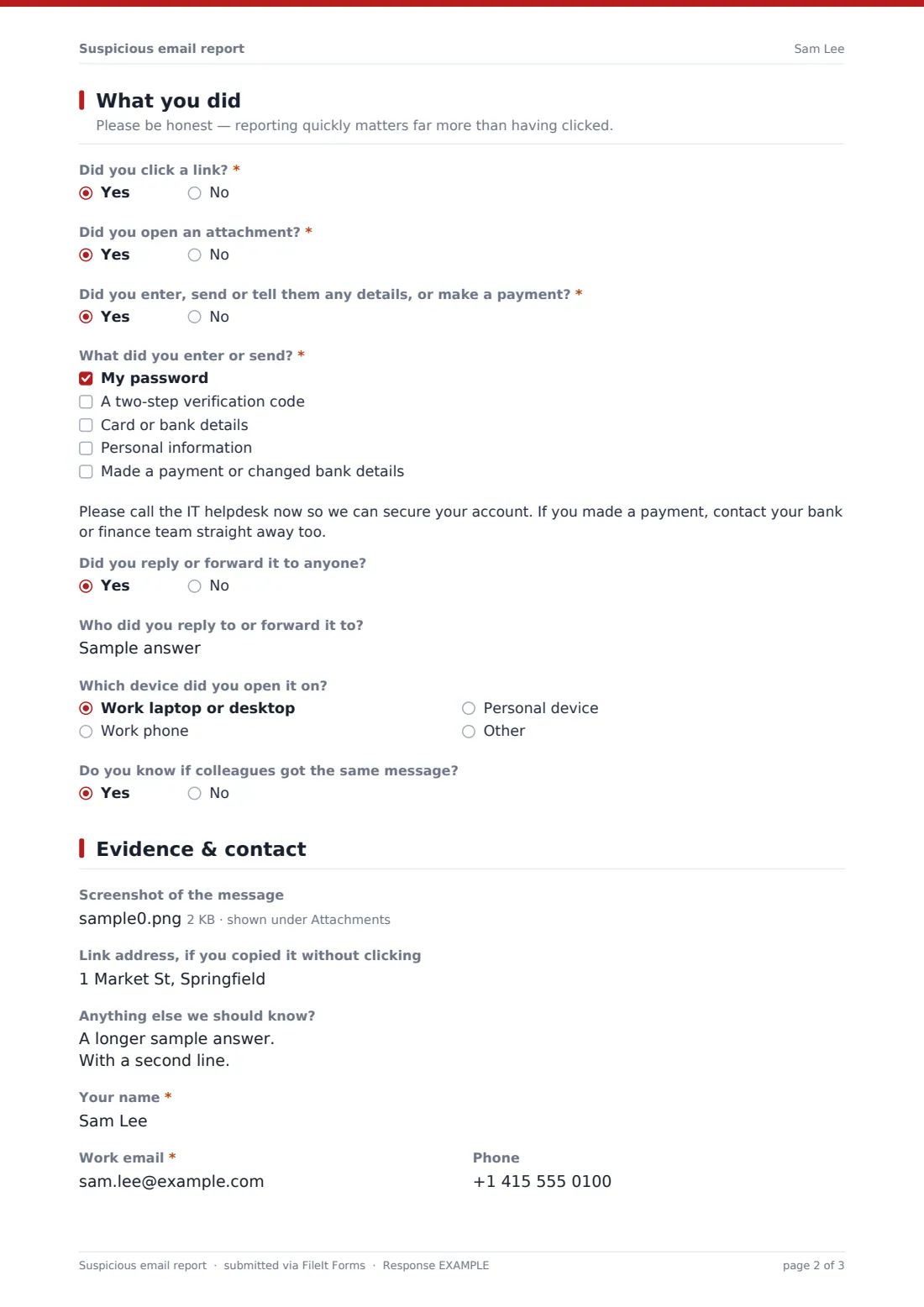
2 What you did
- Did you click a link?* asked only when it applies
- Did you open an attachment?* asked only when it applies
- Did you enter, send or tell them any details, or make a payment?*
- What did you enter or send?* asked only when it applies My password · A two-step verification code · Card or bank details · Personal information · Made a payment or changed bank details
- Did you reply or forward it to anyone?
- Who did you reply to or forward it to? asked only when it applies
- Which device did you open it on? Work laptop or desktop · Work phone · Personal device
- Do you know if colleagues got the same message?
3 Evidence & contact
- Screenshot of the message
- Link address, if you copied it without clicking
- Anything else we should know?
- Your name*
- Work email*
- Phone
- Department or team
The suspicious email report form, page by page
1 The message
A short warning asks people not to forward the message, click links or open attachments, and to call IT if they've already entered details. The reporter first says how it reached them — email, text, chat, phone or social media — then when it arrived and the sender name. Emails ask for the full sender address and subject line; anything else asks for the number, account or handle it came from. Two checklists capture what the message claimed to be, such as a manager, supplier, IT notice or delivery company, and what looked suspicious, from a mismatched sender address to a request to change bank details.
2 What you did
This page asks, without judgement, whether the person clicked a link or opened an attachment (skipped for phone calls) and whether they entered or sent any details or made a payment. Answering yes asks what — a password, verification code, card or bank details, personal information or a payment — and shows a note to call the helpdesk now and contact their bank or finance team if money was involved. They also say whether they replied or forwarded it, which device they used and whether colleagues received the same message.
3 Evidence & contact
The reporter can upload up to three screenshots and paste a link address in a made-safe form, plus any other context. Their name, work email, phone and department finish the report so IT can follow up.
Make the template yours
- Add your helpdesk phone number to the warning paragraphs
- Explain your own process for sending the original email if IT needs the headers
- Add brands or suppliers that are commonly impersonated in your sector to the claim checklist
- Turn on notifications to a security mailbox so reports are seen quickly
- Link to this form from your email signature, intranet or security awareness training
- Add a question for which mailbox received it if staff also monitor shared inboxes
Tips for a better suspicious email report form
- Thank every reporter, including those who clicked — people who fear blame stop reporting
- Act first on reports where a password, code or payment was involved
- Look for several reports of the same message — it may be a targeted campaign
- Block the sender and any malicious links in your email filter once confirmed
- Share anonymised examples in awareness sessions so staff recognise the next one
- Don't ask staff to forward the email to colleagues for a second opinion — that spreads it
Every response becomes a PDF in your vault
Each report is filed as a PDF in your FileIt vault with its screenshots, and the form owner is emailed as soon as it arrives. The reporter can receive a copy for their own records.
The Responses table becomes a log of attempts: filter to find reports where someone entered details, or export to CSV to count reports per month and see which lures are most common.
- Start from this template. It opens in the FileIt Forms designer — change any question, add pages, set the rules for when questions appear.
- Share it. Turn on a public link, or send it to people by email, each with their own link. They don’t need a FileIt account.
- Get the answers as PDFs. Each response is saved as a PDF in the vault folder you choose, with uploaded files attached — and listed in a Responses table you can export to CSV.
Suspicious email report form: frequently asked questions
Is this phishing report form free?
Yes. It's a starter template in the FileIt Forms app, included on every plan including free.
Does the form scan the email or links for malware?
No. It records what the person saw and did. Your IT or security team investigates the message with its own tools.
Can staff upload the original email file?
The upload accepts images and PDFs, so a screenshot is the default. If your team needs the original message with headers, explain your preferred method in the help text.
What if someone already entered their password?
Answering yes to the question about entering details shows a message telling them to call the helpdesk immediately. Your team should then reset the account and check for unusual activity.
Do staff need a FileIt account?
No. Anyone with the link can submit a report.
Can we use it for phishing simulation results?
Yes. Staff can report simulated emails through the same form, and you can export the responses to see who reported them.