What is a home office safety checklist?
Working from home moved the office into spare rooms, kitchen tables and sofa corners. Employers still have a part to play in making that space safe, but nobody wants a manager inspecting their home. A self-assessment checklist is the usual answer: the employee checks their own set-up against clear questions, and the manager reviews the answers and helps fix what is not right.
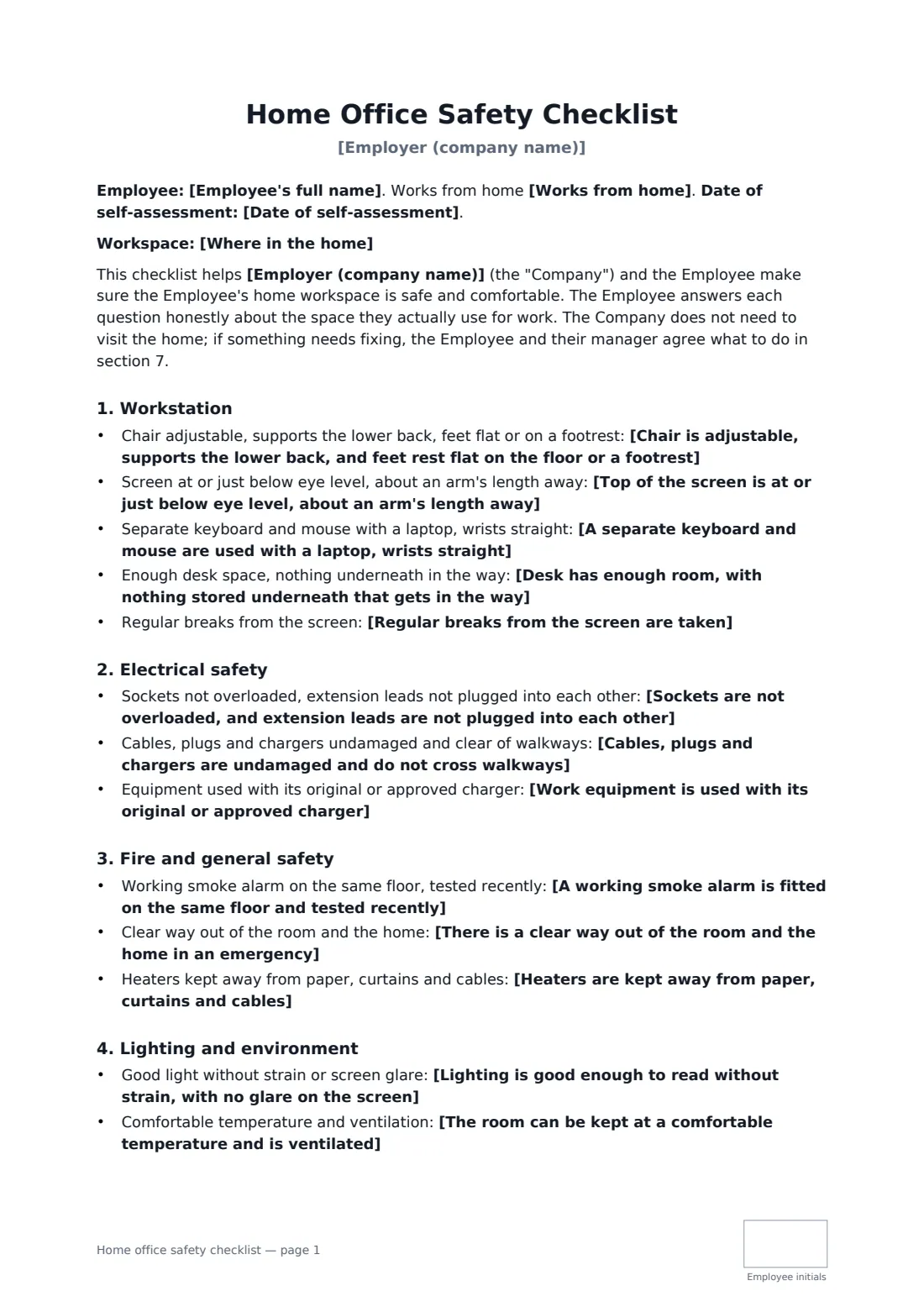
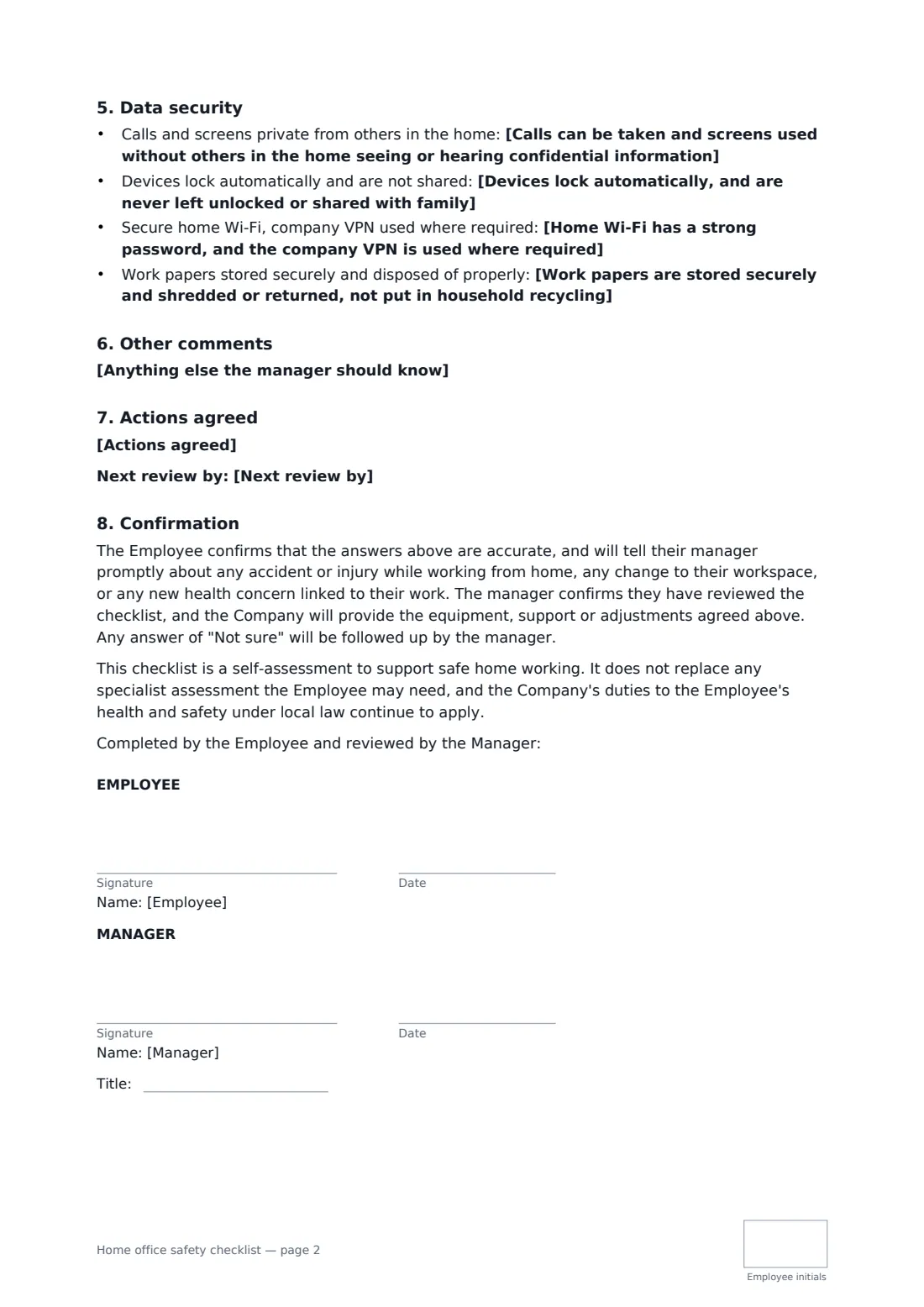
This checklist asks yes, no or not sure questions about the chair, screen height, keyboard and mouse, desk space and breaks; sockets, cables and chargers; smoke alarms, escape routes and heaters; lighting, temperature and ventilation; and data security at home, from who can overhear calls to Wi-Fi, screen locks and paper records. There is space for comments the employee chooses to share, the actions agreed with who does what by when, and a review date. The employee initials every page, and both sign at the end.
- Best for
- Employers with remote, hybrid or occasional home workers
- Signed by
- The employee, and the manager who reviews it
- Checks
- 17 questions across workstation, electrical, fire, environment and data security
- Length
- 2 pages, initialled by the employee
When to use a home office safety checklist
- A new hire starting in a fully remote role
- An office team moving to two or three home days a week
- An employee moving house and setting up a new workspace
- Annual review of home working arrangements
- Following up a report of back, neck or wrist pain
What you fill in
25 blanks, then the name and email of each person who signs: employee, manager.
1 About the assessment
- Employer (company name)*
- Employee's full name*
- Works from home* full time · some days each week (hybrid) · occasionally
- Where in the home
- Date of self-assessment*
2 Workstation
- Chair is adjustable, supports the lower back, and feet rest flat on the floor or a footrest* Yes · No — action needed · Not sure
- Top of the screen is at or just below eye level, about an arm's length away* Yes · No — action needed · Not sure
- A separate keyboard and mouse are used with a laptop, wrists straight* Yes · No — action needed · Not applicable
- Desk has enough room, with nothing stored underneath that gets in the way* Yes · No — action needed
- Regular breaks from the screen are taken* Yes · No — action needed
3 Electrical safety
- Sockets are not overloaded, and extension leads are not plugged into each other* Yes · No — action needed
- Cables, plugs and chargers are undamaged and do not cross walkways* Yes · No — action needed
- Work equipment is used with its original or approved charger* Yes · No — action needed
4 Fire and general safety
- A working smoke alarm is fitted on the same floor and tested recently* Yes · No — action needed
- There is a clear way out of the room and the home in an emergency* Yes · No — action needed
- Heaters are kept away from paper, curtains and cables* Yes · No — action needed · Not applicable
5 Lighting and environment
- Lighting is good enough to read without strain, with no glare on the screen* Yes · No — action needed
- The room can be kept at a comfortable temperature and is ventilated* Yes · No — action needed
6 Data security
- Calls can be taken and screens used without others in the home seeing or hearing confidential information* Yes · No — action needed
- Devices lock automatically, and are never left unlocked or shared with family* Yes · No — action needed
- Home Wi-Fi has a strong password, and the company VPN is used where required* Yes · No — action needed · Not sure
- Work papers are stored securely and shredded or returned, not put in household recycling* Yes · No — action needed · Not applicable
7 Findings and actions
- Anything else the manager should know
- Actions agreed
- Next review by
8 Who signs
- Employee signature and date, initials on every page · The person working from home. They complete the checklist about their own workspace.
- Manager signature and date, job title, initials on every page · The line manager or health and safety contact who reviews it.
What the home office safety checklist covers
- Workstation
- Electrical safety
- Fire and general safety
- Lighting and environment
- Data security
- Other comments
- Actions agreed
- Confirmation
Using the home office safety checklist, step by step
1 Fill in the basics
Enter the employee, how often they work from home and, if useful, which room they work in.
2 Answer the checks
Each question has a yes, no or not sure answer. If you are sending it to the employee, leave the defaults and let them correct anything before they sign, or go through it together on a call.
3 Record actions
Write what needs to happen, who does it and by when, for example a laptop stand from the company or a new extension lead. Set a review date.
4 Sign it
The employee signs to confirm their answers; the manager signs to confirm the review. The signed checklist is filed in your vault.
Tips before you send it
- Go through the checklist with the employee on a video call. Ten minutes catches most problems.
- A laptop on its own is rarely comfortable all day. A stand, keyboard and mouse fix most screen and posture issues cheaply.
- Follow up every "Not sure" and every action. A checklist with nothing done afterwards protects no one.
- Repeat the assessment when someone moves house, changes equipment or reports a new health concern.
Sign it online in minutes
- Fill in the blanks. Names, dates and amounts go straight into the agreement — the preview shows exactly where.
- Name who signs. Tick “This is me” for your own part. FileIt builds the PDF with every signature, date and initials box on the right line, and you can check or move anything before sending.
- Send it. Each signer gets a secure link and signs from any device — no account needed. The signed PDF, with an audit trail and a Certificate of Completion, is filed in your vault and emailed to everyone.
Home office safety checklist: frequently asked questions
Do employers have to assess home workers' workspaces?
In many places, health and safety duties extend to employees working from home, and some countries require display screen assessments. The detail varies, so check local rules. The checklist says the employer's legal duties continue to apply.
Does the manager need to visit the employee's home?
No. This is a self-assessment. The employee answers the questions, and the manager reviews them and agrees actions.
What if the employee has a health condition?
Sharing health details is optional. If the employee mentions a concern, the manager can arrange support or a specialist assessment; the checklist doesn't replace one.
Can the employee complete it on their laptop?
Yes. They open the signing link from FileIt's email, review the answers and sign in the browser. No FileIt account is needed.