What is 64-8 Authorising your agent?
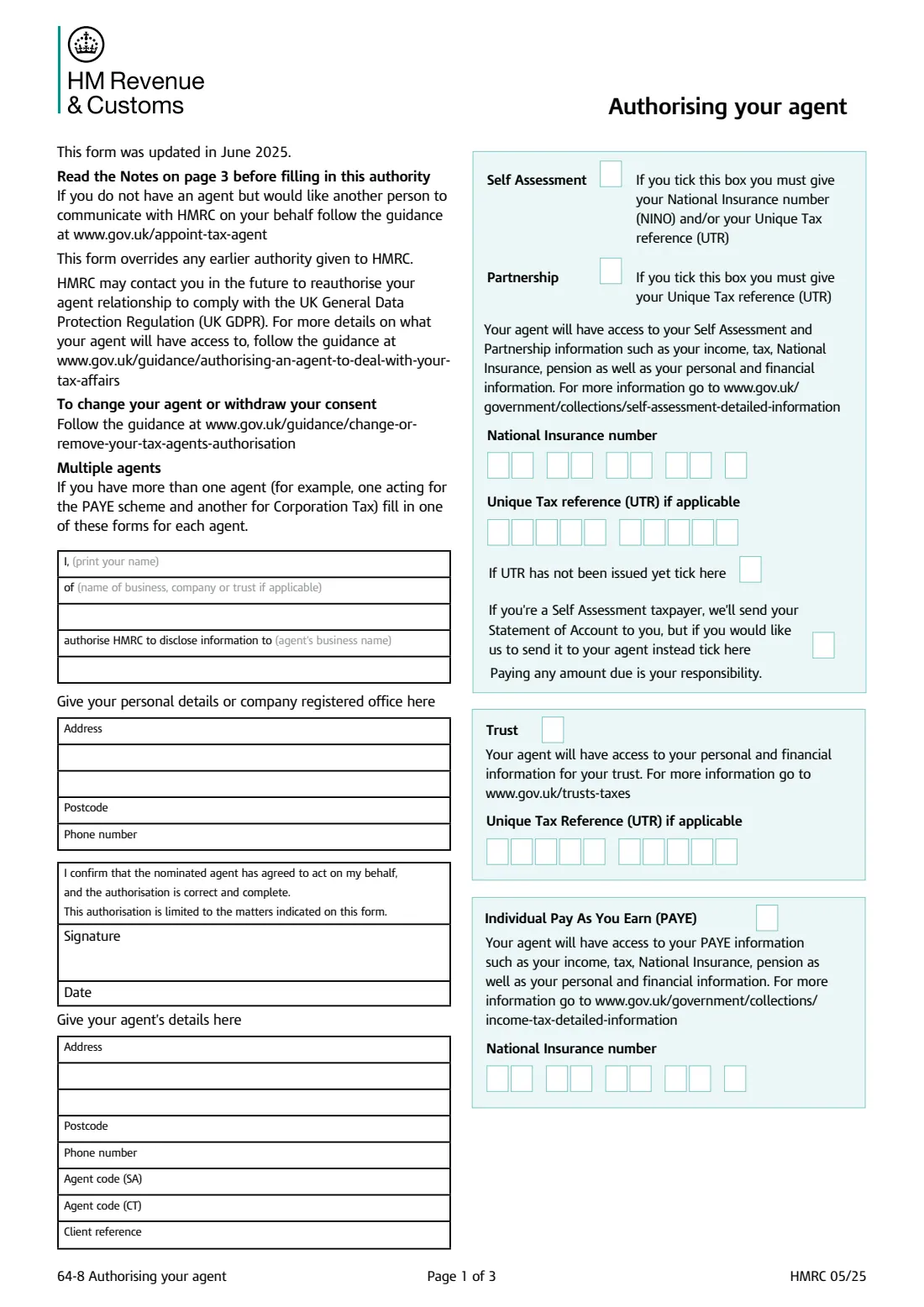
Form 64-8, Authorising your agent, tells HM Revenue & Customs that it may disclose information about you to a named agent and deal with them on your behalf. It covers the taxes and schemes you tick: Self Assessment, Partnership, trusts, individual Pay As You Earn, Corporation Tax, tax credits, VAT, the VAT DIY Housebuilder Scheme, the Construction Industry Scheme and employers' PAYE. The authority is limited to the matters indicated on the form, and a new 64-8 overrides any earlier authority you gave HMRC.
The form is usually prepared by the accountant or tax adviser, signed by the client and posted to HMRC. It is short, but it asks for a lot of reference numbers — National Insurance number, Unique Taxpayer Reference, company registration number, PAYE and VAT references, the agent's codes and Government Gateway identifier — and a single wrong digit can hold things up. HMRC also offers digital ways for agents to be authorised, so many agents use the paper form only where those don't apply.
FileIt walks you through each part in plain English, lets you switch on only the taxes the agent should handle, checks the format of every reference, and copies your National Insurance number into each box that needs it. Your name and details can be pre-filled from your People record, and the answers are printed into HMRC's own 64-8 PDF (edition HMRC 05/25) and saved in your FileIt vault. You print it, sign and date it by hand, and you or your agent post it — FileIt never sends anything to HMRC.
- Who fills it
- The client (individual, company, partnership or trust), often with the agent's help
- Given to
- HMRC, by post — pages 1 and 2 only
- When
- When you appoint an agent, or want to change what they can deal with
- Signatures
- The client signs and dates it; a joint tax credits claimant also signs
- Edition
- HMRC 05/25 (updated June 2025)
- One form per agent
- Use a separate 64-8 for each agent you appoint
Who needs to fill out 64-8 Authorising your agent?
- Individuals who want an accountant or tax adviser to deal with HMRC about their Self Assessment or PAYE tax affairs.
- Companies appointing an agent for Corporation Tax — the company secretary or another responsible officer signs.
- Partnerships, where the partner responsible for the partnership's tax affairs signs (individual partners sign a separate authority for their own affairs).
- Trustees who want an agent to handle the trust's tax — one or more of the trustees signs.
- Employers who want a payroll agent to deal with employers' PAYE, and contractors in the Construction Industry Scheme.
- VAT-registered businesses wanting an agent to deal with HMRC in writing or by phone on specific VAT matters, and people claiming under the VAT DIY Housebuilder Scheme.
When to use 64-8 Authorising your agent
- When you first appoint an accountant or tax agent and they need HMRC to talk to them about your affairs.
- When you want to add another tax to what your existing agent can deal with — a new 64-8 overrides any earlier authority, so list everything the agent should cover.
- When different agents handle different taxes, for example one for PAYE and another for Corporation Tax: fill in one form for each agent.
- When HMRC asks you to reauthorise your agent — the form says HMRC may contact you to do this to comply with UK GDPR.
- To change your agent or withdraw your consent, follow HMRC's separate guidance rather than this form.
What you need before you start
- Your full name, and the name of the business, company or trust if the authority is for one.
- Your address (or the company's registered office), postcode and phone number.
- Your agent's business name, address, postcode and phone number, their agent codes for Self Assessment and Corporation Tax if they have them, and any client reference they use for you.
- Your National Insurance number, for Self Assessment, individual PAYE, tax credits and the VAT DIY Housebuilder Scheme.
- Your 10-digit Unique Taxpayer Reference (UTR) for Self Assessment or a partnership, or the trust's UTR.
- For Corporation Tax: the 8-character Company Registration number and the company's UTR.
- Your 9-digit VAT registration number, if registered.
- For CIS or employers' PAYE: your PAYE reference (like 123/AB45678), plus the agent's Government Gateway identifier and PAYE agent ID code if they need online access.
- For a joint tax credits claim: the other claimant's name and National Insurance number, and their signature.
What’s on 64-8 Authorising your agent
The 2025 edition has 3 pages. FileIt asks for it in 11 parts:
- You (the client)Client
- Your agent's detailsAgent
- Self Assessment and PartnershipClient
- TrustClient
- Individual Pay As You Earn (PAYE)Client
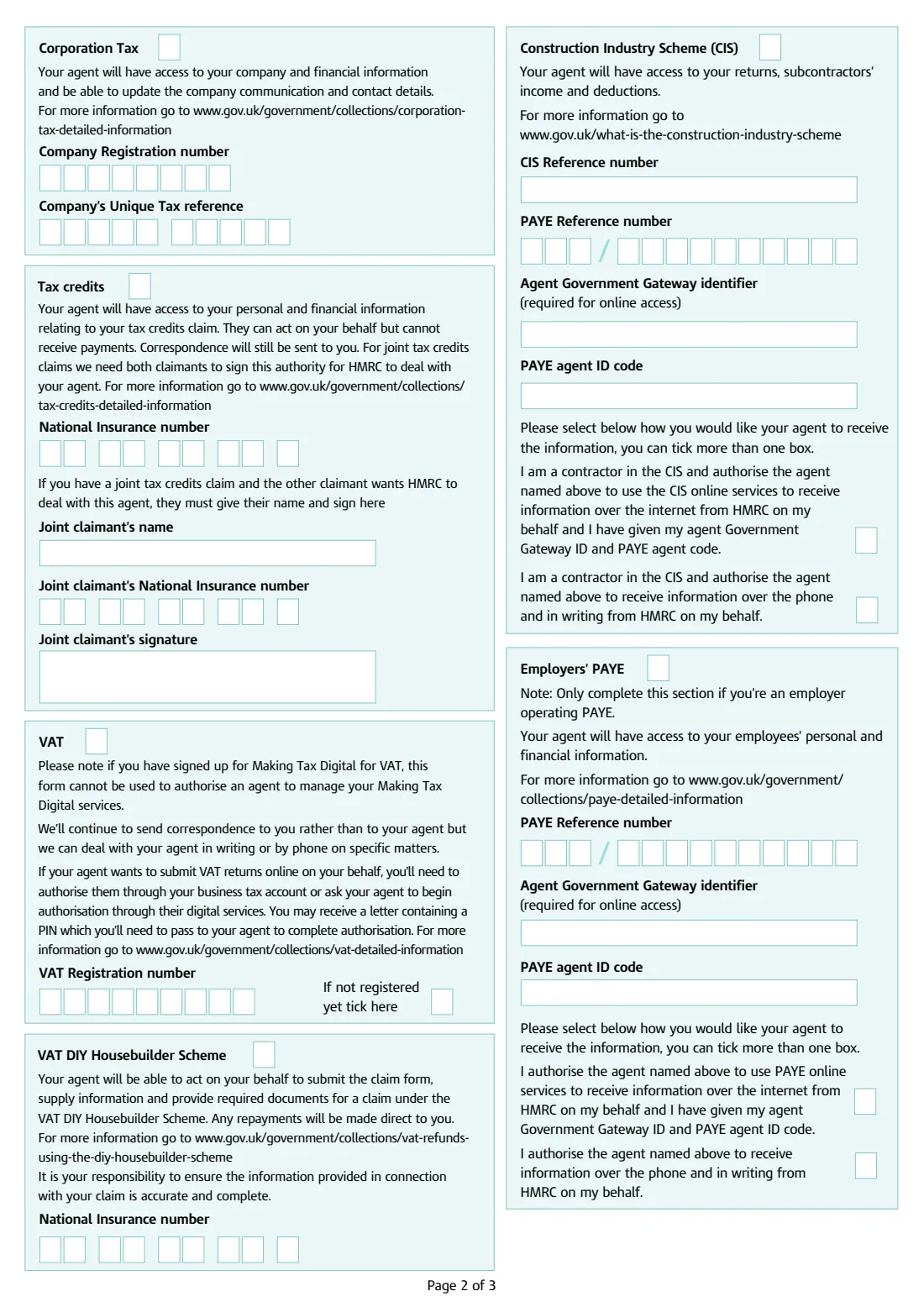
- Corporation TaxClient
- Tax creditsClient
- VATClient
- VAT DIY Housebuilder SchemeClient
- Construction Industry Scheme (CIS)Client
- Employers' PAYEClient
How to fill out 64-8 Authorising your agent, step by step
1 Your details and the agent's name
Print your name, then the name of the business, company or trust if the authority is for one, and the agent's business name after 'authorise HMRC to disclose information to'. Below that give your personal address or the company's registered office, postcode and phone number.
The name boxes on HMRC's PDF are short (26 characters for your name and the agent's name), so use the name the agent is registered under and keep it concise.
2 Confirmation, signature and date
By signing you confirm that the nominated agent has agreed to act for you and that the authorisation is correct and complete, and you accept that it is limited to the matters shown on the form. The signature must come from the right person: you for your own affairs, a company officer for a company, the responsible partner for a partnership, or a trustee for a trust. HMRC notes that the legal age for an individual to give consent is generally 13 in England and Wales and 12 in Scotland.
3 Your agent's details
The agent's address, postcode and phone number, their Self Assessment and Corporation Tax agent codes if they have them, and their client reference for you. Ask your agent for these before you start — FileIt lets you enter them in the agent part so the agent can check them.
4 Self Assessment and Partnership
Tick Self Assessment for your own tax return and give your National Insurance number and/or your UTR; tick Partnership for a partnership return and give the partnership's UTR. If your UTR hasn't been issued yet, tick the box for that.
There is also a box to have your Self Assessment Statement of Account sent to your agent instead of you. Either way, paying any amount due remains your responsibility.
5 Trust
Lets the agent access your personal and financial information for your trust. Give the trust's Unique Taxpayer Reference if it has one.
6 Individual Pay As You Earn (PAYE)
Gives the agent access to your PAYE information — income, tax, National Insurance, pension and your personal and financial information. Only your National Insurance number is needed; FileIt copies it from your details.
7 Corporation Tax
Gives the agent access to company and financial information and lets them update the company's communication and contact details. Enter the Company Registration number from Companies House and the company's UTR. A form that is only for Corporation Tax goes to the HMRC office that deals with the company rather than the general address.
8 Tax credits
Lets the agent act for you on a tax credits claim, though they can't receive payments and letters still go to you. For a joint claim, HMRC needs both claimants to sign: the other claimant gives their name and National Insurance number and signs in the joint claimant's box by hand.
9 VAT
Lets HMRC deal with your agent in writing or by phone on specific VAT matters; correspondence still comes to you. It can't be used to authorise an agent for Making Tax Digital for VAT — for online VAT returns you authorise the agent through your business tax account or through the agent's digital services. Give your VAT registration number, or tick the box if you're not registered yet.
10 Construction Industry Scheme (CIS)
Gives the agent access to your CIS returns and your subcontractors' income and deductions. Enter your CIS reference and PAYE reference, then choose how the agent should receive information: through the CIS online services (which needs the agent's Government Gateway identifier and PAYE agent code) and/or by phone and in writing. You can tick both.
11 Employers' PAYE
Only for employers operating PAYE. The agent will have access to your employees' personal and financial information. Give your PAYE reference and, for online access, the agent's Government Gateway identifier and PAYE agent ID code, then tick online, phone and writing, or both.
12 VAT DIY Housebuilder Scheme
Lets the agent submit the claim form, supply information and provide documents for a VAT DIY Housebuilder claim. Any repayment is made to you, and it stays your responsibility that the claim is accurate and complete. Your National Insurance number is required.
Common mistakes to avoid
- Leaving the form unsigned or undated — GOV.UK says the form must be signed and dated.
- Having the wrong person sign, such as an employee rather than a company officer, or an individual partner signing for the partnership.
- Forgetting that a new 64-8 overrides earlier authority: tick every tax the agent should keep dealing with, not just the new one.
- Using one form for two agents — each agent needs their own 64-8.
- Ticking Self Assessment without a National Insurance number or UTR, or Partnership without the partnership's UTR.
- Expecting the 64-8 to authorise an agent for Making Tax Digital for VAT, which needs a digital authorisation instead.
- Getting a reference wrong — a UTR is 10 digits, a VAT number 9 digits and a PAYE reference a 3-digit office number, a slash and the rest. FileIt checks the format as you type.
- Sending page 3 — HMRC only wants pages 1 and 2.
After you fill it out
Download the completed 64-8 from your FileIt vault, print it, and sign and date it by hand. If you have a joint tax credits claim, the other claimant signs too. Check the agent's details and references with your agent before posting.
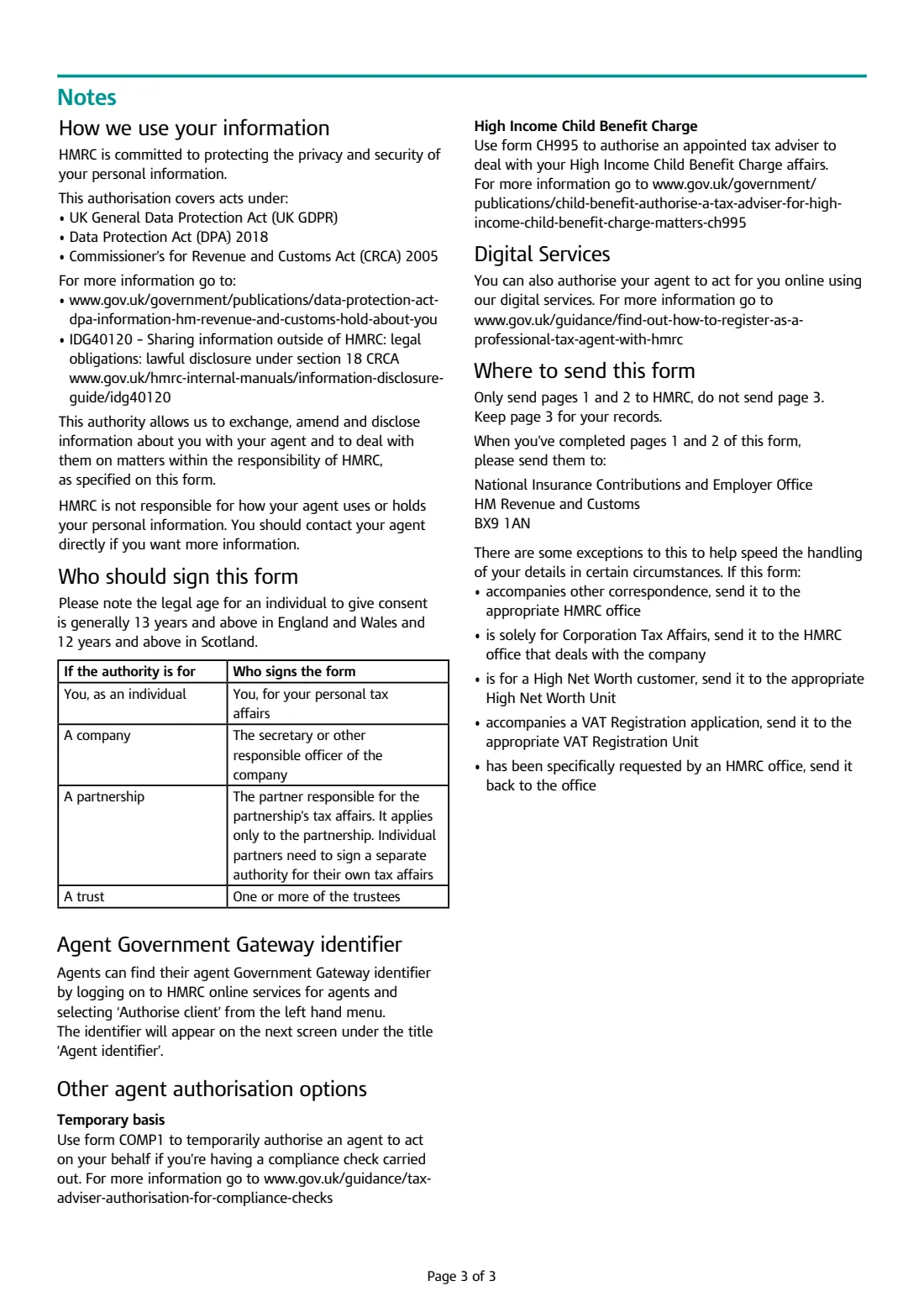
The form says to send only pages 1 and 2 to the National Insurance Contributions and Employer Office, HM Revenue and Customs, BX9 1AN, and to keep page 3 for your records. There are exceptions: send it to the appropriate HMRC office if it goes with other correspondence, to the office dealing with the company if it is solely for Corporation Tax, to the High Net Worth Unit for a High Net Worth customer, to the VAT Registration Unit if it goes with a VAT registration application, and back to the office that asked for it if HMRC requested it. Often the agent posts it for you.
Keep the PDF in your FileIt vault as a record of what you authorised. If you later change agents, add a tax, or HMRC asks you to reauthorise, fill in a fresh 64-8 — it replaces the earlier one.
Fill out 64-8 Authorising your agent online with FileIt
- Pick the person. Choose someone from People and FileIt fills in their name, date of birth, address and other details it already knows.
- Answer plain-language questions. One part of the form at a time, with the official help text beside each question — 58 fields in all. Your answers save as you go.
- Check the live preview. Watch your answers land on the real HM Revenue & Customs (HMRC) form, and let FileIt do any worksheet arithmetic.
- Generate the official PDF. FileIt prints your answers into the agency’s own PDF and files it in that person’s folder in your vault.
FileIt fills the form — it never files or submits anything for you. Deliver the finished form to whoever asked for it, the way the form’s instructions say.
Start 64-8 Authorising your agent now — it’s free64-8 Authorising your agent: frequently asked questions
What is form 64-8 used for?
It authorises HMRC to disclose information about you to your tax agent and to deal with them on the tax matters you tick on the form. It covers individuals, companies, partnerships and trusts, and a wide range of taxes from Self Assessment to employers' PAYE.
Can I fill in form 64-8 online?
You can fill it in online with FileIt: answer guided questions, and FileIt prints your answers into HMRC's official 64-8 PDF and saves it in your vault. You then print, sign and post it. FileIt doesn't send it to HMRC. Separately, HMRC has digital services that let agents be authorised online, which your agent may prefer.
Where do I send form 64-8?
Pages 1 and 2 go to the National Insurance Contributions and Employer Office, HM Revenue and Customs, BX9 1AN, unless one of the form's exceptions applies — for example a Corporation Tax-only form goes to the office dealing with the company. Keep page 3.
Who signs a 64-8 for a company or partnership?
For a company, the secretary or another responsible officer. For a partnership, the partner responsible for the partnership's tax affairs — and the authority covers the partnership only; each partner signs a separate one for their own affairs. For a trust, one or more of the trustees.
Do I need a separate 64-8 for each agent?
Yes. The form says that if you have more than one agent, for example one for the PAYE scheme and another for Corporation Tax, you fill in one form for each agent.
Can I use the 64-8 for Making Tax Digital for VAT?
No. The VAT part says the form can't authorise an agent to manage your Making Tax Digital services. Authorise them through your business tax account, or ask the agent to start authorisation through their digital services.
Does a new 64-8 cancel my old one?
The form says it overrides any earlier authority given to HMRC. That's why it's important to tick every tax the agent should deal with. To change your agent or withdraw consent, follow HMRC's guidance on changing or removing an agent's authorisation.
What is an Agent Government Gateway identifier?
It's the agent's identifier for HMRC online services, needed for online access to CIS and employers' PAYE. Agents find it by logging in to HMRC online services for agents and choosing 'Authorise client'; it appears under 'Agent identifier'.
Does my agent get my tax payments or refunds?
Not through this form. For tax credits the agent can act for you but can't receive payments, and under the VAT DIY Housebuilder Scheme repayments are made to you. For Self Assessment, paying any amount due remains your responsibility.
Official sources
- Blank form (PDF), published by HM Revenue & Customs (HMRC): https://assets.publishing.service.gov.uk/media/6852e9f02b367fdd44c15e8a/64-8.pdf
- Official instructions and guidance: https://www.gov.uk/government/publications/tax-agents-and-advisers-authorising-your-agent-64-8
- Edition shown on this page: HMRC 05/25 (checked 2026-09-26).
FileIt is not affiliated with or endorsed by HM Revenue & Customs (HMRC) or any government. This page explains the form in general terms and is not legal, tax or immigration advice. Always read the official instructions, and check that you are using the edition the recipient accepts. Page last reviewed 2026-09-26.