What is P87 Employment expenses claim?
Form P87 is how an employee claims tax relief from HM Revenue & Customs for costs of doing their job that their employer didn't fully pay back. It covers flat rate expenses for cleaning, repairing or replacing uniforms, work clothing and tools; subscriptions to approved professional bodies; business mileage in your own car, van, motorcycle or bicycle; hotel and meal costs on business trips; and other expenses such as working from home.
Relief reduces the tax you pay rather than refunding the full amount you spent, and it only helps if you paid tax in the year — the form says plainly that if you paid no tax, no refund is due. The P87 is for claims of £2,500 or less per tax year; above that you need a Self Assessment tax return. You can claim for the current tax year and the previous four, all on one form, using a column for each year or employment.
FileIt takes you through each section in plain English and does the arithmetic the form asks for: subscriptions minus repayments, mileage at the rates printed on the form, the mileage allowance relief after your employer's payments, and the total in box 9.1 for each column. It checks each year stays within the £2,500 limit, pre-fills your personal details from your People record, and prints everything into HMRC's official P87 PDF, saved to your FileIt vault. You print, sign and post it yourself.
- Who fills it
- An employee (not self-employed) who paid allowable work expenses
- Given to
- HMRC, by post
- When
- Any time — for the current tax year and up to the last 4 completed tax years
- Signatures
- The employee signs and dates the declaration by hand; unsigned forms are rejected
- Edition
- HMRC 06/26
- Limit
- £2,500 or less of allowable expenses per tax year
Who needs to fill out P87 Employment expenses claim?
- Nurses, police officers, care workers, builders and others who have to wash, repair or replace a uniform, protective clothing or tools at their own expense.
- Employees who pay a yearly fee or subscription to a professional body approved by HMRC for their job.
- People who drive their own car or van, or ride a motorcycle or bicycle, for work journeys (not their normal commute) and are paid less than the approved mileage rates.
- Staff who paid for hotels and meals on business trips and weren't fully reimbursed.
- Employees who had to work from home and bore extra household costs as a result.
- Anyone who missed claiming in earlier years — you can go back up to four completed tax years.
When to use P87 Employment expenses claim
- After a tax year ends (5 April), to claim for that year, or during the current year for expenses already paid.
- When you realise you've never claimed flat rate expenses for your uniform or tools — earlier years can be included on the same form.
- When your employer's mileage payments were below the approved rates, or you were paid nothing for business miles.
- Only while your allowable expenses for each year are £2,500 or less; above that, register for Self Assessment instead.
- HMRC's online service is an alternative route; the P87 is the paper claim for those who post their claim.
What you need before you start
- Your name, address, phone number, date of birth and National Insurance number (if you have one).
- For each year and employer: the employer's PAYE reference (on your P45, P60 or Personal Tax Account), your job title, employer name, address and postcode, and your employee number.
- Your type of industry, if claiming flat rate expenses, and the flat rate amount for your job from GOV.UK.
- The name of any professional body, the subscription or fee paid and anything your employer repaid.
- Your total business miles by vehicle type, and the mileage allowance payments your employer made.
- Mileage logs, if your employer paid you nothing towards business mileage — the form asks you to attach them.
- Receipts and dates for hotel and meal expenses and other costs, plus any amounts repaid.
- Details of any other expense payments from your employer not already declared.
- A nominee's name, address and (for a paid professional) Agent Reference Number, if the refund cheque should go to someone else.
What’s on P87 Employment expenses claim
The 2026 edition has 8 pages. FileIt asks for it in 8 parts:
- 1 Personal detailsEmployee
- Column A — one tax year (or employment)Employee
- Column B — one tax year (or employment)Employee
- Column C — one tax year (or employment)Employee
- Column D — one tax year (or employment)Employee
- Column E — one tax year (or employment)Employee
- 10 How you want to be paidEmployee
- DeclarationEmployee
How to fill out P87 Employment expenses claim, step by step
1 1 Personal details
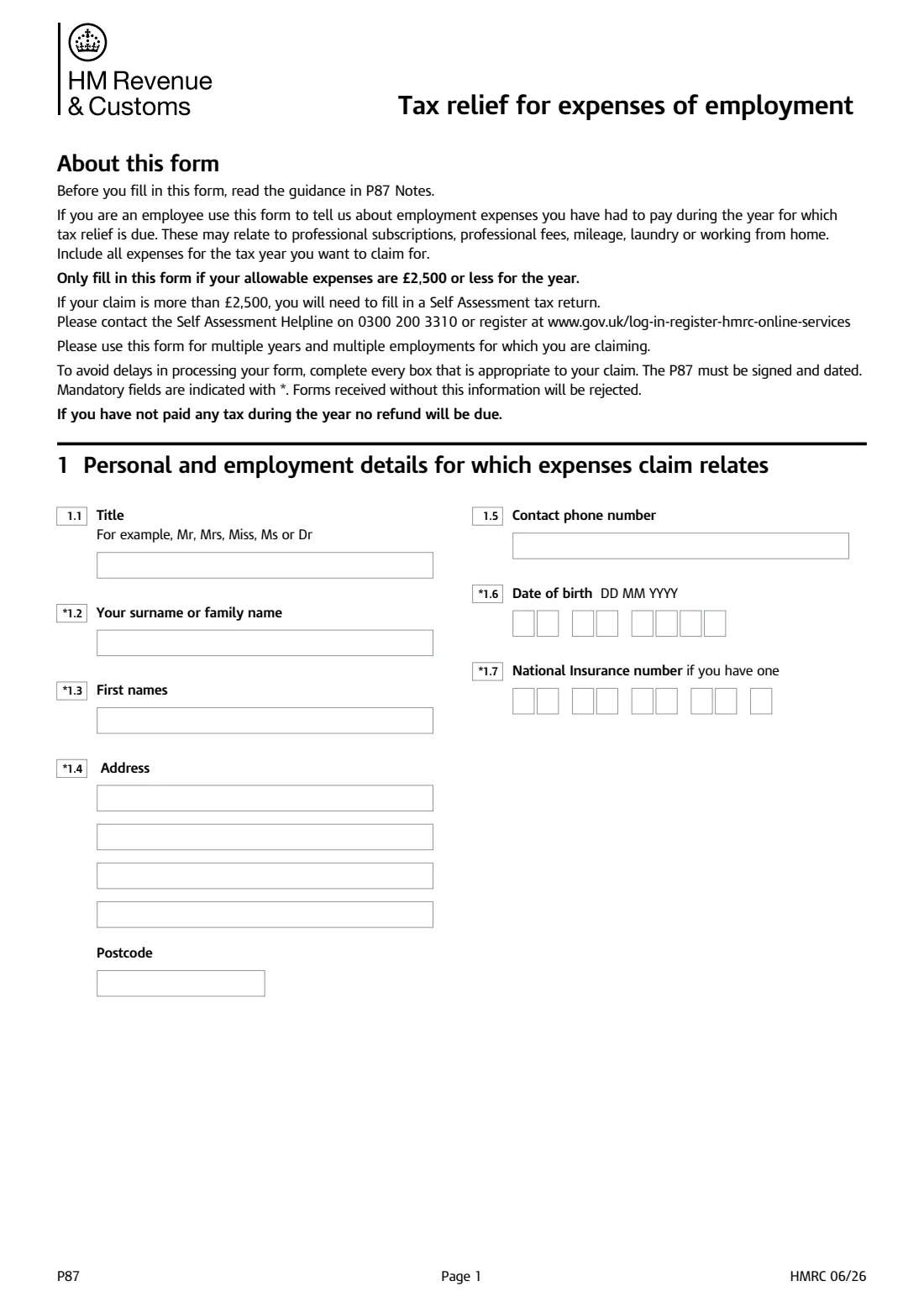
Your title, surname, first names, address, contact phone number, date of birth and National Insurance number. Boxes marked with an asterisk on the form are mandatory and HMRC rejects forms without them. Your NI number helps HMRC find your record quickly, so include it if you have one.
2 2 Employment details
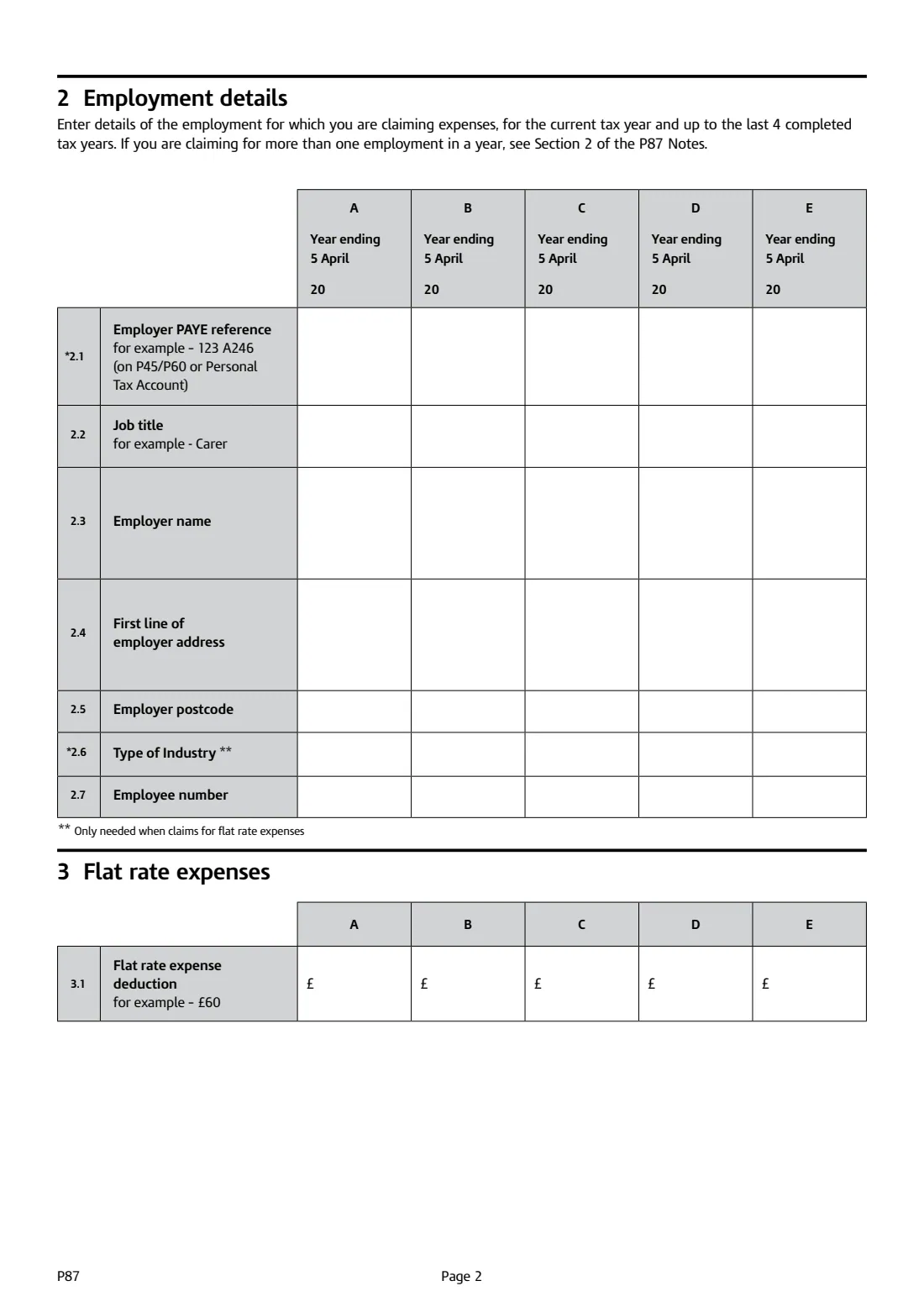
The form has five columns, A to E. Each column is one tax year (year ending 5 April) — or a second employment in the same year. For each, give the employer's PAYE reference, your job title, employer name, first line of address and postcode, and employee number. The type of industry is only needed if you claim flat rate expenses.
3 3 Flat rate expenses
A fixed yearly amount for cleaning, repairing or replacing uniforms, work clothing or tools, set by HMRC for your industry and job — the form's example is £60. You don't need receipts for a flat rate amount; check the right figure on GOV.UK's list of job expenses for uniforms, work clothing and tools, and enter it for each year you had that job.
4 4 Subscriptions to professional bodies
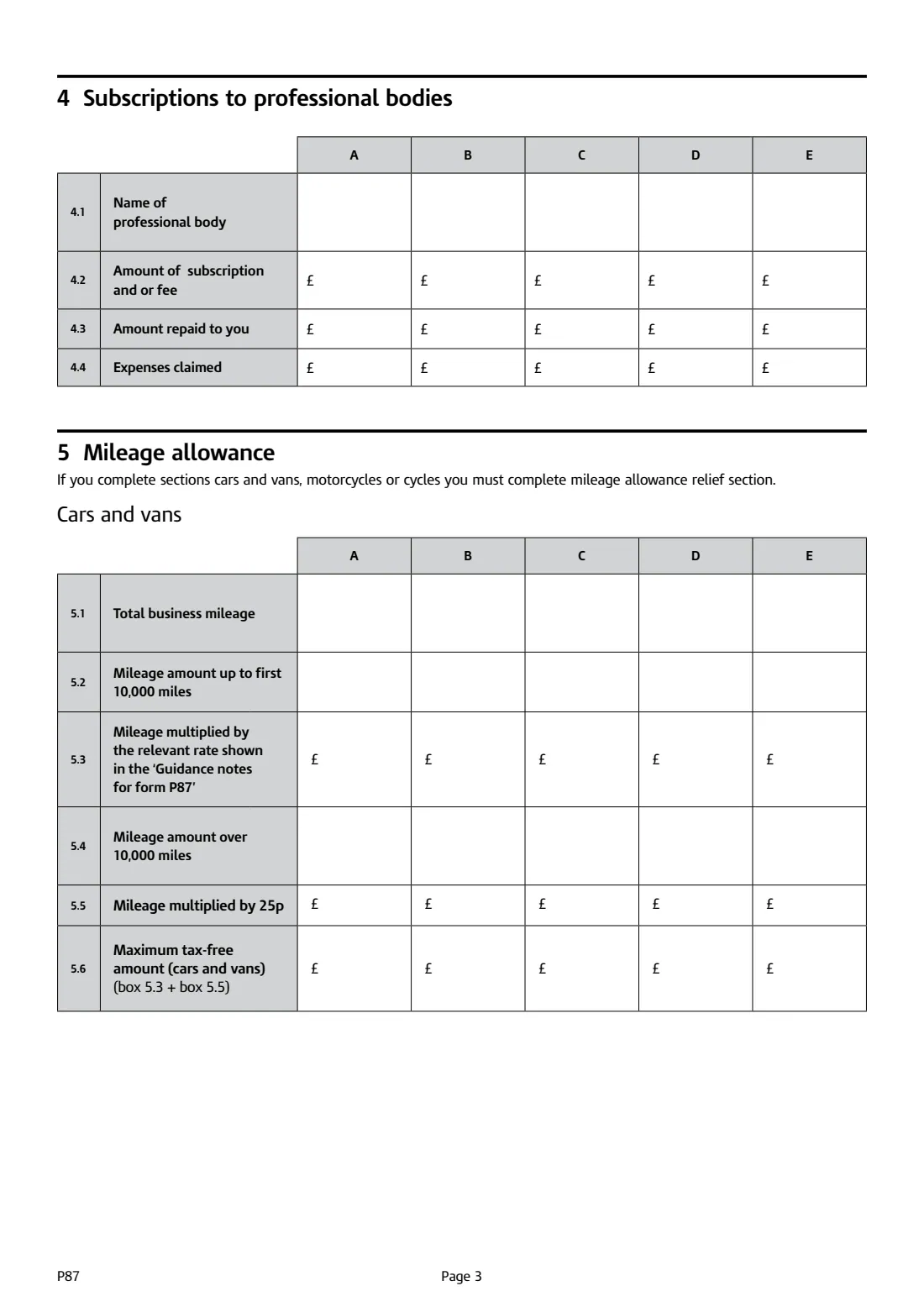
Enter the name of the professional body, the subscription or fee you paid, and anything your employer repaid. Only bodies on HMRC's approved list (List 3) qualify. FileIt works out box 4.4, the amount claimed, as the fee minus the repayment.
5 5 Mileage allowance
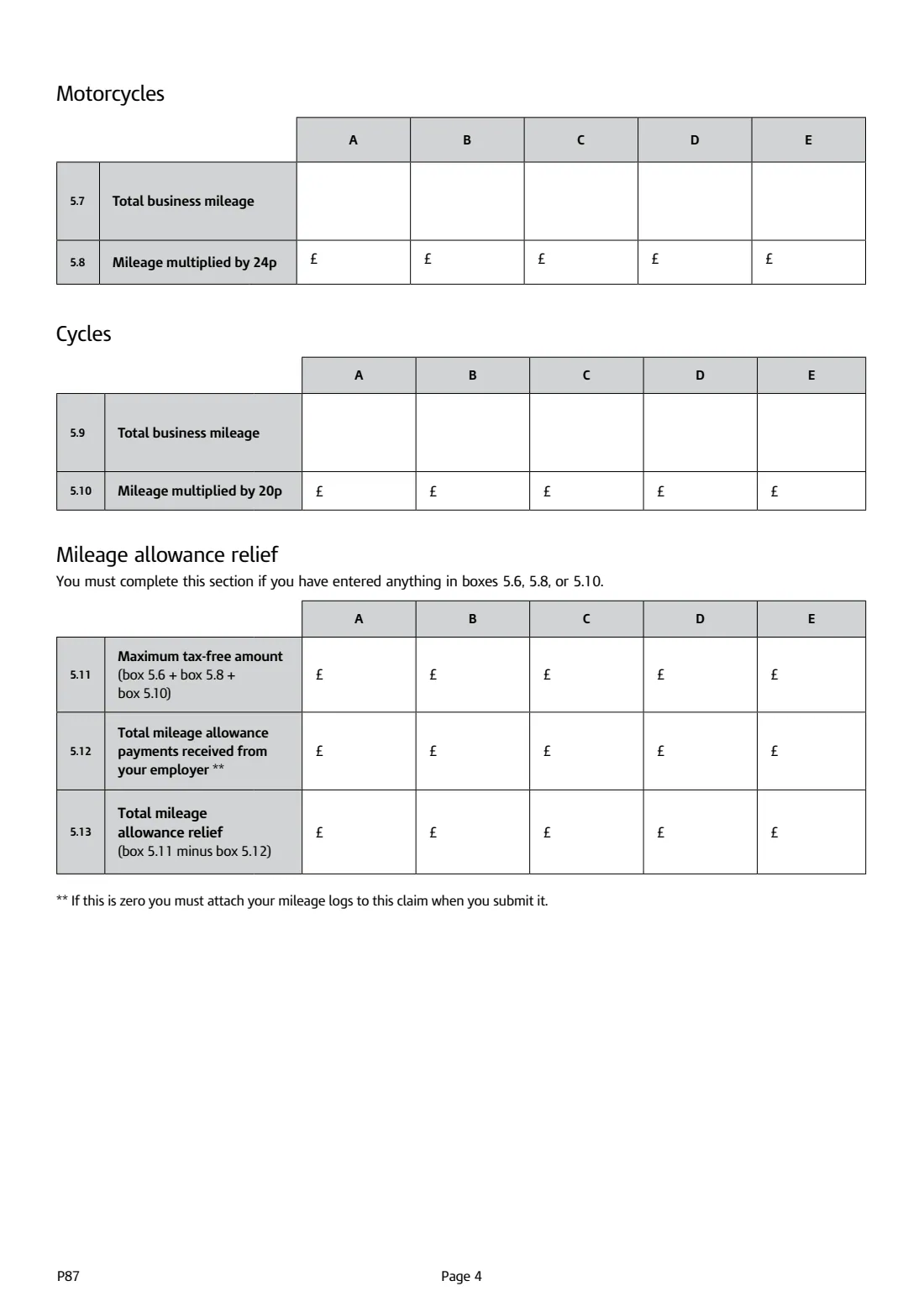
For business journeys in your own vehicle — not your normal commute. For cars and vans, the 06/26 edition uses 45p a mile for the first 10,000 business miles and 25p for miles above that; motorcycles are 24p and bicycles 20p a mile. FileIt splits your miles and does the multiplication for boxes 5.2 to 5.10.
You must then complete the mileage allowance relief part: box 5.11 is the maximum tax-free amount, box 5.12 is what your employer paid you, and box 5.13 is the difference you can claim relief on. If your employer paid nothing, the form asks you to attach your mileage logs.
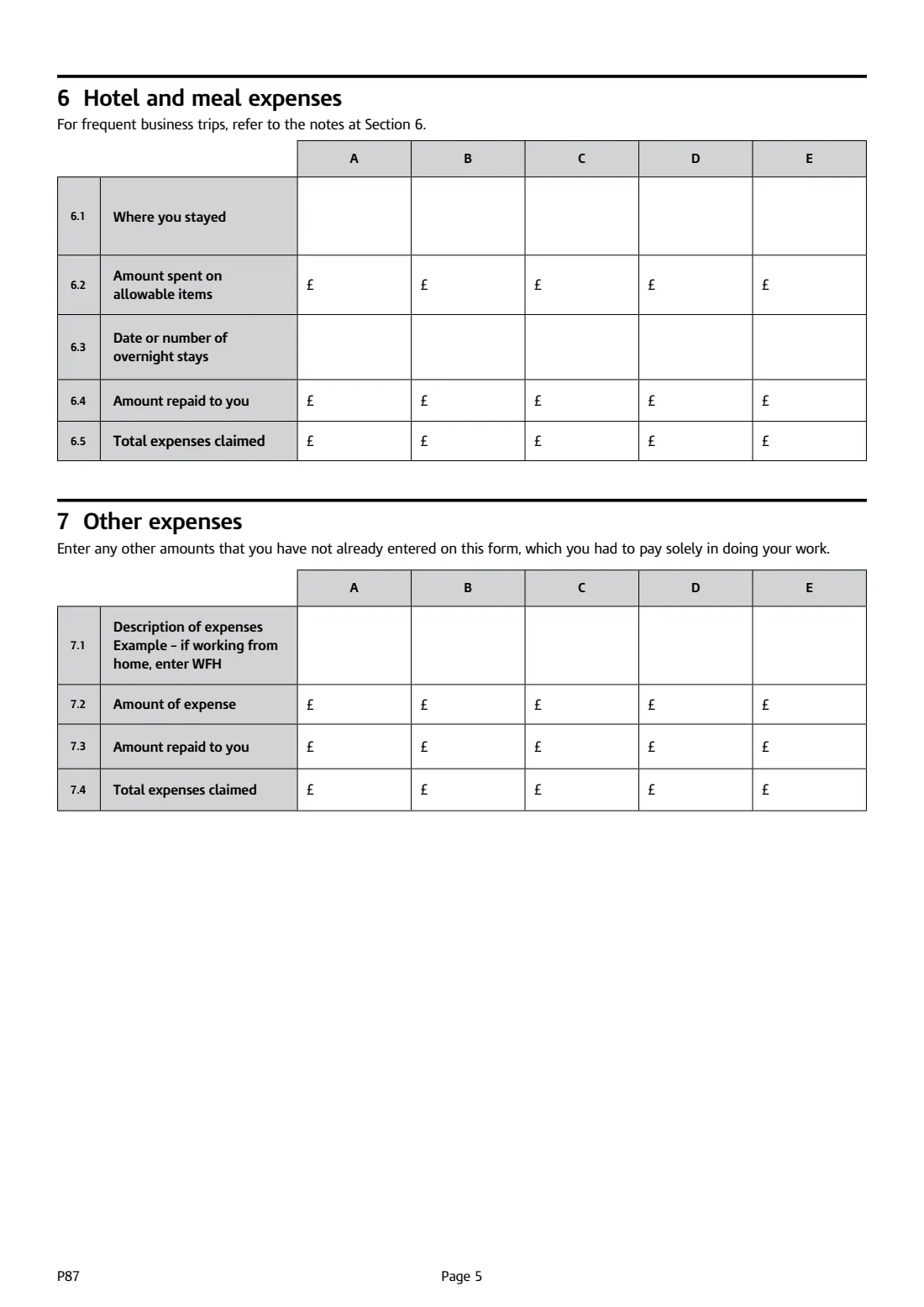
6 6 Hotel and meal expenses
Where you stayed, the amount spent on allowable items, the dates or number of overnight stays, and anything your employer repaid. Box 6.5 is the difference. For frequent business trips, HMRC's P87 notes for section 6 explain how to present the claim.
7 7 Other expenses
Any other cost you had to pay solely in doing your work that isn't entered elsewhere, with the amount and any repayment. If you're claiming for working from home, the form tells you to write WFH as the description.
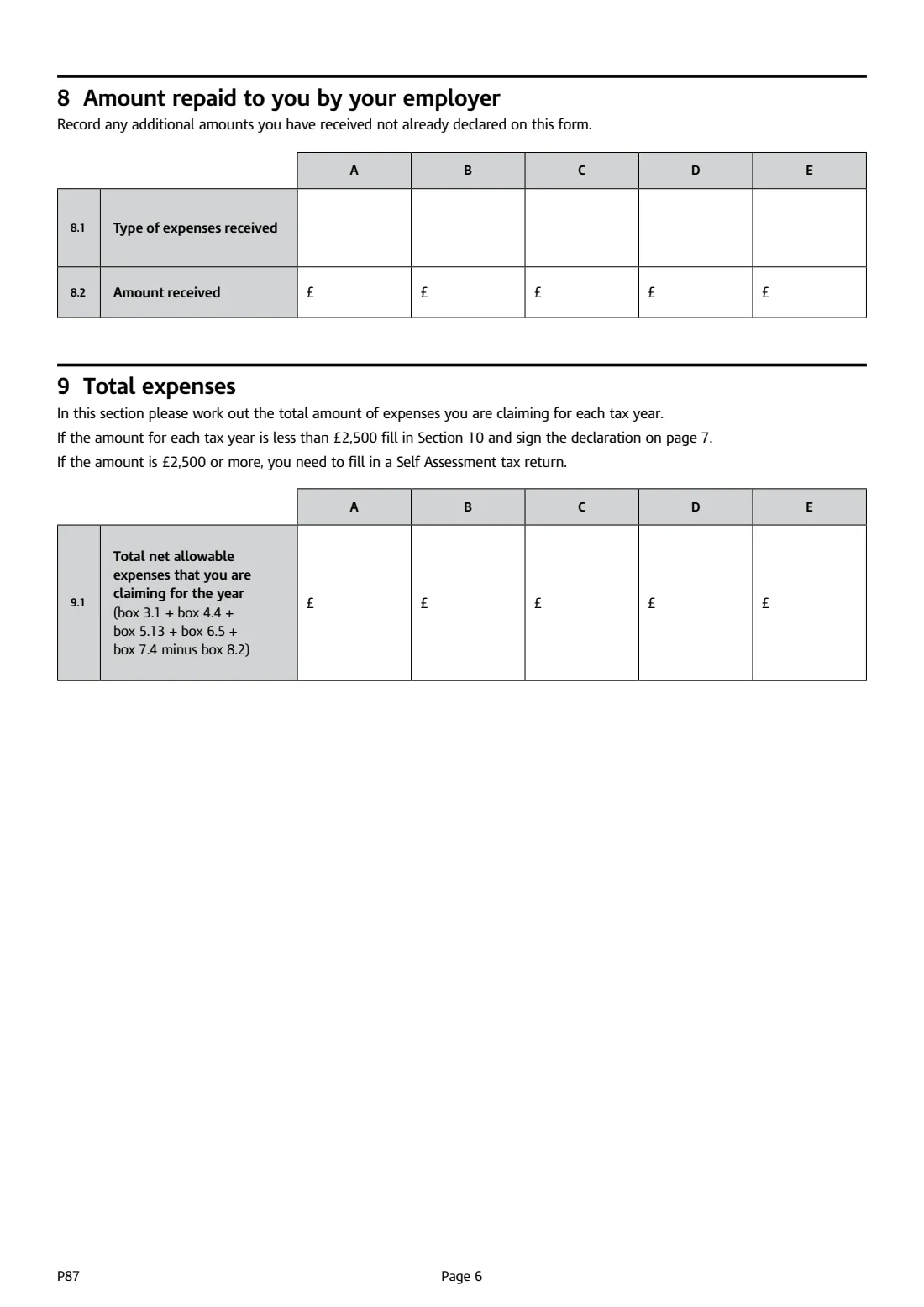
8 8 Amount repaid to you by your employer
Record any further amounts your employer paid towards expenses that you haven't already declared on the form. These reduce your total claim.
9 9 Total expenses
Box 9.1 is the net allowable expenses for each year: flat rate expenses, plus subscriptions claimed, plus mileage allowance relief, plus hotel and meal expenses, plus other expenses, minus amounts in section 8. FileIt calculates it for every column and warns you if any year is over £2,500, when a Self Assessment return is needed instead.
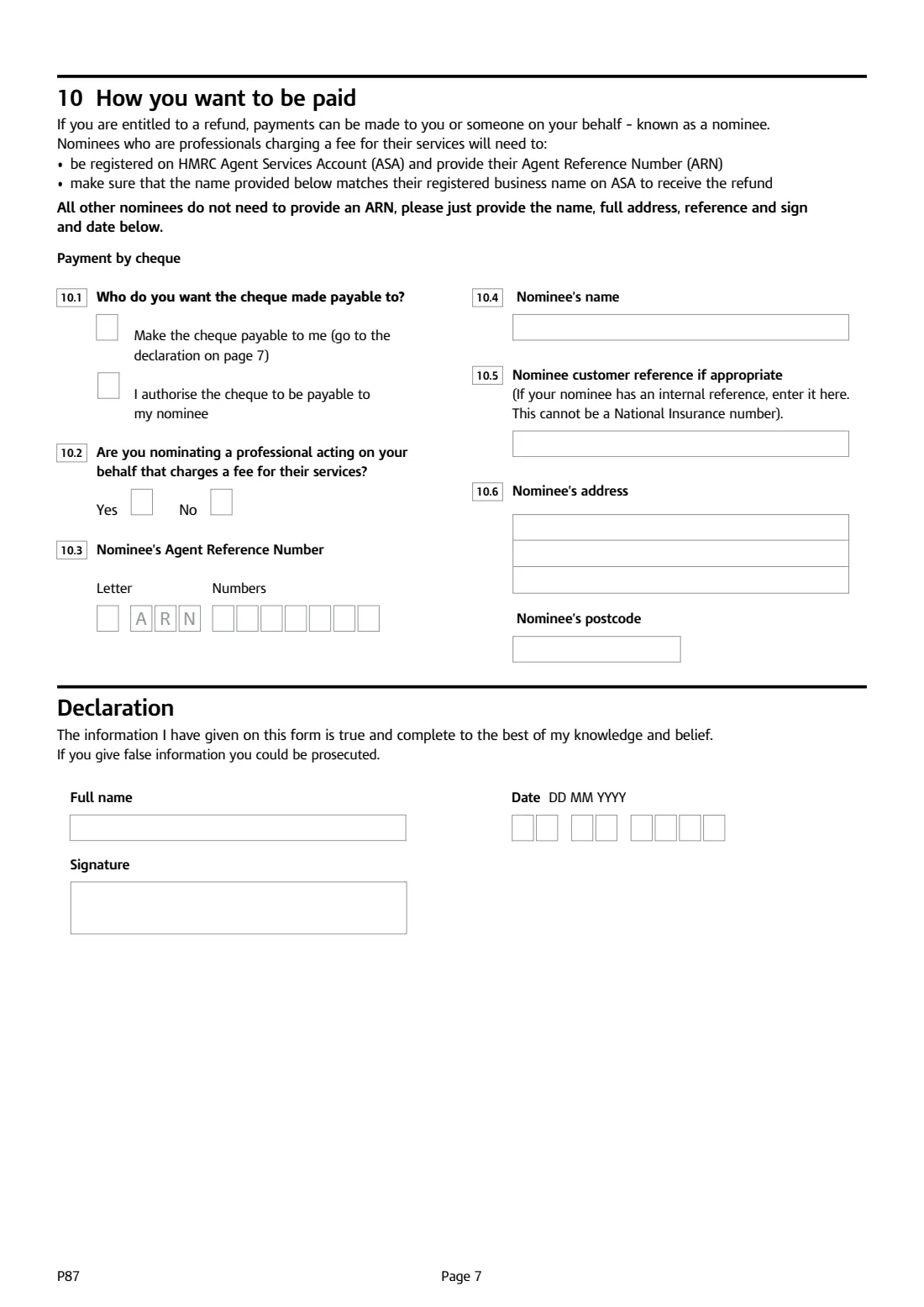
10 10 How you want to be paid
If a refund is due, HMRC pays by cheque — to you or to a nominee. If your nominee is a professional charging a fee, they must be registered on HMRC's Agent Services Account, give their Agent Reference Number (a letter, ARN and seven digits), and the name you give must match their registered business name. Other nominees just need a name, address and any customer reference (which can't be a National Insurance number).
11 Declaration
You confirm the information is true and complete to the best of your knowledge and belief; the form warns that giving false information could lead to prosecution. Print your full name, then sign and date it by hand.
Common mistakes to avoid
- Not signing or dating the form — HMRC says a P87 must be signed and dated and rejects forms without mandatory information.
- Claiming your normal commute as business mileage. Only journeys you make for work count.
- Leaving box 5.12 blank. Enter what your employer paid you for mileage, even if it was zero — and attach your mileage logs if it was.
- Claiming the full amount of a professional fee your employer already repaid. Deduct repayments in each section and in section 8.
- Using a P87 when a year's expenses are over £2,500. That needs a Self Assessment tax return.
- Claiming for a subscription to a body that isn't on HMRC's approved list.
- Putting two different employers in the same column. Use a separate column for each employment in a year.
- Expecting a refund when you paid no tax in that year — the form says none will be due.
After you fill it out
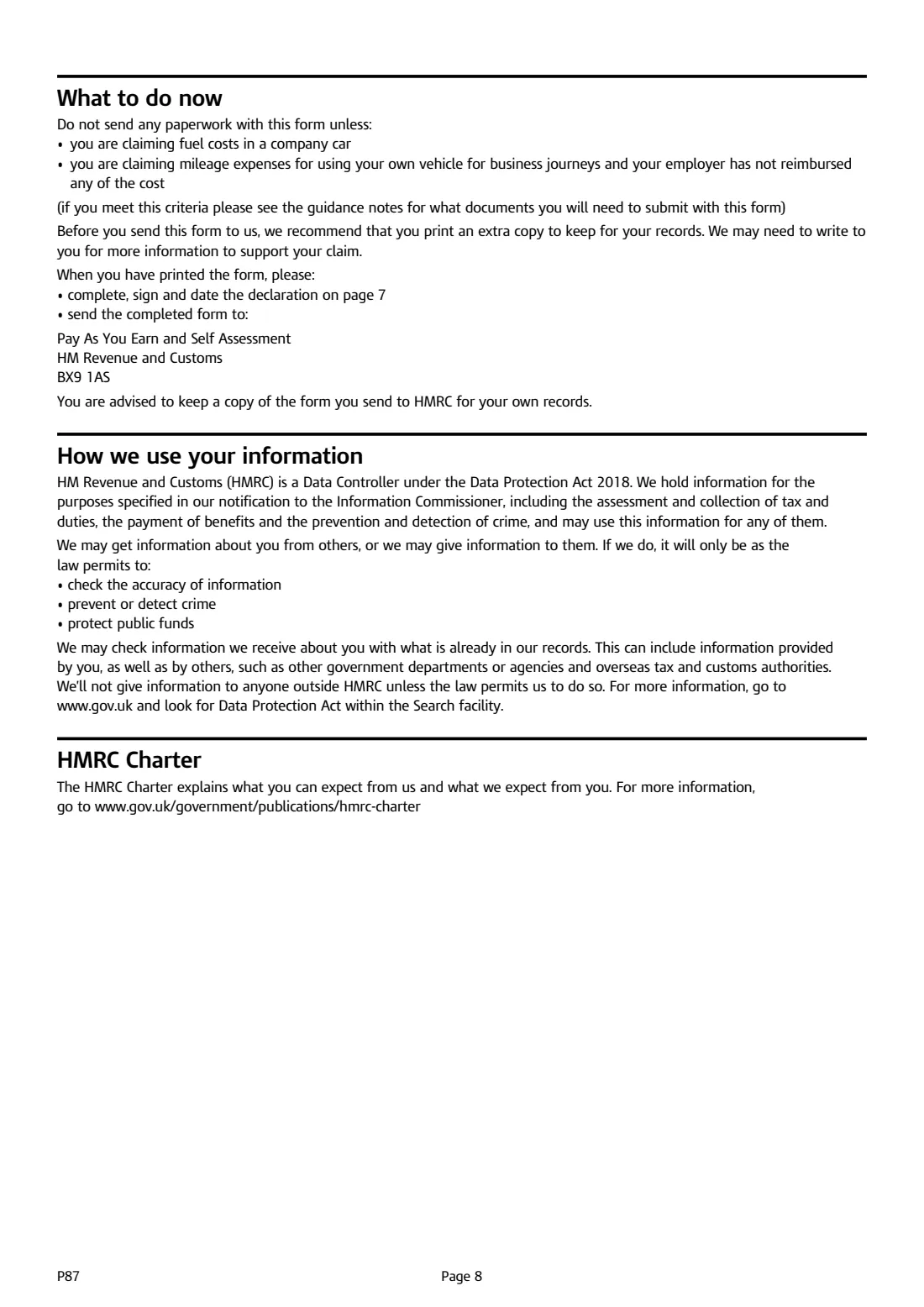
Print the form, check each year's total, then sign and date the declaration on page 7 by hand. Don't send receipts or other paperwork unless you're claiming fuel costs in a company car, or mileage for your own vehicle that your employer didn't reimburse at all — the form lists these as the only cases where you enclose documents.
Post it to the address on the form: Pay As You Earn and Self Assessment, HM Revenue and Customs, BX9 1AS. FileIt never sends the claim for you. HMRC may write to you for more information. Where a refund is due, the form says it is paid by cheque, to you or to the nominee you chose in section 10.
HMRC recommends keeping a copy of the form you send. FileIt saves the completed PDF in your vault, so you can refer back to last year's figures — and your employer details — next time you claim.
Fill out P87 Employment expenses claim online with FileIt
- Pick the person. Choose someone from People and FileIt fills in their name, date of birth, address and other details it already knows.
- Answer plain-language questions. One part of the form at a time, with the official help text beside each question — 214 fields in all. Your answers save as you go.
- Check the live preview. Watch your answers land on the real HM Revenue & Customs (HMRC) form, and let FileIt do any worksheet arithmetic.
- Generate the official PDF. FileIt prints your answers into the agency’s own PDF and files it in that person’s folder in your vault.
FileIt fills the form — it never files or submits anything for you. Deliver the finished form to whoever asked for it, the way the form’s instructions say.
Start P87 Employment expenses claim now — it’s freeP87 Employment expenses claim: frequently asked questions
What is a P87 form?
The P87 is HMRC's form for employees to claim Income Tax relief on employment expenses they paid themselves, such as uniform costs, professional subscriptions, business mileage and working from home. It's for claims of £2,500 or less per tax year.
How many years can I claim back on a P87?
The current tax year and up to the last 4 completed tax years. Use a separate column (A to E) for each year, or for a second employment in the same year.
Where do I send a P87?
Post it to Pay As You Earn and Self Assessment, HM Revenue and Customs, BX9 1AS, as printed on the form. FileIt prepares the PDF, but you post it yourself.
Can I fill in the P87 online?
Yes. FileIt lets you complete the P87 online for free, calculates the mileage and total boxes for each year, and prints it into HMRC's official PDF. You then sign it by hand and post it. HMRC also has its own online claim service.
Will I get back everything I spent?
No. Tax relief reduces the tax you pay on the expense, so what you receive depends on the rate of tax you pay. If you paid no tax in a year, no refund is due for it.
What if my expenses are more than £2,500?
The P87 says that if your allowable expenses are more than £2,500 for the year, you need to fill in a Self Assessment tax return instead.
Do I need receipts for a P87 claim?
Don't send them unless you're claiming fuel costs in a company car or mileage your employer didn't reimburse at all. Keep your receipts and records, though, as HMRC may ask for more information. Flat rate expenses don't need receipts.
How do I claim working from home expenses on a P87?
Use section 7, 'Other expenses', and write WFH as the description, with the amount and anything your employer repaid. Check GOV.UK for the current rules on who can claim.
What mileage rates does the P87 use?
The 06/26 edition works out cars and vans at 45p a mile for the first 10,000 business miles and 25p after that, motorcycles at 24p and bicycles at 20p. Your claim is the difference between that and what your employer paid you.
Official sources
- Blank form (PDF), published by HM Revenue & Customs (HMRC): https://assets.publishing.service.gov.uk/media/6a3a649433bc5beefd3c4772/P87.pdf
- Official instructions and guidance: https://www.gov.uk/guidance/send-an-income-tax-relief-claim-for-job-expenses-by-post-or-phone
- Edition shown on this page: HMRC 06/26 (checked 2026-09-25).
FileIt is not affiliated with or endorsed by HM Revenue & Customs (HMRC) or any government. This page explains the form in general terms and is not legal, tax or immigration advice. Always read the official instructions, and check that you are using the edition the recipient accepts. Page last reviewed 2026-09-25.